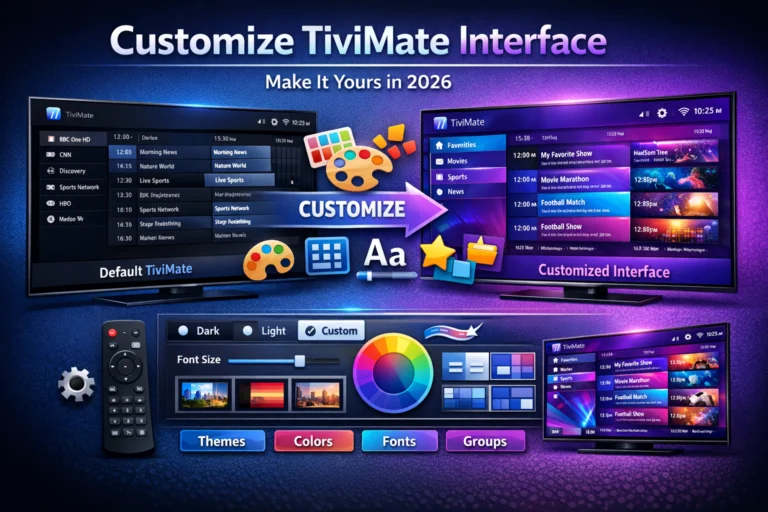
Customize TiviMate interface to match your viewing preferences and create a personalized streaming experience that feels uniquely yours. Out of the box, TiviMate looks great, but the real magic happens when you tailor the interface to your exact needs.
After helping hundreds of users personalize their TiviMate setups, I’m sharing the complete customization guide covering themes, layouts, colors, fonts, channel organization, and dozens of visual tweaks that transform TiviMate from a standard IPTV player into your perfect entertainment hub.
Table of Contents
Why Customize TiviMate Interface?
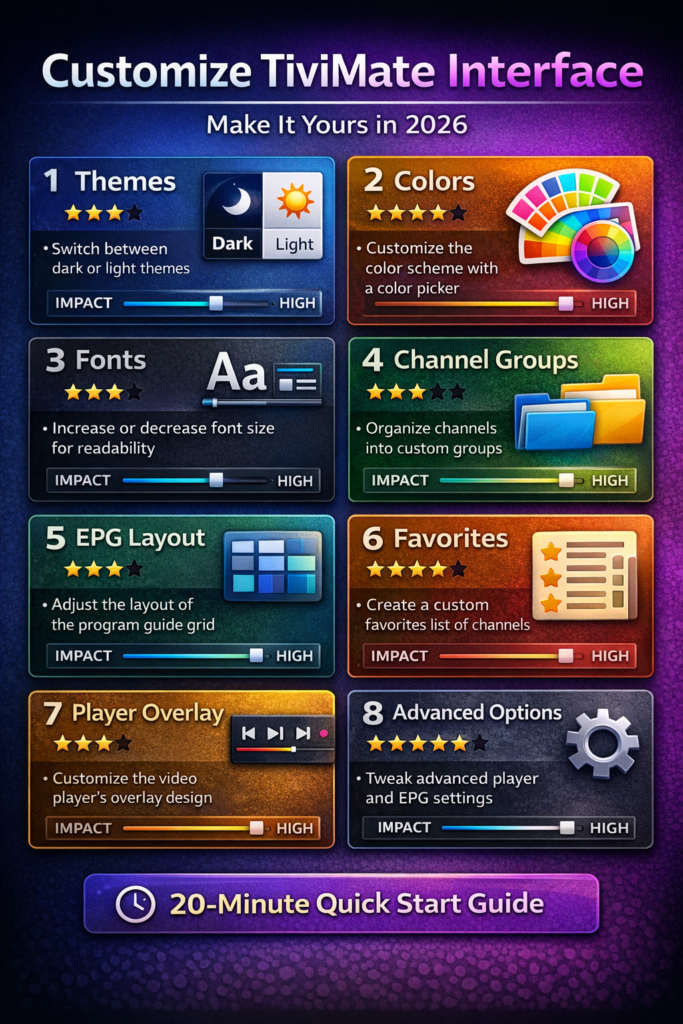
Before diving into customization options, understand why personalizing TiviMate improves your streaming experience dramatically.
Visual Comfort Default color schemes may strain eyes during extended viewing. Customizing brightness, contrast, and colors reduces eye fatigue during long streaming sessions.
Personal Preferences Everyone consumes content differently. Sports fans need different layouts than movie watchers. Parents want kid-friendly interfaces. Customization accommodates all viewing styles.
Improved Navigation Organizing channels and categories logically for your habits makes finding content faster. Custom groups and favorites eliminate scrolling through hundreds of irrelevant channels.
Screen Optimization Different TVs display interfaces differently. Customizing font sizes, icon sizes, and layout ensures perfect visibility on your specific screen size and resolution.
Aesthetic Satisfaction Using an interface that reflects your style makes streaming more enjoyable. Dark themes, light themes, custom colors choose what makes you happy.
The default TiviMate looks professional, but customization transforms it into YOUR perfect IPTV player.
Accessing TiviMate Settings
All customization options live within TiviMate’s settings menu. Understanding the settings structure helps you navigate customization efficiently.
Opening Settings:
- Launch TiviMate on your device
- Press Menu/Options button on remote
- Select Settings from main menu
- Browse customization categories
Settings Categories Overview:
General Settings Language, startup behavior, navigation style, and global interface preferences.
Appearance Themes, colors, fonts, transparency, and visual elements. This is where most customization happens.
Player Settings Video player interface, controls, overlay information, and playback preferences.
Playlist Settings Channel organization, EPG configuration, and content management per playlist.
Favorites and Groups Custom channel collections and category organization.
Familiarizing yourself with settings categories before making changes prevents confusion and helps you find specific customization options quickly.
Choosing and Applying Themes
Themes provide instant interface transformations with coordinated colors, layouts, and visual elements. This is the fastest way to customize TiviMate interface dramatically.
Built-in Theme Options:
Dark Theme (Default) Black backgrounds with white text. Easy on eyes in dark rooms. Minimizes screen glare. Best for evening viewing and theater-style setups.
Light Theme White backgrounds with dark text. Better visibility in bright rooms. Suits daytime viewing. Reduces contrast in well-lit environments.
Custom Themes Mix and match colors, backgrounds, and elements. Create unique appearances matching your preferences exactly.
Applying Themes:
- Go to Settings > Appearance
- Select Theme option
- Choose Dark, Light, or Custom
- Changes apply immediately
- Exit settings to see full interface
Theme Customization Tips:
Match your viewing environment. Use dark themes in dedicated theater rooms, light themes in family rooms with windows.
Consider screen type. OLED TVs benefit from dark themes preventing burn-in. LCD screens display light themes better in bright rooms.
Test at different times. What looks good during day may strain eyes at night. Find compromise or switch themes based on viewing time.
Themes provide foundation for deeper customization. Start with themes, then fine-tune individual elements.
Customizing Colors and Transparency
Beyond themes, individual color customization lets you customize TiviMate interface precisely. Every interface element supports color and transparency adjustments.
Customizable Color Elements:
Background Colors Main menu backgrounds, EPG backgrounds, player overlay backgrounds. Adjust opacity for see-through effects over playing video.
Text Colors Channel names, program titles, descriptions, menu items. Ensure sufficient contrast for readability.
Accent Colors Highlights, selections, focus indicators, and interactive elements. Make navigation visually clear.
Channel Logo Backgrounds Transparency behind channel logos. Fully transparent shows logos cleanly, opaque adds colored backgrounds.
EPG Grid Colors Past programs, current programs, future programs. Color-code timeline for quick program identification.
Changing Colors:
- Navigate to Settings > Appearance > Colors
- Select element to customize
- Choose color from picker or enter hex code
- Adjust transparency slider (0-100%)
- Preview changes in real-time
- Apply when satisfied
Color Combination Tips:
High contrast is essential. Light text on dark backgrounds or dark text on light backgrounds. Avoid mid-tone combinations causing eye strain.
Limit color palette. Use 2-3 main colors plus neutral tones. Too many colors create visual chaos.
Consider color blindness. Avoid red/green combinations as sole differentiators. Use blue/yellow or high-contrast alternatives.
Test on your TV. Colors appear differently on various displays. What looks good on phone may overwhelm on 65″ TV.
Color customization requires experimentation. Save combinations you like for quick switching between styles. For more interface tips, check my IPTV player guide 2026.
Adjusting Font Sizes and Styles
Text readability dramatically impacts usability. Customize TiviMate interface fonts ensuring comfortable viewing from your typical seating distance.
Font Customization Options:
Global Font Size Master control affecting all text throughout interface. Small, Medium, Large, Extra Large options available.
EPG Font Size Separate control for Electronic Program Guide text. Shows densely packed information benefiting from independent sizing.
Channel List Font Text size for channel names in lists. Important for quick channel identification when browsing.
Menu Font Size Settings menus and navigation text. Less critical since used less frequently than EPG and channels.
Font Weight Regular or Bold options. Bold improves readability at distance but consumes more screen space.
Setting Font Preferences:
- Open Settings > Appearance > Font
- Adjust Global Font Size slider first
- Fine-tune EPG Font Size separately
- Test channel list readability
- Adjust until comfortable from viewing distance
Font Size Guidelines:
Viewing distance matters. Sitting 10 feet from 55″ TV requires larger fonts than 5 feet from 32″ screen.
Start larger than expected. Fonts appearing perfect up close may be too small from couch. Test at actual viewing distance.
Prioritize EPG legibility. You’ll spend significant time browsing program guide. Ensure comfortable reading without squinting.
Account for vision needs. If multiple household members use TiviMate, choose sizes comfortable for everyone including those with vision challenges.
Proper font sizing eliminates the most common interface complaint “text too small to read.” Get this right early.
Organizing Channels with Custom Groups
Channel organization transforms chaotic channel lists into logical, easily-browsable categories. This customization saves more time than any visual tweak.
Creating Channel Groups:
- Go to Settings > Playlists > [Your Playlist]
- Select Groups
- Tap Create New Group
- Name your group (Sports, Movies, Kids, News, etc.)
- Add channels to group
- Repeat for additional groups
Smart Group Organization Strategies:
By Content Type Create groups for Sports, Movies, Series, News, Documentaries, Kids. Find content by category instead of scrolling alphabetically.
By Language English, Spanish, French groups for multilingual households. Family members quickly access content in their language.
By Network Group channels by broadcaster (HBO, ESPN, Discovery). Useful for fans of specific network programming.
By Family Member Create groups for each person’s favorite channels. Kids’ group, Dad’s sports group, Mom’s shows group.
By Viewing Time Morning news group, evening entertainment group, late-night movies group. Access appropriate content for time of day.
Managing Channel Groups:
Reorder groups by dragging in settings. Put frequently-used groups first for faster access.
Hide unwanted groups temporarily without deleting. Reduces clutter when certain categories aren’t needed.
Color-code groups with custom icons or colors. Visual differentiation speeds navigation.
Update groups regularly as viewing habits change. Add new channels to appropriate groups, remove dead channels.
Channel groups are the single most valuable customization improving daily TiviMate usage. Invest time organizing thoughtfully.
Creating and Managing Favorites
Favorites provide instant access to most-watched channels without browsing groups or full channel lists. Every TiviMate user should utilize favorites.
Adding Channels to Favorites:
Method 1 – From Channel List:
- Browse to desired channel
- Long-press OK/Select on channel
- Choose Add to Favorites
- Channel marked with star icon
Method 2 – While Watching:
- Play any channel
- Press Menu button
- Select Add to Favorites
- Confirmation appears
Method 3 – Bulk Adding:
- Go to Settings > Favorites
- Select Add Multiple Channels
- Check desired channels
- Confirm selection
Organizing Favorites:
Reorder favorites by priority. Most-watched channels at top, occasional channels at bottom.
Create favorite folders for different favorite types. Sports favorites, news favorites, movie channel favorites.
Remove unused favorites regularly. Lists get cluttered as viewing habits change.
Quick Access to Favorites:
Configure remote button for instant favorites access. One button press shows favorite channels regardless of current location in menus.
Enable Favorites as default startup view. TiviMate opens directly to favorite channels every launch.
Favorites combined with groups create ultimate channel navigation efficiency. Most users access 80% of content from 20% of channels favorites optimize for this reality.
Customizing the EPG (Electronic Program Guide)
The EPG is TiviMate’s most-used interface element. Extensive customization options optimize program guide for your viewing style.
EPG Layout Options:
Timeline Duration Choose how many hours EPG displays: 2, 4, 6, or 12 hours. Shorter spans show more detail, longer spans help planning viewing.
Row Height Adjust channel row spacing. Taller rows display more program information but show fewer channels simultaneously.
Column Width Time slot width affects information density. Wider columns show full program titles, narrower fits more time on screen.
Grid Lines Enable/disable dividing lines between channels and time slots. Lines improve navigation but reduce content space.
EPG Visual Customization:
Past Program Colors Distinguish already-aired shows from future programs. Gray out or color differently for clear timeline visualization.
Current Program Highlight Bold borders, bright colors, or backgrounds emphasize currently-playing programs. Quick identification of “what’s on now.”
Recording Indicators Symbols showing scheduled recordings, in-progress recordings, and completed recordings. Never miss scheduled content.
Catch-Up Indicators Icons marking programs available for catch-up viewing. Identifies on-demand content within EPG.
EPG Information Display:
Show Episode Numbers Display S01E05 format for series episodes. Helps track viewing progress in long series.
Rating/Genre Tags Content ratings (PG, R, TV-14) and genre labels (Drama, Comedy, Action). Quick content filtering.
Program Descriptions Full descriptions, brief summaries, or hidden. Balance information richness with screen space.
Learn more about EPG setup in my guide on adding EPG to TiviMate.
Customizing Player Interface and Overlay
The video player interface appears while watching content. Customization here ensures controls and information appear exactly as needed without obscuring video.
Player Overlay Elements:
Information Bar Channel name, program title, time remaining. Configure position (top or bottom), size, and auto-hide timing.
Control Icons Play/pause, rewind, fast-forward button visibility and size. Balance accessibility with minimal video obstruction.
Channel Logo Station logo overlay position and size. Place in corner or hide entirely during playback.
Recording Indicator Shows when recording active. Customize icon and position ensuring awareness without distraction.
Subtitle Position Adjust closed caption placement avoiding important video areas. Particularly important for sports score overlays.
Overlay Customization Settings:
- Navigate to Settings > Player
- Select Overlay Configuration
- Adjust each element individually
- Set auto-hide timers for temporary elements
- Test with actual content
Overlay Behavior Options:
Auto-Hide Duration How long information displays before fading. Shorter (3-5 seconds) reduces distraction, longer (10-15 seconds) helps channel surfing.
Gesture Controls Swipe actions for volume, seeking, and navigation. Enables remote-free control via screen touches (mobile devices).
Button Transparency Make control buttons semi-transparent during display. Maintains video visibility while showing controls.
Mini EPG Small program guide accessible during playback. Browse upcoming shows without leaving current channel.
Proper player customization balances information access with unobstructed viewing. Minimize overlay time while maximizing usability.
Advanced Interface Tweaks
Beyond basic customization, TiviMate offers advanced options for users wanting complete interface control.
Startup Behavior:
Configure which screen TiviMate opens to:
- Last viewed channel (resume watching)
- Favorites list (quick access)
- Full channel guide (browse options)
- Specific channel (morning news, for example)
Navigation Style:
Remote Button Mapping Assign functions to remote buttons. Quick access to favorites, groups, recordings, or settings from any screen.
Animation Speed Adjust transition animations between screens. Faster feels responsive, slower provides visual continuity.
Scrolling Behavior Continuous scrolling or page-by-page navigation. Personal preference based on remote control style.
List Styles:
Channel List Layout Grid view (logos only), list view (names + logos), or compact list (names only). Affects how many channels appear simultaneously.
Thumbnail Sizes Channel logos and program thumbnails sizing. Larger improves recognition, smaller fits more on screen.
Channel Number Display Show or hide channel numbers beside names. Useful for traditional TV viewers accustomed to number-based navigation.
Visual Effects:
Blur Backgrounds Blur video playback when menus overlay. Reduces distraction during menu navigation.
Shadow Effects Drop shadows on text and buttons. Improves readability over varying backgrounds.
Highlight Animations Moving highlights, pulsing indicators, or static selections. Balance personality with professionalism.
Advanced tweaks are optional but help power users optimize every interaction detail. For more optimization, explore TiviMate Premium features.
Saving and Restoring Custom Settings
After investing time customizing TiviMate interface, protect your configuration with backups. TiviMate Premium includes settings backup functionality.
Creating Settings Backup:
- Go to Settings > General
- Select Backup Settings
- Choose backup location (internal or external storage)
- Name backup file descriptively
- Confirm creation
Restoring Settings:
- Open Settings > General
- Select Restore Settings
- Browse to backup file location
- Select backup to restore
- Confirm restoration (overwrites current settings)
Backup Strategy:
Create baseline backup after completing initial customization. Restore if experiments go wrong.
Regular backups monthly or after significant changes. Protects against accidental resets.
Multiple backups for different configurations. Family-friendly daytime setup vs. personal evening setup.
Export to computer for permanent safekeeping. Device failures won’t destroy careful customization work.
Backups are lifesavers when devices need factory resets or when trying experimental customizations. Always maintain current backup of working configuration.
Troubleshooting Customization Issues
Sometimes customizations cause unexpected problems. Here’s how to fix common issues.
Problem: Interface elements overlapping or cut off
Font sizes or element sizes too large for screen resolution. Reduce sizes incrementally until proper fit. Check TV overscan settings disable overscan for accurate interface display.
Problem: Text unreadable due to color choices
Insufficient contrast between text and background. Increase contrast or choose high-contrast color combinations. Test colors on actual TV, not just phone.
Problem: Changes not saving
Ensure you’re confirming changes before exiting settings. Some options require explicit Save button press. Check if using TiviMate Premium some customizations require subscription.
Problem: Interface sluggish after customization
Too many visual effects or high-resolution backgrounds. Disable animations and effects. Reduce transparency effects consuming processing power.
Problem: Lost all customizations after update
Settings sometimes reset during major updates. Restore from backup if available. Document favorite customizations for quick recreation.
For broader troubleshooting help, my TiviMate buffering guide covers general performance issues.
Final Thoughts on Interface Customization
Learning how to customize TiviMate interface transforms generic IPTV player into personalized entertainment center perfectly suited to your needs. From themes and colors to channel organization and player overlays, every element bends to your preferences.
Start with major changes like themes and channel groups providing immediate impact. Gradually refine details like fonts, colors, and overlay behavior until interface feels perfectly yours.
The default TiviMate interface works fine, but customized TiviMate works brilliantly. Invest an hour personalizing your setup and enjoy the results every time you stream.
For more TiviMate optimization guides and IPTV streaming tips, explore my comprehensive resources starting with what is TiviMate and the complete IPTV player guide 2026.