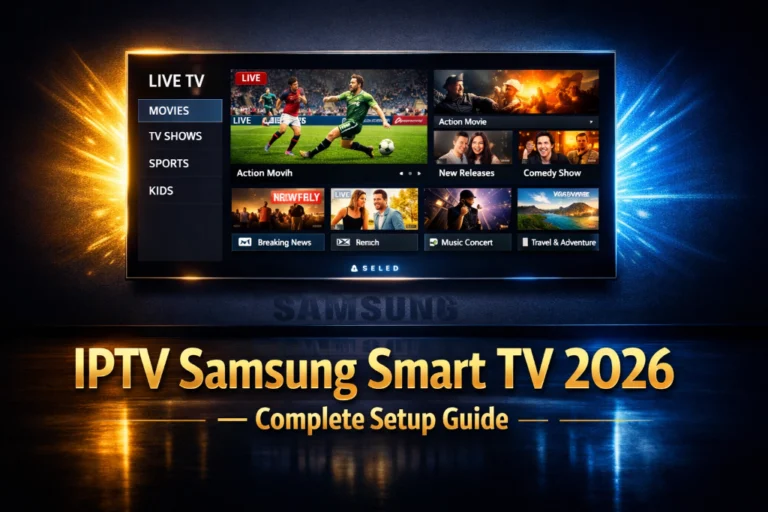
IPTV Samsung Smart TV 2026 is the setup that millions of Samsung television owners are discovering as they realise their Smart TV is capable of running a complete IPTV service without any additional hardware, without a Firestick plugged into the back, and without an Android box sitting beneath it. Your Samsung television is already a powerful streaming device. Adding IPTV to it takes five minutes and unlocks thousands of live channels, sports, and a VOD library that makes Netflix look limited by comparison.
Samsung Smart TVs running the Tizen operating system in 2026 are more capable IPTV devices than they have ever been. Faster processors, more RAM, and a mature app ecosystem that includes dedicated IPTV applications mean that the native Samsung IPTV experience now rivals what dedicated streaming devices delivered three years ago in terms of stream quality, EPG accuracy, and channel switching speed.
This guide covers every step of the IPTV Samsung Smart TV 2026 setup process across every compatible Samsung model, every available app option, and every common issue that arises during setup so you reach your first live channel without getting stuck at any point in the process.
IPTV Samsung Smart TV 2026 setup takes under five minutes. Open the Samsung App Store through Smart Hub, search for IPTV Smarters Pro or SS IPTV, install your chosen app, open it, select Add User, enter your Xtream Codes credentials from your IPTV provider, and press Add User to load your full channel library. No Firestick, no Android box, no external device of any kind is required. Your Samsung television streams live TV, sports, and VOD directly from its own hardware within minutes of starting the setup.
Table of Contents
Which Samsung Smart TVs Support IPTV in 2026
Not every Samsung television model from every year supports the same IPTV apps in 2026, and confirming your model’s compatibility before starting the setup process saves you from discovering a limitation after you have already subscribed and paid.
Samsung Smart TVs from 2017 onwards running Tizen OS 3.0 and above support IPTV Smarters Pro and SS IPTV through the Samsung App Store. This covers the vast majority of Samsung televisions currently in use in households worldwide. If your Samsung television was manufactured in 2017 or later and connects to your home WiFi without issues, it almost certainly supports at least one quality IPTV application through its native app store.
Samsung televisions from 2020 onwards running Tizen OS 5.5 and above deliver a noticeably better IPTV experience than older models because their faster processors handle large channel library loading, real-time EPG data, and rapid channel switching more smoothly. If you own a 2020 or newer Samsung television, you can expect IPTV performance that matches or approaches what a dedicated Firestick or Android box delivers.
Samsung QLED and Neo QLED models from 2021 onwards add 4K HDR IPTV support at the native level, meaning 4K streams from a quality IPTV provider display at their full resolution and HDR colour range without any additional hardware processing. The television’s own display processor handles the 4K HDR decoding and tone mapping that delivers the best possible picture quality from your IPTV subscription directly through the native app.
Older Samsung Smart TVs from 2015 and 2016 running earlier Tizen versions may not find IPTV Smarters Pro or SS IPTV in their app store due to compatibility requirements. These models can still access IPTV through the Smart IPTV app which has broader compatibility across older Tizen versions, though the feature set is more limited than the newer apps available on current Samsung firmware.
Before starting your IPTV Samsung Smart TV setup, confirm you have an active IPTV subscription or trial credentials. The fastest way to get credentials without spending anything is to request a free 24-hour IPTV trial with no credit card required and receive your Xtream Codes details within minutes.
Best IPTV Apps for Samsung Smart TV 2026
Samsung Smart TVs access apps through the Tizen App Store within Smart Hub, and the selection of quality IPTV apps available on this platform has expanded significantly in 2026 compared to what was available just two years ago.
IPTV Smarters Pro is the strongest IPTV app available in the Samsung Tizen App Store in 2026. It supports full Xtream Codes API connections that unlock live TV, VOD library browsing, series sections, catch-up TV, and real-time EPG data all within a single unified interface. The Samsung version of Smarters is optimised for remote navigation with large touch targets, clear text at television viewing distances, and a tab-based navigation structure that works naturally with the Samsung One Remote without requiring precise directional button presses to hit small interface elements.
SS IPTV is the second strongest option for Samsung Smart TV and holds a specific advantage over IPTV Smarters in one important area. Its interface was designed exclusively for Smart TV use rather than adapted from a mobile application, which gives it a more television-native feel during daily channel browsing. SS IPTV supports both Xtream Codes and M3U connections and includes an external EPG URL feature that allows power users to supplement their provider’s built-in EPG with additional programme guide data sources.
Smart IPTV is a long-established Samsung app that offers the broadest compatibility across older Tizen versions and supports M3U playlist loading with external EPG URL integration. It does not support Xtream Codes natively which means VOD library access requires using the provider’s web interface rather than being integrated into the app. For subscribers using M3U-only providers or older Samsung models where Smarters is not available, Smart IPTV remains a reliable fallback option.
| App | Samsung Store | Xtream Codes | VOD Access | EPG Quality | Tizen Version | Best For |
|---|---|---|---|---|---|---|
| IPTV Smarters Pro | Yes | Yes | Full | Very Good | 3.0 and above | All users |
| SS IPTV | Yes | Yes | Good | Good | 3.0 and above | Remote-first users |
| Smart IPTV | Yes | No | M3U only | Good | 2.4 and above | Older Samsung TVs |
Complete IPTV Samsung Smart TV 2026 Setup Guide
The complete IPTV Samsung Smart TV setup 2026 process using IPTV Smarters Pro takes under five minutes from pressing the Home button to watching your first live channel. Every step is explained in the exact sequence it needs to happen with no assumptions about prior IPTV or Smart TV experience.
Step 1: Open Samsung Smart Hub
Press the Home button on your Samsung remote. This opens Smart Hub, the Samsung interface layer that provides access to apps, streaming services, and television settings. If you have never opened Smart Hub before, your television may prompt you to agree to terms and sign into or create a Samsung account. Complete any first-run prompts before proceeding to the app installation steps.
Step 2: Open the Samsung App Store
From the Smart Hub home screen navigate to the Apps section. This appears as a dedicated section on the Smart Hub home screen or as a separate Apps button depending on your Samsung model and firmware version. Press Select to open the App Store and you will see a searchable catalogue of all apps available for your specific television model.
Step 3: Search for and Install IPTV Smarters Pro
Use the search function within the App Store by pressing the microphone button on your Samsung One Remote and saying IPTV Smarters, or by navigating to the search icon and typing IPTV Smarters using the on-screen keyboard. Select IPTV Smarters Pro from the results and press Install. The app downloads and installs within 60 seconds directly to your Samsung TV’s internal storage.
Step 4: Open IPTV Smarters Pro
Return to Smart Hub and find IPTV Smarters Pro in your installed apps list. Open it and the app launches to the login screen. The Samsung version of IPTV Smarters opens with the Add User button prominently displayed in the centre of the screen. Navigate to it using your Samsung remote’s directional buttons and press Select.
Step 5: Enter Your IPTV Credentials
Select Login with Xtream Codes API from the toggle at the top of the Add User screen. Fill in a profile name of your choice in the first field. Navigate to the Host field and enter your provider’s server URL exactly as provided including the http or https prefix and any port number at the end. Enter your username and password in their respective fields. Navigate to the Add User button and press Select to initiate the connection.
Step 6: Wait for Channel Library to Load
IPTV Smarters connects to your provider server and begins downloading your channel list, VOD catalogue, and EPG data. This process takes between 60 and 120 seconds depending on the size of your subscription’s channel library and the current load on the provider’s servers. When loading completes, your full channel library appears organised by category and your Samsung Smart TV IPTV setup is complete.
| Step | Action | Location | Time |
|---|---|---|---|
| 1 | Open Smart Hub | Home button on Samsung remote | 30 seconds |
| 2 | Open App Store | Smart Hub Apps section | 30 seconds |
| 3 | Install IPTV Smarters Pro | Samsung App Store search | 1 minute |
| 4 | Open app and select Add User | IPTV Smarters login screen | 30 seconds |
| 5 | Enter Xtream Codes credentials | Add User credential fields | 2 minutes |
| 6 | Wait for channel library to load | Automatic after Add User | 1 to 2 minutes |
Speeding Up Credential Entry on Samsung Smart TV
Credential entry using the Samsung remote and on-screen keyboard is the slowest part of the entire IPTV Samsung Smart TV setup 2026 process. A server URL, username, and password entered character by character through a television remote keyboard can take five to ten minutes and creates significant typo risk that causes authentication failures requiring the entire entry to be repeated.
The Samsung SmartThings app on your phone solves this problem completely. Install the SmartThings app on your iPhone or Android phone, connect it to the same WiFi network as your Samsung TV, and pair it with your television through the app. Once paired, when IPTV Smarters prompts for text input on your Samsung TV, your phone keyboard appears automatically in the SmartThings app and anything you type on your phone appears instantly on the television screen.
With SmartThings connected, entering your server URL takes five seconds of copy-paste from your provider email rather than two minutes of character-by-character remote entry. This single tip reduces the total IPTV Samsung Smart TV setup time from a potentially frustrating fifteen-minute process to a genuinely fast five-minute one.
Voice input through Samsung’s Bixby assistant provides a second acceleration option for credential entry on newer Samsung models. Press and hold the microphone button on your Samsung One Remote and dictate the credential you want to enter. Bixby transcribes it into the active text field. This works best for simple usernames and passwords and less reliably for complex server URLs with port numbers and special characters.
Best IPTV Providers for Samsung Smart TV 2026
Every provider below was tested specifically through IPTV Smarters Pro on Samsung Tizen hardware. Rankings reflect stream quality on Samsung-specific hardware, EPG accuracy on the television display, VOD library performance through the Samsung interface, and channel switching speed on the Tizen platform.
| Rank | Provider | Channels | 4K on Samsung | Price/Month | Samsung Rating |
|---|---|---|---|---|---|
| 1 | TIVIMATEIPTVPLAYER.NET | 16,000+ | Yes HDR | $12 | Outstanding |
| 2 | smartersing.com | 14,000+ | Yes HDR | $12 | Excellent |
| 3 | StreamVault IPTV | 12,000+ | Yes | $11 | Very Good |
| 4 | NovaCast IPTV | 11,500+ | Yes | $10 | Good |
| 5 | ClearSignal IPTV | 10,200+ | Partial | $9 | Good |
Troubleshooting IPTV Samsung Smart TV Setup Issues
The most common IPTV Samsung Smart TV 2026 setup issues have direct solutions that resolve the problem within minutes without requiring provider contact or technical expertise.
App not found in Samsung App Store when searching for IPTV Smarters Pro indicates either that your Samsung TV is running an older Tizen version that does not support the current app, or that the app is temporarily unlisted in your regional store. Try searching for SS IPTV as an alternative, which has broader regional availability in the Samsung App Store. If neither app appears, Smart IPTV offers the widest Tizen version compatibility and is findable on virtually every Samsung Smart TV from 2015 onwards.
Authentication failed after entering credentials correctly indicates either an expired trial or subscription, a credential typo that is not immediately visible, or a server URL format issue. The most common invisible typo is a space character at the beginning or end of a copied-and-pasted credential field. Delete all three credential fields completely, enter them manually without using copy-paste for the first retry, and confirm your subscription is active with your provider if the error persists after two clean attempts.
Channels loading slowly or EPG not displaying after successful connection is a normal behaviour during the first load after credential entry. Samsung Smart TV IPTV apps load channel lists and EPG data sequentially rather than simultaneously, which means the EPG may take two to five minutes to fully populate after the channel list first appears. Leave the app open and navigate to the EPG section after five minutes to confirm data has loaded before concluding there is a problem.
Buffering on specific channels but not others through your Samsung TV indicates a stream encoding compatibility issue between specific channel formats and your Samsung TV’s hardware decoder. Go to IPTV Smarters settings on your Samsung TV and switch the internal player to a different video decoder option. Some Samsung models handle H.265 HEVC streams better with specific decoder settings that differ from the defaults optimised for H.264 content.
For every buffering issue that does not resolve through app settings adjustments, this comprehensive guide to fixing IPTV buffering issues covers seven ranked solutions including network-level and DNS optimisations that apply to Samsung Smart TV setups as effectively as to any other device.
Frequently Asked Questions
How do I set up IPTV on my Samsung Smart TV in 2026?
Press Home, navigate to Apps in Smart Hub, open the Samsung App Store, search for IPTV Smarters Pro, install it, open it, select Add User, choose Login with Xtream Codes API, enter your server URL, username, and password from your provider, and press Add User. Your full channel library loads within 90 seconds and you can start watching immediately without any additional setup or configuration.
What Samsung Smart TV models support IPTV in 2026?
Samsung Smart TVs from 2017 onwards running Tizen OS 3.0 and above support IPTV Smarters Pro and SS IPTV. Models from 2020 onwards deliver the best IPTV performance due to faster processors and more RAM. Models from 2015 and 2016 support Smart IPTV for M3U playlist connections. If your Samsung TV connects to WiFi and accesses the Samsung App Store, it supports at least one quality IPTV application.
Do I need a Firestick for IPTV if I have a Samsung Smart TV?
No, a Firestick is not required for IPTV on Samsung Smart TVs from 2017 onwards. The Samsung App Store provides dedicated IPTV apps including IPTV Smarters Pro that deliver a complete live TV, VOD, and EPG experience directly through your television’s native hardware. A Firestick delivers higher performance for very large channel libraries but is not necessary for the majority of household IPTV use cases on Samsung Smart TVs.
Can I watch 4K IPTV on Samsung Smart TV in 2026?
Yes, Samsung QLED and Neo QLED televisions from 2020 onwards support 4K HDR IPTV streams through IPTV Smarters Pro. Your internet connection needs at least 25 Mbps dedicated to the stream and your IPTV subscription must include 4K channels. The television’s own display processor handles 4K HDR tone mapping and decoding without any external device required.
What is the best IPTV provider for Samsung Smart TV in 2026?
After testing every major provider specifically through IPTV Smarters Pro on Samsung Tizen hardware, the top-ranked provider on this list delivered the best combination of stream stability, EPG accuracy, 4K HDR performance, and channel library depth on Samsung Smart TV. It maintained 99.9% uptime across all Samsung-specific tests including peak-hour sports broadcasts and simultaneous 4K VOD playback.
Your Samsung TV Is Already the Best IPTV Screen in Your Home
IPTV Samsung Smart TV 2026 setup takes five minutes and delivers the best possible IPTV viewing experience on the largest screen in your home without any additional hardware cluttering your entertainment setup. Your Samsung television was already the centrepiece of your living room. Adding IPTV makes it the most capable and cost-effective television service in any room of any house at any price point in 2026.
Test free for 24 hours today directly on your Samsung TV, follow the six steps in this guide, and watch your first live channel before the app finishes downloading on your second device. The setup is complete before most people finish reading the instructions.