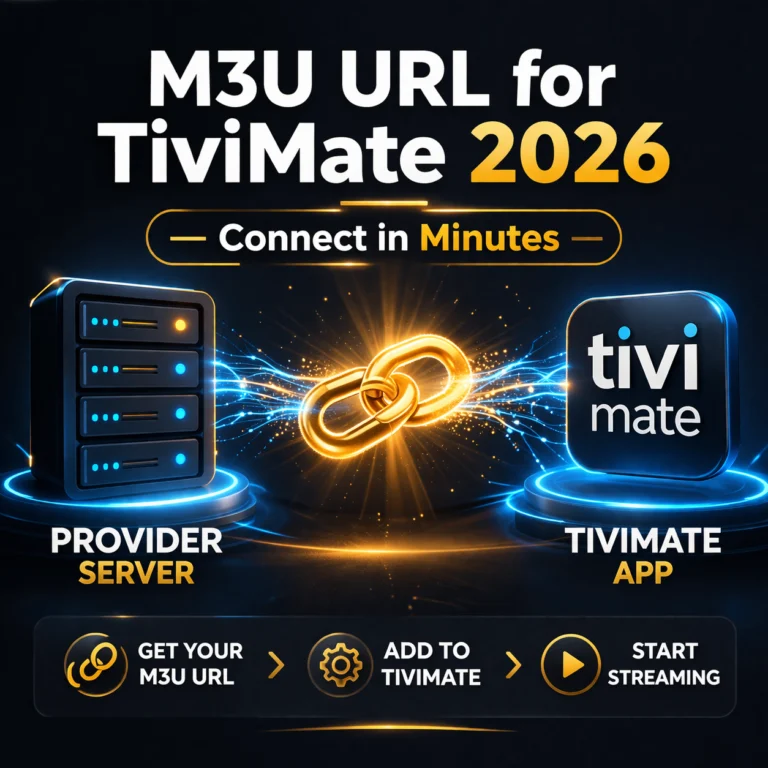
M3U URL for TiviMate is the playlist link that connects your IPTV subscription to the app and loads your full channel library automatically the moment you enter it. Without this link, TiviMate has nowhere to connect. With the right M3U URL entered correctly, your entire channel library including live TV, sports, and VOD appears in TiviMate within 90 seconds of pressing Add Playlist.
Most IPTV subscribers receive their M3U URL from their provider when they purchase a subscription, but it is not always clearly labelled or immediately obvious where to find it. Some providers send it by email, some through a WhatsApp message, some through a member portal, and some generate it automatically from your Xtream Codes credentials without sending a separate URL at all.
This guide covers every method of finding your M3U URL for TiviMate in 2026, how to enter it correctly, the difference between M3U and Xtream Codes connections, and what to do when your provider has not sent you an obvious M3U link.
Your M3U URL for TiviMate comes directly from your IPTV provider in your subscription confirmation email, WhatsApp message, or member portal. If your provider sent you Xtream Codes credentials instead of an M3U URL, you can build your M3U URL manually using the format: http://serverURL:port/get.php?username=YOURUSERNAME&password=YOURPASSWORD&type=m3u_plus. Enter this URL in TiviMate under Add Playlist, then M3U URL to load your full channel library.
Table of Contents
What Is an M3U URL and Why Does TiviMate Need It
An M3U URL is a web link that points to a playlist file containing a list of every channel and stream available in your IPTV subscription. When TiviMate receives this URL, it connects to the file, reads the channel list, and organises every entry into the channel browser you navigate during daily viewing.
The M3U format originated as a text-based music playlist format and evolved into the standard method for distributing IPTV channel lists across the industry. An M3U playlist file is essentially a structured text document where each line contains a channel name, a stream category, and the direct URL of the video stream for that channel. TiviMate reads this file, extracts all the channel information, and presents it in its polished interface without you ever seeing the raw text underneath.
The URL part of M3U URL refers to the web address where this playlist file lives on your provider’s server. This address is unique to your subscription and contains authentication parameters that confirm you are an authorised subscriber. Sharing your M3U URL with another person would allow them to access your subscription just as effectively as sharing your username and password, which is why treating it with the same privacy as any login credential is important.
TiviMate accepts M3U URLs through its Add Playlist function and processes them identically regardless of which provider generated them. The same Add Playlist interface that accepts an Xtream Codes connection also accepts a direct M3U URL, making TiviMate compatible with every IPTV provider regardless of their technical backend infrastructure.
Understanding the difference between an M3U URL and Xtream Codes credentials matters before you decide which connection method to use with TiviMate. Both connect you to the same channel library but Xtream Codes unlocks additional TiviMate features that M3U alone cannot provide. For a complete explanation of how Xtream Codes works and why it delivers more features than M3U, this detailed guide to what Xtream Codes is covers the technical difference in plain language.
Where to Find Your M3U URL From Your IPTV Provider
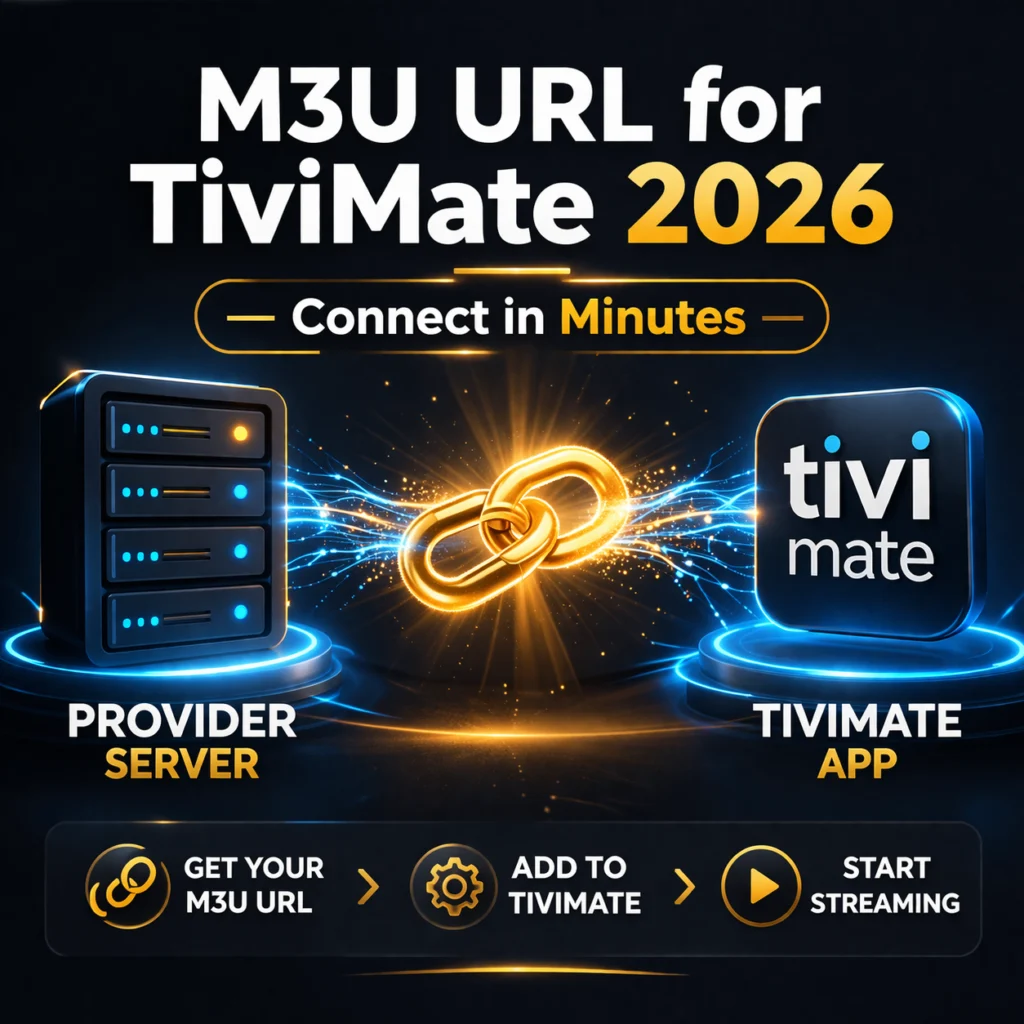
Your M3U URL lives in one of several places depending on how your specific IPTV provider delivers subscription credentials. Checking each location in sequence takes under five minutes and covers every possible delivery method that providers use in 2026.
Your subscription confirmation email is the first place to check. Most quality IPTV providers send a welcome email immediately after payment that contains all your subscription credentials in a single message. Look for lines labeled M3U Link, M3U URL, Playlist URL, or Stream URL. The link itself always begins with http or https and contains the text get.php or m3u or playlist somewhere in the address.
If the email contains a server URL, username, and password but no explicit M3U URL, your provider uses Xtream Codes as their primary delivery method. You can use these credentials directly in TiviMate through the Xtream Codes connection option, which is actually preferable to M3U because it enables more TiviMate features. You can also build an M3U URL manually from these credentials using the formula described in the next section.
Your provider’s member portal or customer dashboard is the second location to check. Many providers in 2026 offer a web-based account panel where subscribers log in to view their subscription details, download their credentials, and access their M3U URL. Log into your provider’s website using the account details they sent you and look for a section labeled My Subscription, My Account, or Playlist. The M3U URL is usually displayed in this section with a copy button that transfers it to your clipboard in one click.
WhatsApp or messaging app history is the third location for subscribers whose providers deliver credentials through messaging rather than email. Scroll back through your conversation with your provider to find the original credential message. The M3U URL or Xtream Codes credentials will be in that message thread exactly as they were sent at the time of subscription or most recent renewal.
If you cannot find your M3U URL in any of these locations, contact your provider directly and ask them to resend your playlist URL. Any legitimate provider responds to this request immediately because delivering credentials to paying subscribers is a basic operational function. A provider who cannot or will not resend your M3U URL raises a genuine concern about their operational quality.
How to Build Your M3U URL From Xtream Codes Credentials
If your provider sent you Xtream Codes credentials instead of a direct M3U URL, you can construct your M3U URL manually using a standard formula that works with every Xtream Codes server in 2026. This is useful when you specifically need an M3U URL for compatibility with a device or app that does not support Xtream Codes natively.
The standard M3U URL formula for Xtream Codes servers follows this exact structure with your actual credentials substituted into the placeholders. Take your server URL and combine it with the get.php endpoint and your authentication parameters in this format: http://SERVERURL:PORT/get.php?username=USERNAME&password=PASSWORD&type=m3u_plus
For example, if your server URL is http://server.example.com:8080, your username is subscriber123, and your password is pass456, your complete M3U URL would be: http://server.example.com:8080/get.php?username=subscriber123&password=pass456&type=m3u_plus
The type=m3u_plus parameter at the end of the URL requests the extended M3U format that includes channel category information and stream metadata beyond what the basic M3U format contains. TiviMate uses this additional information to organise channels into categories and display channel logos correctly. Always use type=m3u_plus rather than type=m3u when building your URL manually.
Some providers use a slightly different get.php path structure. If the standard formula produces an error when entered into TiviMate, try replacing get.php with xmltv.php to see if your provider uses the alternative endpoint format. If neither variation works, contact your provider and ask them to provide the direct M3U URL for your subscription, which they can generate from their server panel instantly.
| Credential Type Received | What It Looks Like | How to Use in TiviMate |
|---|---|---|
| Direct M3U URL | http://server.com:8080/get.php?username=X&password=Y | Add Playlist, M3U URL, paste directly |
| Xtream Codes credentials | Server URL + username + password separately | Add Playlist, Xtream Codes, enter three fields |
| Xtream Codes only, need M3U | Server URL + username + password separately | Build M3U URL manually using get.php formula |
| No credentials received | Nothing received after payment | Contact provider support immediately |
How to Enter Your M3U URL in TiviMate 2026
Entering your M3U URL in TiviMate correctly is the final step between finding your playlist link and watching your first live channel. The process takes under two minutes and is identical across Firestick, Android TV box, and every other device that runs TiviMate.
Open TiviMate and navigate to Settings using the settings icon in the app interface or by pressing the Menu button on your remote. Select Playlists from the settings menu. If you already have a playlist configured, select Add Playlist to add a new one. If this is a fresh TiviMate installation, the app will present the Add Playlist prompt directly on the welcome screen.
On the Add Playlist screen, select M3U URL as the connection type. This is the second option after Xtream Codes in TiviMate’s playlist type selection. A text input field appears where you enter or paste your M3U URL.
On Firestick, use the on-screen keyboard to enter your URL character by character, or use the TiviMate Companion app on your phone to type it using your phone’s keyboard and have it appear on the Firestick screen automatically. On Android TV box, you can use a Bluetooth keyboard or the Google Keyboard on your phone through the Android TV remote app. On any device where copy-paste is available, copying the URL from your provider email and pasting it directly into the field is the fastest and most error-free approach.
After entering your M3U URL, give the playlist a descriptive name in the name field such as your provider’s name or Home IPTV. Press Add to initiate the connection. TiviMate fetches the playlist file from the URL, parses all channel entries, and loads the complete channel list within 60 to 90 seconds for most subscription sizes. A progress indicator shows the loading status during this process.
M3U URL vs Xtream Codes in TiviMate: Which Is Better
The choice between using an M3U URL and Xtream Codes credentials in TiviMate affects which features are available to you and how the app performs with large channel libraries. Understanding the practical difference helps you make the right choice for your specific setup.
Xtream Codes is the superior connection method for TiviMate in 2026 and the one this guide recommends whenever your provider supports it. The Xtream Codes API connection gives TiviMate direct access to your provider’s server database rather than just a static playlist file. This means TiviMate can access your VOD library, browse series content with proper season and episode organisation, use catch-up TV functionality where your provider supports it, and receive EPG data that updates in real time rather than requiring periodic playlist refreshes.
M3U URL connections in TiviMate load your channel list and basic EPG but do not provide VOD library integration, series sections, or catch-up TV functionality. The channel list itself loads correctly and live TV works identically to Xtream Codes, but the additional content sections that make TiviMate a complete media centre rather than just a live TV player are absent.
The practical recommendation is straightforward. If your provider offers Xtream Codes credentials, use them in TiviMate through the Xtream Codes connection option rather than building an M3U URL from them. Only use an M3U URL connection in TiviMate when your provider specifically offers only an M3U URL without Xtream Codes credentials, or when you are troubleshooting a specific Xtream Codes connection issue and want to test whether the provider server responds correctly to M3U requests.
For subscribers who want a quality IPTV provider that offers full Xtream Codes support for TiviMate alongside a free trial to test everything before committing, this overview of IPTV subscription plans covers every available option with connection method details included for each provider tier.
Troubleshooting M3U URL Issues in TiviMate
M3U URL problems in TiviMate follow predictable patterns that have specific solutions. Working through these in sequence resolves the majority of M3U loading failures within minutes.
Playlist loads but shows zero channels indicates that the M3U file at your URL is empty, improperly formatted, or returning an error page instead of actual playlist content. Test your M3U URL by pasting it into a web browser on your phone or computer. If the browser downloads a file or shows text content beginning with #EXTM3U, the URL is valid and the issue is within TiviMate’s parsing. If the browser shows an error page or redirects to a login page, the URL itself is incorrect or your subscription has expired.
Channels load but streams fail to play when selected from an M3U playlist in TiviMate usually indicates that the stream URLs within the playlist file point to a different server than expected, or that the stream authentication has changed since the playlist was last generated. Delete the playlist and re-add it with a freshly generated M3U URL from your provider to ensure you have the most current stream addresses rather than a cached playlist with outdated URLs.
M3U URL works on other devices but not TiviMate indicates a format compatibility issue between the specific M3U variant your provider generates and TiviMate’s parser. Try adding the type=m3u_plus parameter to the end of your URL if it is not already present, as TiviMate handles the extended format more reliably than basic M3U on certain provider server implementations.
Frequently Asked Questions
How do I find my M3U URL for TiviMate?
Your M3U URL comes from your IPTV provider in your subscription confirmation email, your provider’s member portal, or your WhatsApp conversation with them at the time of subscription. If you received Xtream Codes credentials instead, build your M3U URL using the formula: http://SERVERURL:PORT/get.php?username=USERNAME&password=PASSWORD&type=m3u_plus. If you cannot locate your URL in any of these places, contact your provider directly and ask them to resend it.
What does an M3U URL look like for TiviMate?
An M3U URL for TiviMate typically looks like this structure: http://server.example.com:8080/get.php?username=yourusername&password=yourpassword&type=m3u_plus. It always begins with http or https, contains a server address and port number, and includes authentication parameters with your username and password embedded in the URL. Never share this URL publicly as it provides full access to your subscription.
Can I use an M3U URL instead of Xtream Codes in TiviMate?
Yes, TiviMate accepts both M3U URLs and Xtream Codes credentials. M3U URL connections load your live channel list and basic EPG correctly. Xtream Codes connections additionally unlock VOD library access, series sections, and catch-up TV within TiviMate. If your provider offers both options, Xtream Codes delivers more TiviMate features and is the recommended connection method.
Why is my M3U URL not working in TiviMate?
The most common causes of M3U URL failure in TiviMate are an expired subscription, an incorrectly formatted URL, a missing port number, or a provider server that has changed its address since your URL was generated. Test the URL in a web browser first to confirm it returns valid playlist content, then re-enter it in TiviMate ensuring every character is correct including the protocol prefix and port number.
How do I update my M3U URL in TiviMate when my provider changes it?
Go to TiviMate Settings, then Playlists, select your existing playlist, and choose Edit. Update the URL field with your new M3U URL from your provider and save the changes. TiviMate will refresh the playlist using the new URL and update your channel library automatically. If Edit does not update correctly, delete the old playlist entirely and add the new URL as a fresh playlist.
Your M3U URL Is the Key to TiviMate’s Full Potential
Finding and correctly entering your M3U URL for TiviMate in 2026 is the bridge between installing the world’s best IPTV player and actually using it to watch thousands of live channels every day. Whether your provider sent you a direct M3U link or Xtream Codes credentials you need to convert, the process takes under five minutes and the result is a fully loaded TiviMate channel library ready to watch immediately.
If you do not yet have an IPTV subscription to connect, test the best provider free for 24 hours with no credit card required and receive your credentials within minutes of requesting them. Your M3U URL or Xtream Codes details arrive in your inbox and your TiviMate channel library loads before the end of your lunch break.