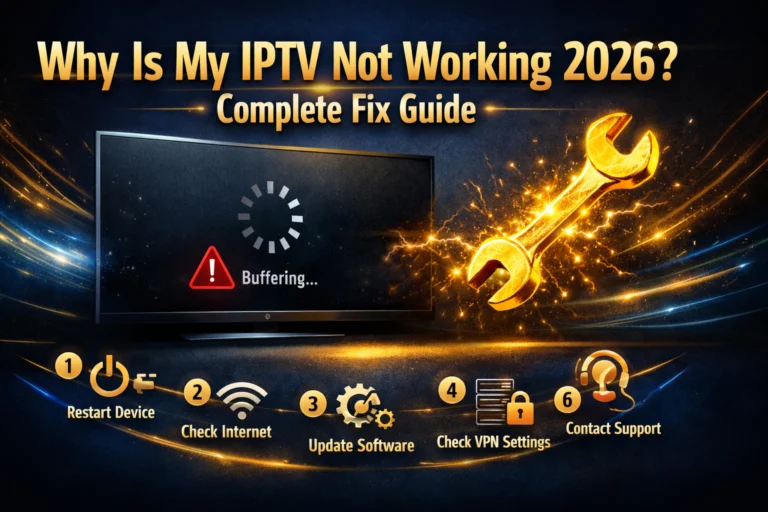
IPTV not working in 2026 is one of the most frustrating streaming experiences imaginable, especially when it happens right before a live match, a season finale, or a film you have been planning to watch all week. One moment everything is running perfectly. The next, your screen shows a black box, a buffering spinner, an error message, or simply refuses to load any channel at all.
The good news is that every IPTV failure has a specific cause and a specific fix. None of them are permanent. None of them require replacing your device or cancelling your subscription. Most of them resolve within five minutes once you understand what is actually causing the problem rather than pressing random buttons hoping something changes.
This guide covers every IPTV not working scenario that exists in 2026 in order of frequency, the exact cause of each one, and the fastest verified fix so you are back watching live TV before the frustration has time to fully take hold.
IPTV not working in 2026 is most commonly caused by one of six issues: expired subscription credentials, weak WiFi signal, provider server overload during peak hours, incorrect app settings, corrupted app cache, or a DNS problem on your network. Start by restarting your router and streaming device, then check your subscription status with your provider. If the problem persists, work through the six fixes in this guide in sequence and your IPTV will be running again within minutes in the vast majority of cases.
Table of Contents
Why IPTV Stops Working in 2026: The Main Causes
Before jumping into fixes, understanding the main categories of IPTV failure helps you diagnose your specific problem faster rather than working through every possible solution when only one applies to your situation.
IPTV failures in 2026 fall into four broad categories. The first is subscription and credential issues, which covers expired plans, wrong server URLs, incorrect usernames and passwords, and connection limit violations. These are problems that originate at the account level rather than the device or network level, and they appear as authentication failures, playlist loading errors, or channels that load but refuse to play.
The second category is network and connectivity issues, which covers weak WiFi signal, insufficient internet speed for the stream quality selected, DNS server latency, and router configuration problems. These appear as buffering, freezing, pixelation, or complete stream failure that varies in severity depending on the time of day and the number of other devices active on your network simultaneously.
The third category is device and app issues, which covers corrupted app cache, outdated app versions, insufficient device RAM, and hardware decoder incompatibilities with specific stream encoding formats. These appear as app crashes, black screens on specific channels, slow channel switching, and EPG loading failures that persist even when the internet connection is fast and the subscription is active.
The fourth category is provider server issues, which covers server downtime during maintenance, server overload during peak viewing hours, and specific channel stream failures that affect all subscribers rather than just your individual connection. These appear as widespread failures across all channels simultaneously, specific channel groups becoming unavailable, or stream quality degradation that affects everyone on the same server at the same time.
Fix 1: Check Your IPTV Subscription Status
The first fix to attempt when IPTV stops working in 2026 is confirming that your subscription is active and your credentials are current. This single check resolves the majority of sudden IPTV failures that appear without any prior warning or device change.
Contact your IPTV provider through their support channel and ask them to confirm your subscription status, expiry date, and current server URL. Most providers respond within minutes through WhatsApp or email support and can confirm immediately whether your account is active or requires attention.
Expired subscriptions are the most common single cause of IPTV failures in 2026. Monthly subscribers who miss a renewal payment and annual subscribers whose twelve-month period has ended both experience the same sudden service failure that looks identical from the viewer’s perspective regardless of which billing period expired. The provider’s server simply stops authenticating the expired credentials and every channel load attempt fails with an authentication error.
Changed server URLs are the second most common account-level cause. Providers occasionally migrate their infrastructure to new server addresses, and when this happens your app continues pointing to the old address which no longer accepts connections. The fix requires getting the new server URL from your provider and updating your playlist credentials in your IPTV player app.
Connection limit violations cause a specific type of IPTV failure where the playlist loads correctly and channels appear in the list but nothing plays when selected. This happens when your subscription’s simultaneous connection limit is already occupied by active streams on other devices. Check that no other device in your household is actively streaming from the same credentials and try loading a channel again with only one device connected.
For subscribers whose current provider consistently shows reliability issues that go beyond simple expiry or credential problems, this honest comparison of the best IPTV providers in 2026 covers every major option with performance rankings based on real testing so you can identify a more stable alternative.
Fix 2: Restart Everything in the Right Order
Restarting your router, streaming device, and IPTV app in the correct sequence resolves a surprisingly large proportion of IPTV failures that have no obvious cause. This fix works because it clears temporary network state, resets device memory allocation, and forces fresh connections to both your router and your provider server.
The correct restart sequence matters and differs from simply switching everything off and back on randomly. Start by unplugging your router from its power source completely and leaving it unplugged for 60 full seconds. This is long enough for all capacitors in the router to fully discharge and for your internet service provider to release and reissue your external IP address in markets where this is relevant.
While the router is unplugged, restart your streaming device. On Firestick hold the Select and Play buttons simultaneously for five seconds to trigger a soft restart, or unplug the Firestick from its power source for 30 seconds. On Android TV box use the restart option in the settings menu or unplug the power adapter for 30 seconds. On Smart TV hold the power button for ten seconds until the television restarts rather than going to standby.
Plug your router back in and wait for it to fully reconnect to your internet service before turning your streaming device back on. A fully reconnected router typically takes 90 seconds to two minutes to establish a stable connection after power restoration. Attempting to launch IPTV before the router has fully reconnected results in the same connection error you were trying to fix.
Open your IPTV app after both the router and streaming device have fully restarted and attempt to load a channel. In the majority of cases where the IPTV failure was caused by a network state issue, corrupted connection cache, or temporary provider server response problem, this complete restart sequence resolves it entirely without any further intervention required.
Fix 3: Test and Improve Your Internet Connection
Internet connection quality is the root cause of more IPTV failures than any other single factor in 2026, and it is the area where most subscribers can make meaningful improvements without any technical expertise or additional hardware spending.
Run a speed test on the device experiencing the IPTV problem using the same WiFi network and physical location. Use any free speed test website or app and note both the download speed and the ping latency result. For HD IPTV streaming you need a minimum of 10 Mbps download speed. For 4K content you need 25 Mbps or above. For multiple simultaneous streams you need 50 Mbps or above. If your speed test shows results below these thresholds, the internet connection itself is the primary cause of your IPTV failure.
| Stream Quality | Minimum Speed | Recommended Speed | Ping Requirement |
|---|---|---|---|
| SD 480p | 3 Mbps | 5 Mbps | Under 100ms |
| HD 1080p | 10 Mbps | 15 Mbps | Under 80ms |
| 4K UHD | 25 Mbps | 50 Mbps | Under 50ms |
| Multiple streams | 50 Mbps | 100 Mbps | Under 50ms |
If your speed test result meets the minimum threshold but IPTV still buffers or fails, the problem is likely WiFi signal quality rather than raw internet speed. WiFi signal degrades significantly with distance and physical obstacles between your router and streaming device. Walls, floors, furniture, and other wireless devices all reduce the effective bandwidth your streaming device receives even when your total internet speed is theoretically sufficient.
Moving your router closer to your streaming device, switching from the congested 2.4GHz WiFi band to the less congested 5GHz band in your device’s network settings, or connecting via ethernet cable rather than WiFi are the three most impactful improvements you can make to a WiFi-related IPTV failure. An ethernet connection from your router to your Firestick using an ethernet adapter or directly to your Android TV box delivers a level of connection stability that WiFi cannot match for demanding live streams during peak household network usage.
Fix 4: Change Your DNS Server Settings
DNS server configuration is one of the most effective and least-known IPTV fixes available in 2026. Every time your IPTV app requests a stream from your provider server, it performs a DNS lookup to translate the server’s domain name into the IP address where the stream actually lives. Slow DNS resolution adds latency to every stream request and can cause what appears to be an IPTV buffering or loading failure that is actually a network resolution delay upstream of the actual stream connection.
Your internet service provider assigns a default DNS server to your connection, and in many markets these default DNS servers are slower for streaming-optimised lookups than the free public alternatives that are specifically tuned for low latency and high reliability. Switching to a faster public DNS server reduces IPTV stream request latency and resolves buffering issues caused by slow DNS resolution without requiring any changes to your internet plan or router.
On Firestick go to Settings, then Network, select your WiFi connection and choose Advanced. The DNS fields appear in the advanced network settings where you can enter custom DNS server addresses. The most widely recommended fast public DNS servers for IPTV in 2026 are Google’s primary server at 8.8.8.8 with secondary at 8.8.4.4, and Cloudflare’s primary at 1.1.1.1 with secondary at 1.0.0.1. Either pair delivers measurably faster DNS resolution than most ISP-provided defaults.
On Android TV box the DNS settings are accessible through the network connection details in Settings under Network and Internet. On Smart TVs the DNS configuration is typically found in the network settings under IP settings where you switch from automatic DHCP assignment to manual entry and specify your preferred DNS server addresses.
After changing your DNS settings, force close your IPTV app completely and reopen it. The new DNS settings apply to all new connection requests from the moment they are saved, so the first channel load after a DNS change will use the new faster resolution path.
Fix 5: Clear App Cache and Update Your IPTV App
Corrupted app cache and outdated app versions are responsible for a significant category of IPTV failures that appear as app crashes, black screens on specific channels, EPG loading failures, and sudden performance degradation after months of trouble-free operation.
Clearing your IPTV app cache removes temporary files that the app has accumulated during normal operation. Over time these temporary files can develop inconsistencies or corruption that interfere with stream loading, channel list display, and EPG rendering. Cache clearing is non-destructive, meaning it removes only temporary files and leaves your saved playlist credentials, favourites list, and app settings completely intact.
On Firestick navigate to Settings, then Applications, then Manage Installed Applications. Find your IPTV app in the list, TiviMate or IPTV Smarters or whichever app you use, select it, and press Clear Cache. The process takes under ten seconds. Reopen the app and attempt to load a channel to test whether the cache clearing resolved the issue.
If clearing the cache alone does not resolve the failure, proceed to Clear Data on the same screen. This removes all stored app data including your playlist credentials and settings, returning the app to its factory-fresh state. You will need to re-enter your subscription credentials after a data clear, so have them available before proceeding. A full data clear resolves corruption issues that cache clearing alone cannot address.
Updating your IPTV app to the latest available version resolves failures caused by compatibility issues between older app versions and current provider server implementations. IPTV providers occasionally update their server software in ways that require an updated app version to connect correctly. On Android TV box and Android phone, open the Google Play Store and check for available updates for your IPTV app. On Firestick, TiviMate updates are distributed through the TiviMate Companion app which checks for and installs updates automatically when opened.
Fix 6: Diagnose Specific IPTV Error Types
Different IPTV error types in 2026 point to different specific causes that the general fixes above may not address. Understanding what each error type indicates allows you to skip directly to the relevant solution rather than working through every fix in sequence when your problem has an obvious specific cause.
| Error Type | What You See | Most Likely Cause | Fastest Fix |
|---|---|---|---|
| Constant buffering | Spinning wheel, freezing every few seconds | Weak WiFi or slow connection | Move router closer or use ethernet |
| Black screen | Audio plays but no video | Codec incompatibility | Switch to external player in app settings |
| No channels load | Empty channel list after app opens | Expired subscription | Contact provider to confirm account status |
| Authentication failed | Error message on playlist load | Wrong credentials or URL | Delete and re-add playlist with fresh credentials |
| Channels load but nothing plays | Channel list shows but streams fail | Connection limit exceeded | Stop other active streams on same credentials |
| App crashes on launch | App closes immediately after opening | Corrupted cache or outdated version | Clear cache then clear data if needed |
| EPG not loading | Channel grid shows but no programme data | EPG data still downloading | Wait 5 minutes then force manual EPG update |
| Pixelated picture | Blocky or blurry image quality | Insufficient bandwidth for stream quality | Reduce stream quality setting in app |
| Audio out of sync | Sound ahead or behind video | Player decoder mismatch | Switch player from hardware to software decode |
Black screen with audio playing is a specific error that deserves additional detail because it is commonly misdiagnosed. When you can hear a channel but see no video, the stream is reaching your device correctly but your IPTV player’s internal video decoder cannot handle the specific encoding format of that stream. The fix is to switch your IPTV app from its internal player to an external player option. In TiviMate this setting is under Settings, Playback, Player. In IPTV Smarters it is under Settings, Advanced Options. Select MX Player or VLC as the external player and the black screen resolves immediately for channels using encoding formats your device’s hardware decoder handles differently.
Buffering that appears only during peak hours but not during off-peak viewing indicates a provider server capacity issue rather than a problem with your own setup. Peak hour buffering that affects multiple channels simultaneously, especially sports channels during live broadcasts, points to a provider whose server infrastructure is not adequately scaled for their subscriber volume during maximum concurrent usage periods. If this pattern repeats across multiple peak sessions, it is a signal about provider quality rather than a fixable local issue.
Fix 7: Test With a Different IPTV App
Testing your IPTV subscription through a different player app than the one experiencing problems is a valuable diagnostic step that separates app-level issues from provider-level issues quickly and definitively. If your subscription works correctly in a second app, the problem is within your original app. If it fails in both apps with the same credentials, the problem is at the provider or network level.
Download IPTV Smarters Pro from your device’s app store if you are currently using TiviMate, or download TiviMate if you are currently using Smarters. Enter your exact same subscription credentials into the new app and attempt to load channels. The credential entry process is identical across both apps and takes under two minutes.
If the second app loads channels and streams play without buffering or black screens, the failure in your original app is definitely app-specific. Proceed to clear cache and data in the original app or reinstall it completely. If the second app shows the same failure as the original, the problem is definitively on the provider server side or your network, and the troubleshooting focus should shift to contacting your provider or improving your internet connection.
This two-app diagnostic is particularly valuable for identifying codec compatibility issues that affect specific apps on specific device models. Some Firestick generations handle certain stream encoding formats differently from others, and switching between TiviMate and IPTV Smarters can resolve a persistent black screen or audio sync issue that turns out to be a decoder compatibility mismatch in one app that the other handles correctly through its different video rendering pipeline.
For a full comparison of available IPTV player apps across every platform and their specific strengths and limitations on different device types, this comprehensive guide to the best IPTV player apps in 2026 covers every option with device-specific performance data that helps you identify the optimal app for your specific hardware combination.
Fix 8: Contact Your IPTV Provider
When every fix above has been attempted without resolving your IPTV not working issue, the problem definitively lies on your provider’s server rather than within your device, app, or network. Provider-side issues that cause IPTV failures include planned maintenance downtime, unplanned server failures, specific channel stream outages affecting all subscribers, and account-level technical issues that require administrative action on the provider’s end to resolve.
Contact your provider through their primary support channel with the following information prepared: your username, your current server URL, the exact error or behaviour you are experiencing, the specific channels or stream types affected, the device and app you are using, and a list of the fixes you have already attempted. Providing this complete information upfront eliminates the standard troubleshooting back-and-forth that consumes time without moving toward a resolution.
A responsive quality provider resolves most account-level and server-side issues within two to four hours during normal operating hours. Issues affecting multiple subscribers simultaneously, such as a server migration or a major channel stream failure, are typically communicated through a status update or maintenance announcement that explains the expected resolution timeline.
Provider responsiveness during a support interaction is itself valuable information about service quality. A provider who responds within one hour with specific, helpful guidance about your particular issue is demonstrating the support standard you will continue to receive throughout your subscription. A provider who takes 48 hours to respond with a generic troubleshooting script that ignores the specific information you provided is showing you exactly what future support interactions will look like.
If your provider confirms everything is working correctly on their end but your IPTV continues to fail after completing every fix in this guide, switching to a more reliable provider is the correct next step. This free trial from a top-rated provider with 24-hour no credit card access lets you test an alternative immediately and compare performance on your own device and network before spending anything.
Preventing Future IPTV Problems in 2026
Resolving your current IPTV failure is only half the solution. Understanding the preventative habits that reduce the frequency of future failures saves you the frustration of recurring problems that interrupt your viewing throughout the year.
Keep your IPTV app updated to the latest version at all times. App updates resolve known compatibility issues between the player and provider server implementations, fix decoder bugs that cause black screens on specific channel types, and improve stability on specific device hardware that the previous version handled suboptimally. On Android platforms update through the Google Play Store. On Firestick update TiviMate through the TiviMate Companion app.
Clear your IPTV app cache every two to four weeks as routine maintenance rather than waiting for a failure to prompt the action. Scheduled cache clearing prevents the gradual accumulation of corrupted temporary data that eventually causes the sudden unexplained failures that seem to appear out of nowhere after months of trouble-free operation.
Set renewal reminders for your IPTV subscription one week before the expiry date. The most common cause of sudden IPTV failure is an expired subscription that the subscriber did not notice approaching. A calendar reminder seven days before expiry gives you time to renew before any service interruption occurs rather than discovering the expiry at the moment you sit down to watch something.
Monitor your internet plan speed against your household’s IPTV usage growth. A household that added a second Firestick and started streaming IPTV on two screens simultaneously since their internet plan was last upgraded may have outgrown their available bandwidth for their current viewing habits without realising it. Running a speed test during peak household usage reveals whether the available bandwidth per stream has dropped below the minimum for your chosen stream quality.
Frequently Asked Questions
Why is my IPTV not working today in 2026?
The most common causes of IPTV not working on any specific day in 2026 are an expired subscription, provider server issues during peak hours, a weak WiFi signal, or a corrupted app cache. Start by restarting your router and streaming device, then confirm your subscription is active with your provider. If both checks pass, clear your IPTV app cache and attempt to load channels again. This sequence resolves the majority of sudden IPTV failures within five minutes.
Why does my IPTV buffer but my internet is fast?
IPTV buffering despite a fast internet speed is usually caused by WiFi signal weakness between your router and streaming device rather than insufficient total internet speed. A fast speed test result measured close to the router does not reflect the actual bandwidth your Firestick or Android box receives across a weak wireless signal. Move your router closer, switch to 5GHz WiFi, or connect via ethernet to resolve buffering that persists despite a seemingly adequate internet speed.
Why does IPTV work sometimes but not others?
Intermittent IPTV failures that work at some times but not others are almost always caused by provider server overload during peak viewing hours. Servers that perform adequately at 2pm collapse under the load of thousands of simultaneous subscribers at 8pm during weekday primetime or Saturday afternoon sports broadcasts. This pattern indicates a provider whose infrastructure is not scaled for their subscriber volume, and switching to a provider with better server capacity resolves the pattern permanently.
Why is my IPTV showing a black screen with sound?
Black screen with audio playing indicates that your IPTV player’s internal video decoder cannot handle the encoding format of that specific stream. Go to your app’s playback settings and switch from the internal player to an external player such as MX Player or VLC. This forces the stream through a different video rendering path that handles the problematic encoding format correctly, resolving the black screen while maintaining the audio that was already working.
How do I fix IPTV not working on Firestick in 2026?
Restart your Firestick by holding Select and Play simultaneously for five seconds, then restart your router by unplugging for 60 seconds and reconnecting. After both devices have fully restarted, open your IPTV app and clear its cache through Firestick Settings, Applications, Manage Installed Applications. If channels still fail to load, confirm your subscription is active with your provider and re-enter your credentials fresh after deleting the existing playlist. This sequence resolves the vast majority of Firestick IPTV failures in 2026.
When should I switch IPTV providers because of technical issues?
Switch IPTV providers when the same technical problem recurs more than twice in the same month despite correct troubleshooting, when your provider’s support team is consistently unresponsive or unable to resolve issues they have acknowledged, when buffering during peak hours is a regular occurrence rather than an occasional anomaly, or when channel availability decreases noticeably without explanation or acknowledgment from the provider. These patterns indicate infrastructure problems that will not improve and that a better-resourced provider would not exhibit.
Fix Your IPTV Today and Stay Fixed All Year
IPTV not working in 2026 always has a solution, and that solution is always findable by working through the causes in the right order rather than pressing random buttons in frustration. The eight fixes in this guide cover every IPTV failure scenario that exists across every device, every app, and every provider combination in use in 2026.
Work through them from Fix 1 to Fix 8 in sequence when your IPTV fails next time. Most failures resolve before you reach Fix 4. The ones that reach Fix 8 are definitively provider-side issues that a better provider would not create. If your provider is the source of recurring failures, test a free trial from the top-ranked provider on this site and experience the difference between a service built on reliable infrastructure and one that cannot sustain its promises past the first month of use.