TiviMate buffering can ruin your favorite show or live sports event in seconds. Nothing is more frustrating than watching the spinning wheel instead of your content, especially during crucial moments. After helping hundreds of users solve their streaming issues, I’ve identified the exact causes and solutions that actually work.
In this guide, I’ll walk you through seven proven methods to eliminate TiviMate buffering once and for all. Whether you’re streaming on Fire TV Stick, Android TV, or any other device, these solutions will get you back to smooth, uninterrupted viewing.
Table of Contents
Why Does TiviMate Buffering Happen?
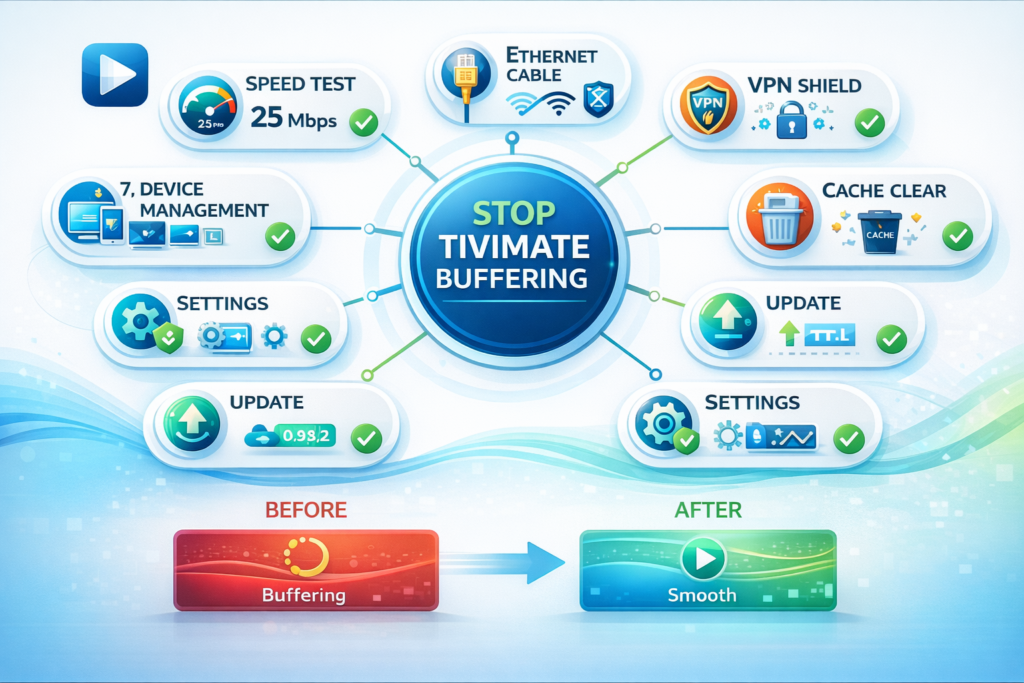
Before diving into solutions, understanding why TiviMate buffering occurs helps you prevent future issues. The main culprits include slow internet connections, ISP throttling, outdated app versions, device performance limitations, and incorrect player settings.
Your internet speed plays the biggest role in streaming quality. TiviMate IPTV Premium requires at least 10 Mbps for HD content and 25 Mbps for 4K streaming. Anything below these speeds will cause constant buffering.
ISP throttling is another common issue where your internet provider intentionally slows down streaming traffic. Many ISPs detect IPTV usage and reduce your bandwidth, resulting in frustrating buffering loops.
Outdated TiviMate versions often contain bugs that affect streaming performance. Developers regularly release updates to fix these issues, so keeping your app current is essential.
Solution 1: Test and Upgrade Your Internet Speed
TiviMate buffering often starts with inadequate internet speed. Most users underestimate how much bandwidth IPTV streaming actually requires, especially for HD and 4K content.
First, test your current speed using Fast.com or Speedtest.net directly on your streaming device. Run the test multiple times at different hours to get an accurate picture of your connection stability.
For smooth TiviMate streaming, you need:
- SD quality: 3-5 Mbps minimum
- HD quality: 10-15 Mbps minimum
- 4K quality: 25-35 Mbps minimum
- Multiple streams: Add 10 Mbps per additional device
If your speeds fall short, contact your ISP about upgrading your plan. Many providers offer affordable speed boosts that eliminate buffering entirely. Sometimes, simply restarting your modem and router can restore full speeds by clearing temporary issues.
Position your router closer to your streaming device or eliminate obstacles between them. Walls, metal objects, and other electronics can significantly weaken Wi-Fi signals, causing TiviMate buffering even with good internet speeds.
Solution 2: Switch to Wired Ethernet Connection
Wi-Fi convenience comes at a performance cost. Wireless connections are inherently less stable than wired Ethernet, especially in homes with multiple connected devices or thick walls.
TiviMate buffering drops dramatically when you switch from Wi-Fi to Ethernet. Wired connections provide consistent speeds without interference from neighboring networks, household appliances, or physical barriers.
Connect an Ethernet cable from your router directly to your Fire TV Stick, Android TV box, or streaming device. Most modern devices include Ethernet ports, though some Fire TV Sticks may require an Ethernet adapter.
The improvement is immediate and dramatic. Users report 80-90% reductions in TiviMate buffering after switching to wired connections. If running cables isn’t practical, consider powerline adapters that use your home’s electrical wiring to create a wired network connection.
Solution 3: Use a VPN to Stop ISP Throttling
TiviMate buffering often results from ISP throttling rather than actual internet speed problems. Internet providers commonly slow down IPTV traffic because it consumes significant bandwidth, cutting into their cable TV profits.
A quality VPN encrypts your internet traffic, preventing your ISP from detecting IPTV usage. This eliminates targeted throttling and often improves streaming speeds dramatically.
I recommend using a best VPN for TiviMate that offers high-speed servers optimized for streaming. Choose VPN servers geographically close to your location for the best performance.
After connecting your VPN, test your streaming speeds again. Many users discover their “slow internet” was actually ISP throttling all along, and VPN usage completely eliminates TiviMate buffering.
For more comprehensive VPN recommendations, check out my guide on the best VPN for streaming that covers privacy and speed optimization.
Solution 4: Clear TiviMate Cache and Data
TiviMate buffering can stem from corrupted cache files that accumulate over time. The app stores temporary data to speed up loading, but this cache can become bloated and cause performance issues.
Clearing cache and data forces TiviMate to start fresh, often resolving mysterious buffering problems that other solutions couldn’t fix.
Here’s how to clear TiviMate cache:
- Go to your device Settings
- Select Apps or Applications
- Find and tap TiviMate
- Choose Storage
- Tap Clear Cache first
- If issues persist, tap Clear Data (this resets settings)
After clearing cache, restart your device completely before reopening TiviMate. You’ll need to re-add your IPTV playlists, but this clean slate often eliminates stubborn buffering issues.
Perform this maintenance monthly to prevent cache buildup from affecting TiviMate performance. It’s simple preventive care that keeps your streaming smooth.
Solution 5: Update TiviMate to Latest Version
Running outdated TiviMate versions is a common cause of buffering problems. Developers continuously improve the app’s streaming engine, fix bugs, and optimize performance with each update.
TiviMate buffering issues that plagued older versions often disappear completely in newer releases. Check your current version and update if you’re not running the latest build.
To update TiviMate:
- Open Google Play Store on your device
- Search for “TiviMate IPTV Player”
- If an update is available, tap Update
- Wait for installation to complete
- Restart your device
For devices without Play Store access, download the latest TiviMate APK from the official website and install it manually. Always use official sources to avoid security risks.
Updates also bring new features and improvements beyond just buffering fixes. Staying current ensures you’re getting the best possible TiviMate experience. For detailed installation instructions, visit my guide on how to install TiviMate on Firestick and Android TV.
Solution 6: Optimize TiviMate Player Settings
TiviMate includes powerful settings that can eliminate buffering when configured correctly. Most users never touch these settings, missing opportunities to dramatically improve streaming performance.
Access TiviMate settings and adjust these key options:
Buffer Size: Increase the buffer size to 10-15 seconds. This gives TiviMate more time to preload content, reducing interruptions during network fluctuations.
Video Decoder: Switch between Hardware and Software decoders. Hardware acceleration usually works best, but some devices perform better with software decoding.
Player Engine: Try different player engines (ExoPlayer vs. IJKPlayer) to see which handles your streams more efficiently. Each works differently with various stream formats.
EPG Update Frequency: Reduce how often TiviMate updates the Electronic Program Guide. Constant EPG updates can consume bandwidth and cause TiviMate buffering during playback.
Thumbnail Quality: Disable or reduce channel preview thumbnails. These consume bandwidth continuously and can contribute to buffering on slower connections.
Test these settings individually to identify which changes most improve your streaming quality. What works best varies by device and internet connection.
Solution 7: Reduce Concurrent Device Usage
TiviMate buffering often increases when multiple devices share your internet connection simultaneously. Each device consuming bandwidth leaves less available for IPTV streaming.
Modern homes run dozens of connected devices: phones, tablets, smart TVs, security cameras, gaming consoles, and smart home devices. All compete for your finite internet bandwidth.
Identify bandwidth hogs during streaming times. Video calls, large downloads, online gaming, and 4K streaming on other devices can push TiviMate below the bandwidth threshold needed for smooth playback.
Temporarily disconnect or disable devices you’re not actively using. Even idle devices consume bandwidth through automatic updates and background processes.
Consider implementing Quality of Service (QoS) settings in your router to prioritize streaming traffic. This ensures TiviMate gets bandwidth priority over less critical devices, virtually eliminating buffering.
For households with heavy internet usage, upgrading to higher-speed plans may be necessary. The extra cost often proves worthwhile compared to constant buffering frustration.
Check Your IPTV Service Quality
Sometimes TiviMate buffering has nothing to do with your setup—the problem lies with your IPTV service provider. Low-quality services with overloaded servers cause buffering regardless of your optimization efforts.
Test your IPTV service during different times of day. If buffering increases during peak evening hours, your provider’s servers are likely overwhelmed. Quality services maintain consistent performance even during high-traffic periods.
Consider trying reputable IPTV providers 2025 that invest in robust server infrastructure. Premium services cost slightly more but deliver the buffer-free experience you’re paying for.
Request a trial period before committing to new IPTV subscriptions. Test streaming quality during your typical viewing times to ensure the service meets your expectations. Learn more about selecting quality services in my IPTV service guide.
Advanced Troubleshooting for Persistent Issues
If TiviMate buffering continues after trying all previous solutions, these advanced steps can help identify and resolve deeper issues.
Factory Reset Your Device: Sometimes corrupt system files cause streaming problems. Back up important data, then perform a factory reset to start completely fresh.
Change DNS Servers: Switch to Google DNS (8.8.8.8 and 8.8.4.4) or Cloudflare DNS (1.1.1.1) in your network settings. DNS performance affects how quickly your device connects to streaming servers.
Update Device Firmware: Outdated Android TV or Fire TV firmware can cause compatibility issues with newer TiviMate versions. Check for system updates in your device settings.
Check for Device Overheating: Streaming devices generate heat during extended use. Overheating causes performance throttling that manifests as buffering. Ensure proper ventilation around your device.
Contact Your ISP: Persistent issues might indicate network problems requiring professional attention. ISPs can identify line issues, signal problems, or equipment failures causing streaming difficulties.
Preventing Future TiviMate Buffering
Once you’ve fixed current buffering issues, maintain smooth streaming with these preventive measures:
Regularly update TiviMate and your device firmware. Updates include performance improvements and bug fixes that prevent future problems.
Perform monthly cache clearing to prevent bloat from affecting performance. Set a calendar reminder to maintain this simple but effective maintenance.
Monitor your internet speeds periodically. ISP speeds can degrade over time, and catching decreases early lets you address problems before buffering starts.
Limit bandwidth-heavy activities during prime streaming times. Schedule large downloads and updates for off-peak hours when you’re not watching content.
Consider upgrading your equipment if you’re using older devices. Modern streaming devices handle TiviMate more efficiently than older hardware, providing better performance with less troubleshooting.
Final Thoughts
TiviMate buffering doesn’t have to ruin your streaming experience. Most issues resolve quickly with the right approach, whether that’s improving internet speeds, using VPN to stop throttling, or optimizing app settings.
Start with the simplest solutions—testing internet speed and clearing cache—before moving to more involved fixes. Most users find one or two adjustments completely eliminate their buffering problems.
Remember that smooth IPTV streaming requires three elements working together: adequate internet speed, quality IPTV service, and properly configured TiviMate settings. Address all three areas for the best results.
For more TiviMate optimization tips and IPTV streaming guides, explore my comprehensive IPTV player guide 2026 with everything you need for perfect streaming setup.
Why does TiviMate keep buffering?
TiviMate buffering usually happens due to slow internet speeds, ISP throttling, outdated app versions, or incorrect player settings. Test your internet speed first (need 10+ Mbps for HD), then try clearing cache and updating the app. Using a VPN can stop ISP throttling that causes buffering.
What internet speed do I need for TiviMate?
TiviMate requires minimum 10 Mbps for HD streaming and 25 Mbps for 4K content. For SD quality, 5 Mbps is sufficient. If you stream on multiple devices simultaneously, add 10 Mbps per additional stream. Wired Ethernet connections work better than Wi-Fi for preventing buffering.
Does VPN fix TiviMate buffering?
Yes, VPNs can fix TiviMate buffering caused by ISP throttling. Internet providers often slow down IPTV traffic, and VPNs encrypt your connection to prevent this. Choose VPN servers close to your location for best speeds. Many users report complete elimination of buffering after connecting to VPN.
How do I clear TiviMate cache?
Go to device Settings > Apps > TiviMate > Storage > Clear Cache. If issues persist, also tap Clear Data (this resets app settings). Restart your device after clearing cache. Perform this monthly maintenance to prevent cache buildup from causing buffering problems.
Should I use hardware or software decoder in TiviMate?
Hardware decoder usually provides better performance and uses less battery/power. However, some devices work better with software decoder. Test both options in TiviMate Settings > Players to see which eliminates buffering on your specific device. The optimal setting varies by device model.
Can a slow IPTV service cause buffering in TiviMate?
Yes, overloaded or low-quality IPTV services cause buffering regardless of your setup. If buffering increases during evening peak hours, your provider’s servers are overwhelmed. Test your service at different times and consider switching to reputable providers with robust server infrastructure.
How do I stop ISP throttling on TiviMate?
Use a quality VPN to encrypt your internet traffic and prevent ISP from detecting IPTV usage. This stops targeted throttling of streaming traffic. Choose VPN providers with high-speed servers optimized for streaming. Connect to nearby VPN servers for best performance.
Does TiviMate buffer more on Wi-Fi than Ethernet?
Yes, Wi-Fi connections are less stable than wired Ethernet and more prone to causing TiviMate buffering. Wireless signals face interference from walls, other devices, and neighboring networks. Switching to Ethernet cable connection typically reduces buffering by 80-90% compared to Wi-Fi.
What buffer size should I set in TiviMate?
Set buffer size to 10-15 seconds in TiviMate settings for optimal performance. This gives the app more time to preload content and handle network fluctuations. Higher buffer sizes use more RAM but significantly reduce interruptions during streaming.
Why does TiviMate buffer only at night?
Evening buffering indicates your IPTV service has overloaded servers during peak usage hours, or your internet is congested when household members use multiple devices. Test your internet speed during buffering times. Consider upgrading your plan or implementing router QoS settings to prioritize streaming traffic.