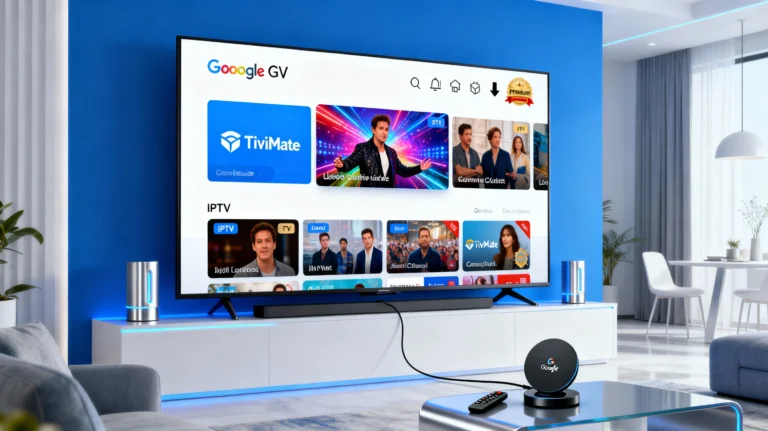
Google TV, particularly devices like the Chromecast with Google TV, offers an exceptional platform for streaming. When paired with TiviMate, the premier IPTV player, it delivers the ultimate live television experience.
Since TiviMate is an advanced IPTV application and not always available in the standard Google Play Store on these devices, we must use a simple technique called sideloading. This comprehensive, step by step guide will show you exactly how to install TiviMate on Google TV.
By the end of this tutorial, your TiviMate player will be ready to transform your Google TV setup into a powerful, cable free IPTV streaming hub. If you are still considering the benefits of moving away from traditional television, understand why so many users are adopting IPTV technology in our detailed comparison: IPTV vs Cable TV 2025.
Table of Contents
Table of Contents
Essential Preparation Steps Before You Install TiviMate on Google TV
Before we begin the installation process, two crucial steps are required to allow your Google TV device to install IPTV apps from sources other than the official Play Store.
1. Enable Developer Options
To enable sideloading, you must first unlock the Developer Options menu:
- From the Google TV Home Screen, navigate to the Settings gear icon (usually in the top right).
- Select System (or Device Preferences on older versions).
- Select About.
- Scroll down to Android TV OS build (or Build).
- Click this option repeatedly (7 times) until you see a notification pop up that says, “You are now a developer!”
2. Allow Installation from Unknown Sources for IPTV Apps
Now that the hidden menu is unlocked, we can grant the “Downloader” app the permission necessary to install external IPTV application files (APK files).
- Go back to Settings.
- Select Apps.
- Select Security & Restrictions.
- Select Unknown sources.
- Find the Downloader app in the list and toggle the switch to ON.
This prepares your Google TV device to receive the TiviMate IPTV installation file securely.
Step by Step Guide to Install TiviMate on Google TV Using Downloader
The best and safest method to get the TiviMate IPTV player onto your Google TV or Chromecast device is by using the official Downloader application.
Step 1: Install the Downloader App
- From the Google TV Home Screen, go to the Search tab.
- Search for the Downloader app (it has an orange logo).
- Select the app and click Install.
- Once installed, open the Downloader app and grant it the necessary Storage permissions when prompted.
Step 2: Download the TiviMate APK File
- In the Downloader app’s main URL bar, type in the official TiviMate download link for the latest APK file. Note: Always use the official source or a trusted repository for your IPTV software.
- Click Go. The download should begin immediately.
Step 3: Complete the TiviMate Installation
- Once the download is complete, a prompt will appear asking if you want to install the application. Select Install.
- The installation process will take a few moments. When complete, you will see a screen saying “App installed.”
- Select Done. You can now choose to Delete the APK file to save storage space (which is recommended).
Congratulations! You have successfully completed the process to install TiviMate on Google TV. The IPTV player is now ready to launch.
Setting Up Your TiviMate Premium IPTV Player
After installation, the TiviMate application requires you to load your IPTV playlist to begin watching. This is also the ideal time to consider activating TiviMate Premium, which unlocks multi screen, recording, catch up, and support for multiple IPTV playlists a necessity for serious users.
Adding Your IPTV Playlist: M3U or Xtream Codes
- Open the TiviMate app.
- Select Add Playlist.
- Choose your provider’s preferred method: M3U URL or Xtream Codes.
- Enter the credentials provided by your chosen IPTV service provider.
- The app will load your channels and your Electronic Program Guide (EPG), providing a seamless live TV experience.
If you have successfully installed the IPTV player but have not chosen an IPTV service yet, or if you are looking for a better provider, we have a comprehensive guide to help you get started with the necessary subscription: How Can I Get Service IPTV in 2025?.
Troubleshooting Tip: If TiviMate App Icon is Missing
On some Google TV layouts, the sideloaded IPTV app icon may not immediately appear on the main strip. If this happens:
- Navigate to Settings > Apps > See All Apps.
- Scroll down to the bottom and select TiviMate.
- Select Open to launch the application.
Frequently Asked Questions (FAQs) About TiviMate and IPTV
Does TiviMate include TV channels or IPTV service?
No. TiviMate is strictly a media player application, much like VLC or Kodi. It does not provide any IPTV channels or content. To watch TV, you must obtain a subscription (playlist) from an external IPTV service provider and load those credentials into the TiviMate player.
Why is TiviMate not showing up in the Google Play Store on my Chromecast with Google TV?
While TiviMate is available on the Android TV Play Store, it sometimes needs to be manually sideloaded, as described in this guide, particularly on newer or cheaper Chromecast models. If a direct search fails, the sideloading method ensures you can still install TiviMate on Google TV.
What is the main difference between TiviMate Free and TiviMate Premium?
The free version of TiviMate is very limited, supporting only one IPTV playlist and lacking key features. TiviMate Premium unlocks the full suite of features, which are essential for the best IPTV experience:
Support for multiple playlists
Catch up (watching previously aired programs)
Scheduled Recording (DVR functionality)
Multi View (watching multiple channels at once)
Full customization of the UI and TV guide
My TiviMate playlist is not connecting on Google TV, but it works on another device. What is wrong?
If TiviMate is not connecting on Google TV while the same playlist works elsewhere, this is a common troubleshooting issue. Try the following:
Check Credentials: Double check that the M3U or Xtream Codes link/login details are typed perfectly without any extra spaces.
Change User Agent: In TiviMate Settings > General > User Agent, change the value to VLC or SmartersPro. Some IPTV providers block the default TiviMate user agent on certain devices.
VPN Status: If you use a VPN, try disabling it temporarily to add the playlist, then re-enable it.
Final Thoughts on TiviMate IPTV Setup
The seamless pairing of the user friendly Google TV interface and the powerful channel management of the TiviMate IPTV player is unbeatable. You now have the knowledge to successfully install TiviMate on Google TV and are well on your way to enjoying the best IPTV and live TV experience available today. Enjoy your newly optimized streaming setup!