Install TiviMate on Samsung Smart TV is one of the most searched questions from users who just bought a Samsung television and want to use the best IPTV player available. Unfortunately, the direct answer is disappointing but the workarounds are surprisingly simple and affordable.
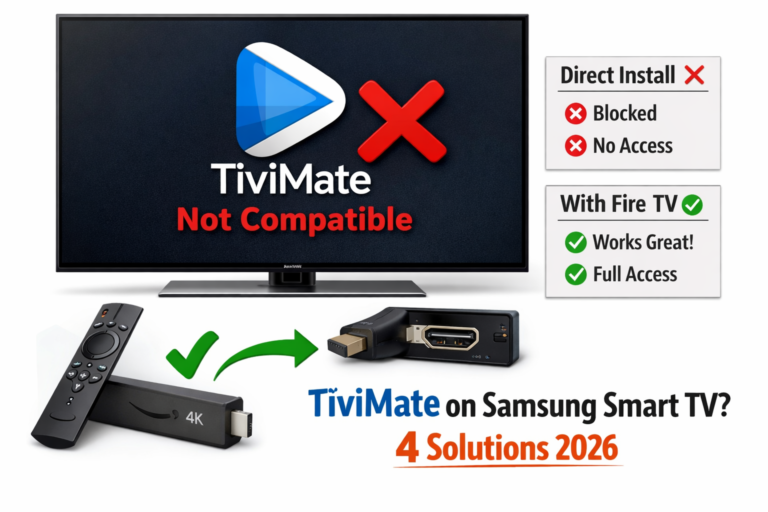
The short answer: No, you cannot install TiviMate directly on Samsung Smart TVs. Samsung uses Tizen OS instead of Android, and TiviMate is exclusively an Android application that doesn’t support Tizen.
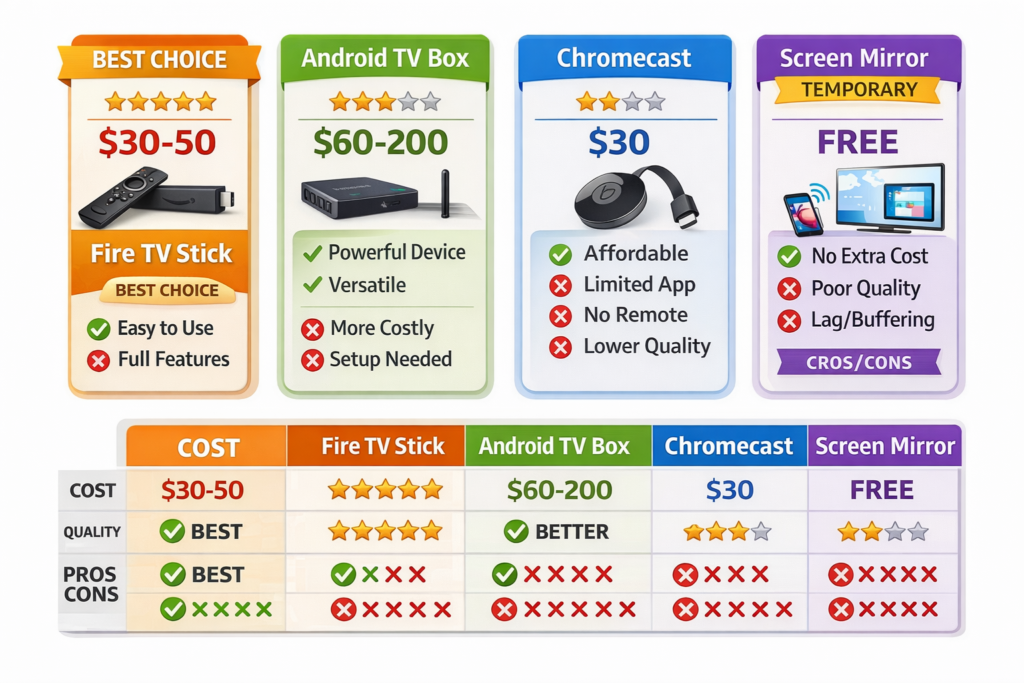
However, you have four excellent alternatives that let you watch TiviMate on your Samsung TV easily. Let me show you exactly what works in 2026.
Table of Contents
Why TiviMate Doesn’t Work on Samsung Smart TVs
Understanding why you can’t install TiviMate on Samsung Smart TV directly helps you appreciate why the workarounds exist and which solution fits your needs best.
Samsung uses Tizen OS, not Android: TiviMate IPTV Premium is built exclusively for Android TV and Android mobile devices. Samsung Smart TVs run Tizen OS Samsung’s proprietary operating system which is completely incompatible with Android apps.
No app store support: TiviMate isn’t available in Samsung’s app store because developers would need to rebuild the entire application specifically for Tizen. The small Tizen market share doesn’t justify this massive development investment.
Technical architecture differences: Android and Tizen use different programming languages, APIs, and frameworks. An Android app cannot run on Tizen any more than a Windows program can run on a Mac without special tools.
This limitation affects all Android-exclusive apps, not just TiviMate. You face the same issue with apps like Cinema HD, Stremio, and other Android-only streaming applications.
Solution 1: Use Fire TV Stick (Best Option)
The Fire TV Stick is the easiest, cheapest, and most popular way to get TiviMate running on your Samsung Smart TV. This method costs under $40 and works perfectly every time.
What you need:
- Amazon Fire TV Stick 4K or Fire TV Stick 4K Max
- Available HDMI port on your Samsung TV
- WiFi internet connection
- TiviMate app (free or premium)
- Active IPTV subscription
Setup process:
- Plug Fire TV Stick into any HDMI port on your Samsung TV
- Connect Fire TV Stick to power using included adapter
- Switch Samsung TV input to the correct HDMI port
- Complete Fire TV setup (sign in with Amazon account)
- Install TiviMate using Downloader app
- Add your IPTV playlist to TiviMate
- Start streaming
The entire process takes under 15 minutes from box opening to watching channels. Fire TV Stick runs Android TV, making it fully compatible with TiviMate. You control everything with the Fire TV remote your Samsung TV just acts as a display screen.
For complete step-by-step instructions with screenshots, check my detailed guide on installing TiviMate on Firestick and Android TV.
Why this is the best solution:
- Cheapest option (Fire TV Stick starts at $30-40)
- Easiest setup with zero technical knowledge required
- Works with any Samsung TV model with HDMI
- Full TiviMate functionality with no compromises
- Portable take it to hotels or other locations
Solution 2: Android TV Box
Android TV boxes provide another excellent way to install TiviMate on Samsung Smart TV setups. These dedicated streaming devices offer more power than Fire TV Sticks but cost slightly more.
Popular Android TV box options:
- Nvidia Shield TV ($150-200) Premium option with best performance
- Xiaomi Mi Box S ($60-80) Budget-friendly with solid specs
- Chromecast with Google TV ($50) Google’s streaming device
- Mecool KM2 Plus ($70) Certified Android TV box
Setup process:
- Connect Android TV box to Samsung TV via HDMI
- Plug box into power outlet
- Complete Android TV initial setup
- Install TiviMate from Google Play Store
- Add your IPTV subscription
- Enjoy streaming
Android TV boxes offer advantages over Fire TV Stick for power users. They typically include more RAM, faster processors, and additional USB ports for external storage. The Nvidia Shield TV is the premium choice handling 4K HDR content flawlessly and supporting advanced features like AI upscaling.
For most users, though, Fire TV Stick provides identical TiviMate functionality at a fraction of the cost. Only choose an Android TV box if you need the extra power for gaming, Plex server functionality, or heavy 4K streaming across multiple apps simultaneously.
Solution 3: Chromecast from Android Phone
If you already own an Android smartphone and don’t want to buy additional hardware, casting TiviMate from your phone to your Samsung TV works as a temporary solution.
Requirements:
- Android smartphone or tablet with TiviMate installed
- Chromecast device plugged into Samsung TV ($30-50)
- Both devices on the same WiFi network
How to cast TiviMate:
- Install TiviMate on your Android phone
- Set up Chromecast on your Samsung TV
- Open TiviMate on your phone
- Tap the Cast icon in the corner
- Select your Chromecast device
- TiviMate streams to your Samsung TV
Limitations of casting:
- Phone must stay on and near TV
- Battery drains quickly during streaming
- Can’t use phone for other tasks while casting
- Slight quality reduction vs native playback
- Occasional lag or disconnection issues
Casting works for occasional viewing but isn’t ideal as your primary TiviMate setup. If you find yourself casting regularly, invest the $30-40 in a Fire TV Stick for a much better experience.
Solution 4: Screen Mirroring from Android Device
Screen mirroring offers another wireless option to display TiviMate on your Samsung Smart TV without additional purchases if your Samsung TV supports it.
Setup requirements:
- Samsung Smart TV with screen mirroring support
- Android device with TiviMate installed
- Both on same WiFi network
Screen mirroring process:
- Open Samsung TV settings
- Enable Screen Mirroring / Smart View
- On Android device, swipe down and tap Screen Mirroring
- Select your Samsung TV from device list
- Confirm connection on TV
- Open TiviMate it displays on TV
Downsides vs dedicated devices:
- Mirrors entire phone screen (less clean interface)
- Notification popups appear on TV
- Phone must remain active and charged
- Reduced video quality vs direct connection
- Audio/video sync issues possible
Like casting, screen mirroring works in a pinch but shouldn’t be your permanent solution. For regular TiviMate viewing on Samsung TV, invest in proper streaming hardware.
What About Samsung’s App Store Alternatives?
Some users ask whether Samsung’s Tizen app store offers TiviMate alternatives that work natively without external devices. Let’s address the available options.
IPTV apps available on Samsung TVs:
- Smart IPTV Paid app ($6.49 one-time), basic features
- IPTV Smarters Free, limited functionality on Tizen
- OTT Navigator Not available on Tizen
- TiviMate Not available, not compatible
The native Samsung TV IPTV apps work but offer significantly fewer features than TiviMate. They lack advanced EPG integration, recording capabilities, and the polished interface TiviMate provides. If you’re serious about IPTV streaming, the $30 investment in a Fire TV Stick delivers exponentially better value than settling for inferior native apps.
Compare full player options in my TiviMate vs IPTV Smarters Pro comparison to understand the differences.
Comparing Your Samsung TV Options
Here’s how the four workarounds stack up for getting TiviMate on your Samsung Smart TV:
| Method | Cost | Setup Difficulty | Quality | Best For |
|---|---|---|---|---|
| Fire TV Stick | $30-50 | Very Easy | Excellent | Most users |
| Android TV Box | $60-200 | Easy | Excellent | Power users |
| Chromecast | $30 + Phone | Medium | Good | Budget option |
| Screen Mirror | Free | Easy | Fair | Temporary use |
My recommendation: Fire TV Stick 4K offers the perfect balance of cost, quality, and ease of use. Unless you need specific features from premium Android TV boxes, the Fire TV Stick is your best choice.
Setting Up Fire TV Stick on Samsung TV (Quick Guide)
Since Fire TV Stick is the optimal solution, here’s a complete quick-start guide to get TiviMate running on your Samsung TV today.
Step 1 Physical Setup: Insert Fire TV Stick into any available HDMI port on your Samsung TV. Connect power cable to wall outlet. Switch TV input to the correct HDMI port.
Step 2 Fire TV Setup: Follow on-screen instructions. Connect to WiFi. Sign in with Amazon account. Complete basic setup wizard.
Step 3 Install Downloader: From Fire TV home screen, select Find > Search. Type “Downloader” and install the app. Open Downloader after installation.
Step 4 Install TiviMate: In Downloader, enter the TiviMate APK URL. Download and install TiviMate. Allow installation from unknown sources if prompted.
Step 5 Add IPTV Playlist: Open TiviMate. Select Add Playlist. Enter your M3U URL or Xtream Codes credentials. Wait for channels to load.
Step 6 Enjoy: Browse channels, configure favorites, add EPG, and start streaming. Your Samsung TV now has full TiviMate functionality.
For Windows users wanting TiviMate on PC, check my guide on installing TiviMate on Windows 11.
Can Future Samsung TVs Support TiviMate?
Users often ask whether upcoming Samsung Smart TV models might support Android apps natively. The short answer: extremely unlikely.
Samsung has invested heavily in Tizen OS and shows no signs of switching to Android TV. Their entire smart TV ecosystem from app development to hardware integration is built around Tizen. Abandoning it would waste billions in development costs.
Some speculation exists about Samsung adding Android app compatibility layer, similar to how Windows can run some Android apps. However, no official announcements or credible leaks suggest this is coming. Samsung’s strategy prioritizes their own ecosystem over broad app compatibility.
Don’t wait for official Samsung support. The Fire TV Stick and Android TV box solutions work perfectly now and will continue working for years.
Which IPTV Service Works Best?
Regardless of which method you choose to install TiviMate on Samsung Smart TV, you need a quality IPTV subscription to get channels. Not all services work equally well with TiviMate.
What to look for in an IPTV provider:
- M3U or Xtream Codes support Essential for TiviMate compatibility
- Working EPG Electronic program guide data for full TV guide
- Stable servers No buffering during peak viewing hours
- HD/4K streams Quality video for Samsung’s excellent displays
- Good customer support Quick responses when issues arise
Browse my tested list of best IPTV providers focusing on TiviMate compatibility. If you’re new to IPTV, start with a free IPTV trial to test service quality before committing.
Troubleshooting Common Issues
Even with the right hardware, some users encounter setup problems when trying to install TiviMate on Samsung Smart TV via external devices.
Fire TV Stick not detected: Ensure HDMI cable is fully inserted. Try a different HDMI port on your Samsung TV. Check that Fire TV Stick power adapter is plugged in correctly. Some TV HDMI ports require enabling in settings.
TiviMate won’t install on Fire TV: Enable “Apps from Unknown Sources” in Fire TV settings. Verify you downloaded correct TiviMate APK file. Check your internet connection is stable during download.
Buffering or poor quality: Test your internet speed need 25+ Mbps for smooth 4K streaming. Use wired Ethernet adapter for Fire TV Stick instead of WiFi. Check your IPTV service quality with trial before buying. Read my guide on fixing TiviMate buffering for detailed solutions.
Remote control issues: Samsung TV remote won’t control Fire TV Stick this is normal. Use the Fire TV remote included with device. Enable HDMI-CEC in Samsung TV settings to control Fire TV with Samsung remote.
Alternative IPTV Players for Samsung TV
If you absolutely refuse to buy external hardware, these IPTV apps work natively on Samsung Smart TVs though none match TiviMate’s quality.
Smart IPTV ($6.49 one-time): Most popular native Samsung TV IPTV player. Basic functionality without advanced features. Works with M3U playlists. No recording or catch-up TV.
IPTV Smarters (Free): Limited Tizen version available. Lacks many features from Android version. Acceptable for basic streaming but frustrating interface.
GSE Smart IPTV (Free): Works on some Samsung models. Inconsistent performance. Better than nothing but far from ideal.
These native apps prove why the Fire TV Stick solution is so valuable. Spending $30-40 transforms your experience from frustrating to fantastic. Don’t handicap yourself with inferior apps when proper solutions exist.
Final Thoughts
Can you install TiviMate on Samsung Smart TV directly? No but with a $30 Fire TV Stick, you get full TiviMate functionality on any Samsung television in under 15 minutes.
Samsung’s choice of Tizen OS over Android creates this compatibility gap. Rather than waiting years for Samsung to change strategy (which likely won’t happen), invest in simple, affordable hardware that solves the problem permanently.
The Fire TV Stick solution works flawlessly, costs less than two months of cable TV, and unlocks not just TiviMate but thousands of other Android apps on your Samsung TV. It’s the smart, practical solution that millions of users rely on daily.
Stop fighting Samsung’s limitations and embrace the simple workaround that actually works. Get a Fire TV Stick, install TiviMate, and enjoy the best IPTV experience possible on your Samsung Smart TV.
For more IPTV setup guides and optimization tips, explore my comprehensive IPTV player guide 2026 covering everything you need to know.