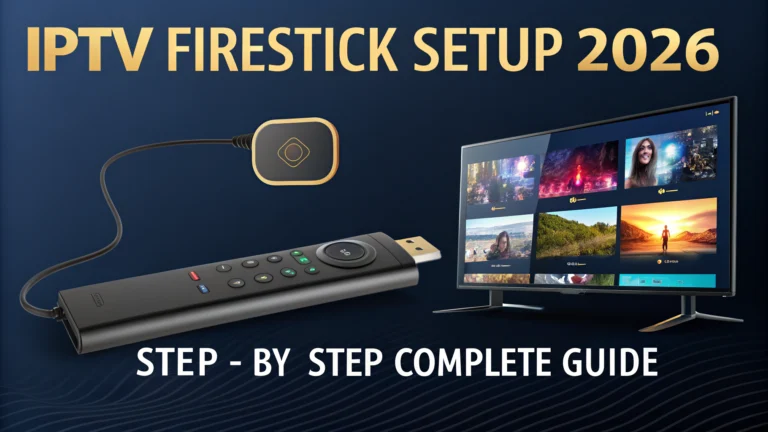
IPTV Firestick setup 2026 is simpler than most people expect, and the entire process from unboxing to watching your first live channel takes under ten minutes when you follow the right steps in the right order. The problem is that most guides online are outdated, skip important steps, or assume a level of technical knowledge that first-time Firestick IPTV users simply do not have yet.
This guide assumes you know nothing beyond how to plug your Firestick into a television and connect it to your WiFi. Every step is explained in plain language with no jargon, no assumptions, and no steps skipped. By the time you reach the end, your Firestick will be running a full IPTV service with thousands of live channels, sports, and VOD content ready to watch immediately.
Follow every step in sequence and you will not get stuck at any point in the process.
IPTV Firestick setup 2026 involves five steps: enable apps from unknown sources in Firestick settings, install the Downloader app, use Downloader to install TiviMate, enter your IPTV subscription credentials into TiviMate, and start watching. The entire process takes under ten minutes on any Firestick model. Always start with a free 24-hour IPTV trial to test stream quality on your specific Firestick before committing to any paid subscription.
Table of Contents
What You Need Before Starting IPTV Firestick Setup 2026
Getting everything prepared before you start the IPTV Firestick setup process in 2026 means you move through every step without interruption. Missing any of these prerequisites is the most common reason first-time users get stuck partway through the installation and give up before reaching the point where everything works.
Your Firestick needs to be fully set up and connected to your home WiFi network before any IPTV installation begins. If you have not yet gone through the initial Firestick setup process, complete that first using the on-screen instructions that appear when you plug the device into your television for the first time. Connect to your WiFi network, sign into or create an Amazon account, and confirm that the Firestick home screen loads correctly before proceeding to any IPTV installation steps.
An active internet connection with a minimum speed of 10 Mbps for HD streaming is the second prerequisite. Run a speed test on your phone or laptop while connected to the same WiFi network your Firestick uses. If the result is below 10 Mbps, address your internet connection quality before installing any IPTV service because the streams will buffer regardless of which provider you choose.
IPTV subscription credentials from a provider are the third prerequisite. The best approach in 2026 is to request a free 24-hour trial before purchasing any paid plan. This gives you real credentials to use during the setup process and lets you verify that the service performs well on your specific Firestick and internet connection before spending anything. You can request a free IPTV trial with no credit card required and receive your credentials within minutes of requesting them.
Your credentials will arrive as either Xtream Codes details consisting of a server URL, username, and password, or as an M3U playlist URL. Write these down or keep them visible on your phone during the setup process because you will need to enter them accurately into TiviMate in step four.
Step 1 — Enable Apps From Unknown Sources on Firestick
The first step in IPTV Firestick setup 2026 is enabling your Firestick to install apps that are not available in the official Amazon App Store. TiviMate, the best IPTV player app for Firestick in 2026, is not listed in the Amazon App Store and requires this setting to be enabled before it can be installed through the Downloader method.
From your Firestick home screen, navigate to the top menu bar and select Settings. Settings is represented by a gear icon in the top right area of the home screen navigation. Use your Firestick remote to scroll right along the top menu until you reach it and press the centre select button to open it.
Inside Settings, scroll right to find My Fire TV and select it. This section contains the developer and device management options that control how your Firestick handles app installation. Scroll down through the My Fire TV menu until you find Developer Options and select it.
Inside Developer Options you will see a toggle labeled Apps from Unknown Sources. By default this is set to Off. Select it and a confirmation dialogue will appear warning you about the risks of installing apps from outside the Amazon App Store. Select Turn On to confirm. The toggle will change to On and your Firestick is now ready to install TiviMate and any other sideloaded IPTV app.
This setting remains enabled permanently until you turn it off manually. You do not need to return to this menu for any future IPTV app installations once it has been turned on once. The entire process of enabling unknown sources takes under two minutes from reaching the Settings screen to confirming the toggle.
| Step | Navigation Path | Action Required |
|---|---|---|
| 1 | Home Screen | Select Settings gear icon |
| 2 | Settings Menu | Select My Fire TV |
| 3 | My Fire TV | Select Developer Options |
| 4 | Developer Options | Toggle Apps from Unknown Sources to On |
| 5 | Confirmation Dialogue | Select Turn On to confirm |
Step 2 — Install the Downloader App on Firestick
The Downloader app is the tool that allows your Firestick to download and install files from the internet, including the TiviMate APK file that your IPTV Firestick setup 2026 depends on. Downloader is available directly in the Amazon App Store and requires no sideloading to install, which makes it the safe and straightforward gateway for everything that follows.
From your Firestick home screen, navigate to the search icon at the top left of the screen and press select. Type Downloader using the on-screen keyboard that appears. The search results will display the Downloader app by AFTVnews as the top result. Select it and choose Download or Get to install it on your Firestick.
The Downloader app installs within 30 to 60 seconds depending on your internet connection speed. Once installed, open it immediately. The first time you open Downloader it will ask you to enable JavaScript. Select Allow when this prompt appears because JavaScript is required for Downloader to function correctly when loading web-based download pages.
Downloader opens to a home screen with a URL input field at the top. This input field is where you will enter the download address for TiviMate in the next step. Keep Downloader open and proceed immediately to step three without closing the app or navigating away from it.
The Downloader app itself does not contain any IPTV content and functions purely as a download manager. It is a well-established tool used by millions of Firestick users worldwide for installing apps that Amazon does not carry in their official store, and it has been the standard installation method for TiviMate and similar apps for several years.
Step 3 — Download and Install TiviMate on Firestick
TiviMate is the best IPTV player app for Firestick in 2026 by a significant margin and it is the app that transforms your Firestick into a polished, full-featured IPTV receiver once your credentials are entered. Installing it through Downloader takes under three minutes and is the most straightforward part of the entire IPTV Firestick setup process.
With the Downloader app open and the URL input field visible, use your Firestick remote to select the input field and type the download address for the TiviMate Companion app. The TiviMate Companion app is a small helper application that installs TiviMate on your Firestick more reliably than downloading the APK directly. Enter the URL exactly as provided by TiviMate’s official source and press Go.
Downloader will load the page and begin downloading the file automatically. A progress bar shows the download status. The file size is small and downloads within 30 to 60 seconds on most home internet connections. Once the download completes, Downloader will automatically prompt you to install the file.
Select Install when the installation prompt appears. The installation completes within 15 to 20 seconds. Once installed, select Open to launch the TiviMate Companion app immediately. The Companion app then downloads and installs the full TiviMate application automatically, which takes another 30 to 60 seconds.
When TiviMate finishes installing through the Companion app, select Open TiviMate to launch it for the first time. TiviMate opens to a clean welcome screen that prompts you to add your first playlist. This is where your IPTV subscription credentials come in and where your channel library loads for the first time.
For a complete guide to TiviMate including all its features and settings after installation, this detailed walkthrough of TiviMate on Firestick covers everything from initial setup through to advanced configuration options.
Step 4 — Enter Your IPTV Credentials Into TiviMate
Entering your IPTV subscription credentials into TiviMate is the step that connects your Firestick to the provider’s server and loads your full channel library. This step takes under two minutes and requires only that you enter the credentials your provider sent you accurately without any typos.
From TiviMate’s welcome screen select Add Playlist. TiviMate will present you with three connection type options: Xtream Codes, M3U URL, and Local File. The correct option depends on what credentials your provider sent you.
If your provider sent you a server URL, username, and password, select Xtream Codes. This is the most common credential format from quality providers in 2026 and the one that enables the most features within TiviMate including full EPG integration, VOD catalogue access, and catch-up TV functionality.
Enter your server URL in the Host field exactly as provided, including the http or https prefix and any port number at the end of the URL. Enter your username and password in the corresponding fields. Double check each entry for accuracy before proceeding because a single incorrect character prevents the connection from completing.
If your provider sent you a single URL ending in .m3u or containing the text m3u in the address, select M3U URL instead and paste the full URL into the input field. M3U connections load channels but may not include full EPG integration or VOD access depending on the provider’s setup.
Press Add Playlist after entering your credentials. TiviMate connects to the provider server, authenticates your subscription, and begins downloading your channel list and EPG data. This process takes between 30 and 90 seconds depending on the size of the channel library and your internet speed. When it completes, your full channel list appears organised by category and your IPTV Firestick setup 2026 is essentially complete.
| Credential Type | What You Receive | TiviMate Option | Features Unlocked |
|---|---|---|---|
| Xtream Codes | Server URL, username, password | Add Playlist, Xtream Codes | Full EPG, VOD, catch-up TV |
| M3U URL | Single playlist URL | Add Playlist, M3U URL | Live channels, basic EPG |
Step 5 — Configure TiviMate and Start Watching
The final step of your IPTV Firestick setup 2026 involves a few quick configuration adjustments inside TiviMate that dramatically improve your daily viewing experience before you watch your first live channel. These settings take under five minutes to configure and make a meaningful difference to picture quality, navigation speed, and EPG functionality.
Set your video player to use the external player option if you experience any compatibility issues with the default built-in player on your specific Firestick model. Go to TiviMate Settings, then Playback, and check the player options available. The MX Player or external player option handles certain stream encoding formats more reliably than the default on older Firestick models.
Adjust the buffer size in TiviMate Settings under Playback to a value between 5 and 10 seconds. The default buffer size is often too small for peak-hour viewing conditions and increasing it gives TiviMate a larger reservoir of pre-loaded stream data to absorb brief server fluctuations before they reach your screen as visible buffering or freezing.
Set your output resolution in Firestick Settings under Display and Sounds to 4K Ultra HD if you have a 4K television and a Firestick 4K or 4K Max model. Many Firesticks default to 1080p output even when connected to a 4K television, which means you are not seeing the full quality of 4K streams from your IPTV subscription until this setting is corrected manually.
Build your favourites list by pressing and holding the select button on any channel in your channel list and choosing Add to Favourites. Creating a favourites category containing your most-watched channels means every viewing session starts from a curated list of ten to twenty channels rather than requiring you to scroll through thousands of options.
For a complete comparison of all available IPTV player apps including TiviMate alternatives that may suit specific Firestick models or viewing preferences better, this guide to the best IPTV player apps in 2026 covers every option with device-specific recommendations.
Troubleshooting Common IPTV Firestick Setup Issues in 2026
Even following every step correctly, occasional setup issues can arise that prevent TiviMate from connecting or displaying channels correctly after credential entry. Understanding the most common problems and their solutions means you resolve any issue within minutes rather than abandoning the setup process in frustration.
Credentials rejected error after entering Xtream Codes details almost always indicates a typo in one of the three fields. The most common errors are an extra space at the beginning or end of the username or password field, a missing port number at the end of the server URL, or an incorrect http versus https prefix. Delete all three fields completely and re-enter them character by character from the credentials your provider sent.
Channels loading but showing no EPG data indicates that the EPG source needs to be refreshed manually. Go to TiviMate Settings, then EPG, and select Update EPG Now. If EPG data still does not appear after a manual update, confirm with your provider that their Xtream Codes server includes EPG data in the connection, as some providers require a separate EPG URL to be entered in addition to the main credentials.
Buffering on specific channels but not others during initial testing typically indicates a server-side issue with those specific channels rather than a problem with your Firestick setup or internet connection. Report the affected channel names to your provider’s support team and they will usually resolve specific channel stream issues within a few hours.
App crashes during channel loading on older Firestick models can often be resolved by clearing TiviMate’s cache. Go to Firestick Settings, then Applications, then Manage Installed Applications, find TiviMate in the list, and select Clear Cache. This removes accumulated temporary data that can cause instability on devices with limited RAM.
For a comprehensive list of every buffering and performance issue specific to Firestick IPTV setups ranked by frequency and fix effectiveness, this dedicated guide to fixing IPTV buffering issues resolves the most stubborn problems without requiring any technical expertise.
Frequently Asked Questions
How long does IPTV Firestick setup take in 2026?
The complete IPTV Firestick setup 2026 process from enabling unknown sources to watching your first live channel takes between 8 and 12 minutes for most users. The longest individual step is downloading and installing TiviMate through the Downloader app, which takes approximately 3 to 4 minutes depending on your internet connection speed. Every other step completes in under 2 minutes.
Which Firestick model is best for IPTV in 2026?
The Firestick 4K Max is the best model for IPTV in 2026 because its faster processor, additional RAM, and AV1 hardware decoder handle high-bitrate 4K streams more efficiently than the standard 4K or Lite models. The standard Firestick 4K is an excellent alternative for HD streaming. The Firestick Lite handles HD IPTV adequately but is not recommended for 4K content or large channel libraries.
Do I need a VPN for IPTV on Firestick in 2026?
A VPN is not required to use a legitimate licensed IPTV subscription on your Firestick in 2026. A VPN may improve performance in specific situations where your internet provider throttles streaming traffic, but it adds latency that can increase buffering if the VPN server is not close to your physical location. Start without a VPN and only add one if you experience consistent throttling-related performance issues.
Why is my IPTV buffering on Firestick after setup?
The most common causes of buffering after a successful IPTV Firestick setup are a weak WiFi signal between your router and Firestick, a DNS server that is slow for streaming requests, or a buffer size in TiviMate that is set too small for your connection. Moving your router closer, switching to a faster public DNS, and increasing the TiviMate buffer size to 10 seconds resolves the majority of post-setup buffering complaints.
Can I use IPTV on multiple Firesticks with one subscription?
Yes, if your IPTV subscription includes multiple simultaneous connections you can use it on multiple Firestick devices at the same time. A two-connection plan covers two Firesticks streaming different channels simultaneously. Each additional Firestick requires its own app installation and credential entry but uses the same subscription username and password as the first device.
Your IPTV Firestick Setup 2026 Is Complete
IPTV Firestick setup 2026 is a ten-minute process that transforms your Amazon device into the most versatile and cost-effective television service available at any price point. Five straightforward steps, one free app download, and your subscription credentials are everything required to go from a standard Firestick to a fully operational IPTV service with thousands of live channels, sports, and VOD content.
Every step in this guide has been tested on current Firestick hardware running the latest firmware so the instructions reflect exactly what you will see on your device today rather than an outdated process that no longer matches the current Firestick interface. Claim your free 24-hour trial, follow these five steps, and start watching within the next ten minutes.