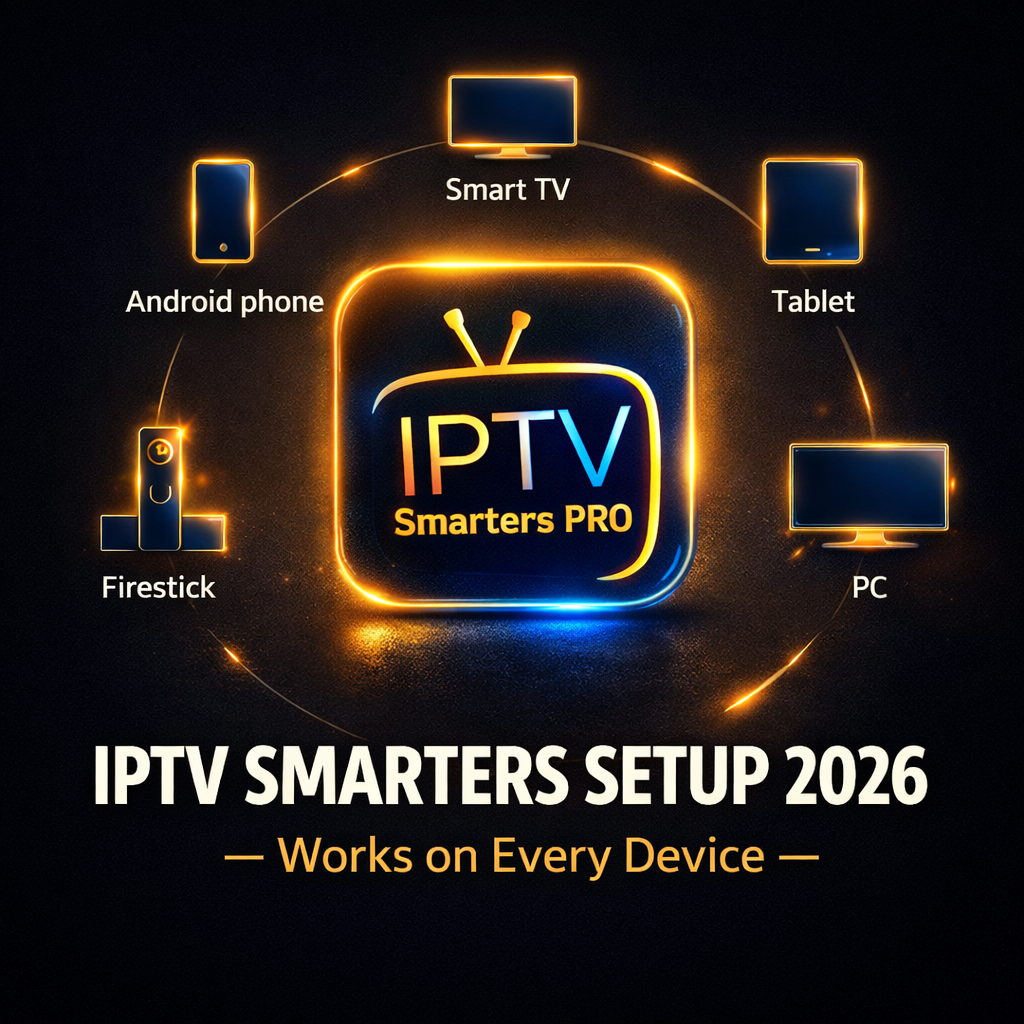
IPTV Smarters setup 2026 is one of the most searched installation guides in the streaming world right now, and for good reason. IPTV Smarters Pro is the most widely compatible IPTV player app available across every major device platform in 2026, from Firestick and Android TV boxes to iPhones, Android phones, Samsung Smart TVs, and Windows computers.
Unlike TiviMate which requires a workaround to install on Firestick, IPTV Smarters Pro is available directly in the Amazon App Store, the Google Play Store, the Apple App Store, and the Samsung Smart TV app store simultaneously. This universal availability makes it the first choice for households with multiple different device types that all need to connect to the same IPTV subscription.
This guide walks through the complete IPTV Smarters setup 2026 process on every major device platform in plain language with no steps skipped and no technical knowledge assumed.
IPTV Smarters setup 2026 takes under five minutes on any device. Download IPTV Smarters Pro from your device’s app store, open it, select Add User, choose Xtream Codes API or M3U URL depending on your credentials, enter the details your IPTV provider sent you, and press Add User to load your full channel library. The app works identically across Firestick, Android, iOS, Smart TV, and Windows with the same credentials from your IPTV subscription.
Table of Contents
What Is IPTV Smarters Pro and Why Use It in 2026
IPTV Smarters Pro is a dedicated IPTV player application developed to connect any device to an IPTV subscription using either Xtream Codes credentials or an M3U playlist URL. It functions as the interface layer between your IPTV provider’s server and your screen, handling channel organisation, EPG display, VOD browsing, and stream playback across every device it runs on.
The primary reason IPTV Smarters Pro remains one of the most popular IPTV player apps in 2026 is its genuine cross-platform availability. Most competing apps are strong on one or two platforms but require workarounds or do not exist at all on others. IPTV Smarters Pro installs natively from the official app store on every major platform without any sideloading, developer settings, or third-party download tools required anywhere in the process.
The app supports both major IPTV credential formats equally well. Xtream Codes connections unlock the full feature set including live TV, VOD library, series sections, catch-up TV, and real-time EPG data. M3U URL connections load the channel list and basic EPG without the additional VOD and series categories that Xtream Codes provides. Most quality IPTV providers in 2026 offer Xtream Codes as their primary credential format precisely because it unlocks more features for their subscribers.
IPTV Smarters Pro is free to download and use on every platform. There is no premium upgrade required to access live TV, VOD, or EPG functionality. The only cost associated with using IPTV Smarters Pro is the IPTV subscription itself from whichever provider you choose. Before setting up any paid subscription through IPTV Smarters, always test with a free 24-hour IPTV trial to confirm your provider’s streams perform well through Smarters on your specific device.
IPTV Smarters Setup 2026 on Firestick
Setting up IPTV Smarters Pro on Firestick in 2026 is the simplest installation process available on that platform because the app is available directly in the Amazon App Store without requiring any of the sideloading steps that TiviMate needs. This makes IPTV Smarters the most accessible IPTV player for Firestick users who want to avoid the Downloader app workaround entirely.
From your Firestick home screen navigate to the search icon at the top left and search for IPTV Smarters Pro. The app appears in the search results under its full name. Select it and press Download or Get to install it directly from the Amazon App Store. The installation completes within 30 to 60 seconds and requires no additional permissions or settings changes beyond what the standard Firestick setup already allows.
Open IPTV Smarters Pro after installation completes. The app launches to a login screen that offers three connection options. Select Add User to proceed to the credential entry section where you will connect the app to your IPTV subscription.
On the Add User screen you will see a toggle at the top that switches between Login with Xtream Codes API and Login with M3U URL. Select Login with Xtream Codes API if your provider sent you a server URL, username, and password. Select Login with M3U URL if your provider sent you a single playlist link.
For Xtream Codes entry, fill in a profile name of your choice in the first field, then enter your provider’s server URL in the Host field, your username, and your password. For M3U entry, fill in a profile name and paste your full M3U URL into the playlist URL field. Press Add User after completing all fields and IPTV Smarters connects to your provider server and loads your complete channel library within 60 to 120 seconds.
| Step | Action | Time Required |
|---|---|---|
| 1 | Search for IPTV Smarters Pro in Amazon App Store | 1 minute |
| 2 | Download and install from App Store | 1 minute |
| 3 | Open app and select Add User | 30 seconds |
| 4 | Select Xtream Codes API or M3U URL | 30 seconds |
| 5 | Enter credentials and press Add User | 1 minute |
| 6 | Wait for channel library to load | 1 to 2 minutes |
IPTV Smarters Setup 2026 on Android Phone and Android TV Box
The IPTV Smarters setup 2026 process on Android devices is the most straightforward of all platforms because the Google Play Store makes the installation completely frictionless and the Android operating system imposes no restrictions on IPTV app functionality after installation.
Open the Google Play Store on your Android phone or Android TV box and search for IPTV Smarters Pro. Select the correct app from the search results, which is published by IPTV Smarters, and press Install. The installation completes within 30 seconds on most Android devices over a standard WiFi connection.
Open IPTV Smarters Pro after installation. The interface on Android phone is optimised for portrait and landscape viewing on a mobile screen, while the Android TV box version presents a television-friendly layout designed for remote navigation. Both versions use identical credential entry screens and support the same connection types without any functional difference between them.
Select Add User on the login screen. Choose Login with Xtream Codes API for server URL plus username plus password credentials, or Login with M3U URL for a single playlist link. Enter your details accurately in all fields, give your profile a recognisable name, and press Add User to complete the connection. Your full channel library, VOD catalogue, and EPG data load automatically within 60 to 90 seconds of a successful connection.
Android TV box users benefit from an additional optimisation option not available on phone installations. Go to IPTV Smarters settings after initial setup and enable hardware acceleration for video decoding. This setting instructs IPTV Smarters to use your Android box’s dedicated hardware video decoder rather than software decoding, which dramatically improves 4K stream performance and reduces CPU load during high-bitrate playback on compatible chipsets.
For a direct comparison of IPTV Smarters Pro versus TiviMate on Android devices covering every feature difference that affects daily use, this detailed analysis of TiviMate vs IPTV Smarters Pro helps you confirm you are using the app that best suits your specific viewing habits and device setup.
IPTV Smarters Setup 2026 on iPhone and iPad
IPTV Smarters setup 2026 on iPhone and iPad follows the same logical flow as Android but installs through the Apple App Store, which requires no special permissions or workarounds of any kind. The iOS version of IPTV Smarters Pro is fully featured and works identically to its Android counterpart for live TV and VOD access.
Open the Apple App Store on your iPhone or iPad and search for IPTV Smarters Pro. Select it from the search results and press Get to download and install it. Apple ID authentication may be required to confirm the download depending on your App Store security settings. The installation completes within 30 seconds on most iOS devices over WiFi.
Open the app after installation. The iOS interface is optimised for touch navigation on iPhone and iPad screens with larger tap targets and gesture-based navigation that works naturally on iOS devices. The credential entry process is identical to the Android version with the same Add User button, the same Xtream Codes versus M3U URL toggle, and the same field layout for entering your provider credentials.
Enter your profile name, server URL, username, and password for Xtream Codes connections, or your profile name and M3U URL for playlist connections. Press Add User and wait for your channel library to load. The loading time on iOS is typically similar to Android at 60 to 120 seconds for a full channel library with EPG data.
iOS users have one additional consideration that Android users do not face. Apple’s background app refresh restrictions can cause IPTV Smarters to reload the channel list when you return to it after using another app. Enabling Background App Refresh for IPTV Smarters in your iPhone Settings under General keeps the app loaded in memory between sessions and eliminates this reload delay for most use cases.
IPTV Smarters Setup 2026 on Samsung Smart TV
IPTV Smarters setup 2026 on Samsung Smart TV running the Tizen operating system is one of the most convenient setups available because it eliminates the need for any external device and delivers IPTV directly through your television’s native operating system without a Firestick, Android box, or any other hardware intermediary.
Open the Samsung Smart TV App Store by pressing the Home button on your Samsung remote and navigating to the Apps section. Use the search function within the App Store to search for IPTV Smarters. Select the app from the search results and press Install. The app downloads and installs within 60 seconds directly to your Samsung Smart TV’s internal storage.
Open IPTV Smarters from your Samsung TV’s app section after installation. The interface is designed specifically for television remote navigation with large text, clear button labels, and a layout that works comfortably with directional navigation rather than touch input. Select Add User and proceed through the same credential entry process as on every other platform.
Navigate to the Xtream Codes API option using your remote’s directional buttons, enter your server URL, username, and password using the on-screen keyboard, and select Add User to initiate the connection. The on-screen keyboard on Samsung Smart TVs responds to remote input but typing long URLs character by character can be slow. Using your Samsung remote app on your phone to type the credentials using your phone keyboard is significantly faster for the initial setup.
LG Smart TV users running WebOS follow a nearly identical process through the LG Content Store. Search for IPTV Smarters or use an alternative app like SS IPTV which is widely available in the LG WebOS store and follows the same Xtream Codes credential entry process after installation.
IPTV Smarters Setup 2026 on Windows PC and Mac
IPTV Smarters setup 2026 on Windows PC and Mac gives desktop and laptop computer users a fully functional IPTV experience on their largest screen outside of a dedicated television. The Windows version installs through the Microsoft Store while Mac users have several alternative options.
Open the Microsoft Store on your Windows PC and search for IPTV Smarters. Select the app and click Install. The Microsoft Store version of IPTV Smarters Pro installs cleanly without any administrator permissions or security warnings on Windows 10 and Windows 11. After installation, open the app and follow the identical Add User process using your Xtream Codes credentials or M3U URL.
Mac users have two options for IPTV Smarters in 2026. The first is using the iOS version of IPTV Smarters through Apple Silicon Mac compatibility, which allows iPhone and iPad apps to run natively on M1 and M2 Macs without any emulation. The second option for Intel Mac users is using an alternative app such as IPTV Extreme or GSE Smart IPTV which offer native Mac versions with identical Xtream Codes credential entry.
Windows and Mac installations benefit from mouse and keyboard input which makes credential entry significantly faster than remote-based typing on television platforms. Copy and paste functionality works in all credential fields on desktop installations, which means you can copy your server URL directly from your provider’s email and paste it into the Host field without any risk of the typos that cause most credential entry failures on television-based setups.
| Device | App Store | Install Time | Setup Time | Sideload Required |
|---|---|---|---|---|
| Firestick | Amazon App Store | 1 minute | 3 minutes | No |
| Android Phone | Google Play Store | 30 seconds | 3 minutes | No |
| Android TV Box | Google Play Store | 30 seconds | 3 minutes | No |
| iPhone or iPad | Apple App Store | 30 seconds | 3 minutes | No |
| Samsung Smart TV | Samsung App Store | 1 minute | 5 minutes | No |
| Windows PC | Microsoft Store | 1 minute | 2 minutes | No |
Troubleshooting IPTV Smarters Setup Issues in 2026
Even following every step correctly, occasional issues arise during IPTV Smarters setup that prevent the app from connecting or displaying content after credential entry. Understanding the most common problems and their solutions gets you streaming within minutes rather than spending an hour troubleshooting without direction.
Authentication failed error after entering Xtream Codes credentials almost always means one of three things. Either there is a typo somewhere in the server URL, username, or password field. Or the server URL is missing the port number that your provider included in the credentials they sent you. Or your trial or subscription has expired and needs to be renewed before the credentials will authenticate again. Delete all fields completely, re-enter carefully from your original provider email, and confirm your subscription status if the error persists after two clean entry attempts.
Channels loading but EPG showing empty for most channels indicates that the EPG data needs time to download after the initial connection. IPTV Smarters downloads EPG data separately from the channel list and this process can take up to five minutes on large channel libraries. Leave the app open on the channel list screen for five minutes after initial connection before concluding that EPG is not working.
Video plays but audio is missing on specific channels points to an audio codec compatibility issue between the stream format and your device’s audio output configuration. Go to IPTV Smarters settings and switch the player from the default internal player to an external player option. On Android this typically means selecting MX Player or VLC as the external player, both of which handle a wider range of audio codec formats than the Smarters internal player.
App crashes during channel loading on older devices indicate insufficient RAM for the channel list size you are loading. Go to IPTV Smarters settings and reduce the EPG refresh frequency from every hour to every 6 hours. This reduces the background memory load that EPG updates create and stabilises the app on devices with 1GB or 2GB of RAM that struggle with frequent large data refreshes.
For persistent buffering issues after a successful setup, this comprehensive guide to fixing IPTV buffering issues covers every solution ranked by effectiveness including DNS changes, buffer size adjustments, and WiFi optimisations that resolve the most stubborn streaming problems across all devices and apps.
Frequently Asked Questions
How do I set up IPTV Smarters Pro in 2026?
Download IPTV Smarters Pro from your device’s official app store, open it, select Add User, choose Login with Xtream Codes API, enter the server URL, username, and password your IPTV provider sent you, and press Add User. Your full channel library loads automatically within 90 seconds. The complete setup process takes under five minutes on any device without requiring any sideloading or special permissions.
Is IPTV Smarters Pro free in 2026?
Yes, IPTV Smarters Pro is completely free to download and use on every platform including Firestick, Android, iOS, Samsung Smart TV, and Windows. The only cost involved in using the app is the IPTV subscription from your chosen provider. The app itself charges nothing for any of its features including live TV, VOD access, EPG, or catch-up TV functionality.
What is better TiviMate or IPTV Smarters in 2026?
TiviMate delivers a superior experience on Firestick and Android TV boxes for users who want the best possible EPG performance, fastest channel switching, and advanced features like recording and catch-up TV. IPTV Smarters Pro wins on cross-platform availability, installing natively from official app stores on every platform including iOS and Samsung Smart TV where TiviMate is not available. Many households use TiviMate on their main television and IPTV Smarters on phones and tablets.
Why is IPTV Smarters not working after setup in 2026?
The most common causes of IPTV Smarters not working after setup are incorrect credentials causing authentication failure, an expired trial or subscription, a server URL missing its port number, or a WiFi connection too slow for the selected stream quality. Verify your credentials against the original provider email, confirm your subscription is active, and run a speed test to confirm your internet connection meets the minimum 10 Mbps requirement for HD streaming.
Can I use IPTV Smarters on multiple devices with one subscription?
Yes, you can install IPTV Smarters on every device you own and use the same subscription credentials on each one. How many devices can stream simultaneously depends on the connection count of your IPTV subscription plan. A single-connection plan allows one active stream at a time across all devices. A two-connection plan allows two simultaneous streams from any combination of your installed devices.
Complete IPTV Smarters Setup 2026 on Every Device You Own
IPTV Smarters setup 2026 is the fastest path from zero to a fully operational IPTV service on any device in your household. Five minutes of installation and credential entry on each device gives every screen in your home access to the same live channel library, VOD catalogue, and EPG from a single IPTV subscription.
Every step in this guide was tested on current hardware running the latest software versions so the instructions match exactly what you see on your device today. Start with a free 24-hour IPTV trial, complete the setup on your primary device first, confirm the streams perform to your standard, and then replicate the same five-minute setup on every other device in your home before your trial expires.