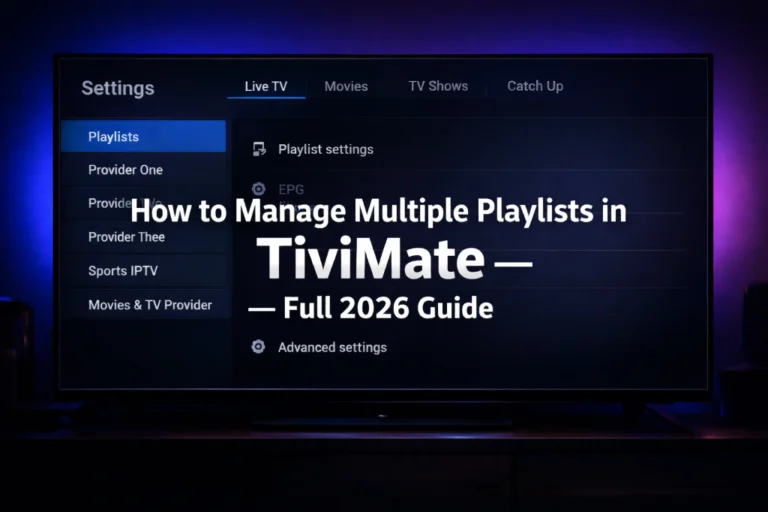
Manage multiple playlists in TiviMate is one of the most powerful things you can do to take full control of your IPTV experience in 2026. If you have more than one IPTV subscription, want to test a best free IPTV trial alongside your main plan, or simply want to organize your channels from different providers in one clean interface, TiviMate makes it easier than any other player available. This guide walks you through everything you need to know about adding, merging, organizing, and switching between multiple playlists in TiviMate on Firestick and Android TV.
Table of Contents
Why Managing Multiple Playlists in TiviMate Changes Everything
Most people who buy IPTV end up with more than one subscription over time. You might have a main cheap IPTV plan for live TV and a separate one for sports or international channels.
Without proper playlist management, you end up juggling multiple apps or constantly switching credentials. TiviMate solves this by letting you load all your playlists into one interface and navigate everything from a single screen.
This is a Premium feature, so you will need an active TiviMate Premium subscription to add more than one playlist. The free version limits you to a single playlist which is not enough for anyone serious about their IPTV setup.
How to Add Multiple Playlists in TiviMate Step by Step
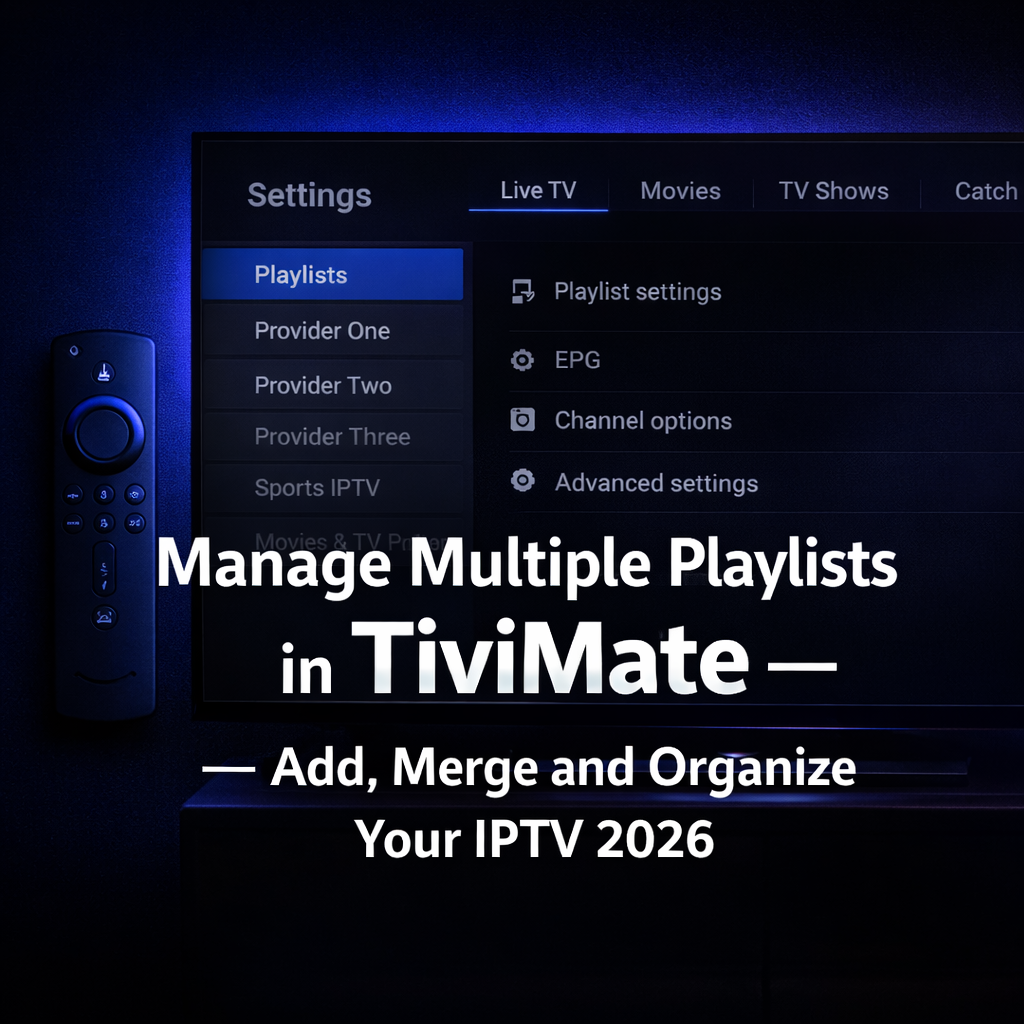
Open TiviMate on your device and go to Settings. Scroll down and select Playlists then tap Add Playlist at the bottom of the list.
Choose your connection type. TiviMate supports M3U URL and Xtream Codes API. For M3U, paste your full playlist URL and give it a name like Provider A so you can identify it easily later. For Xtream Codes, enter your Server URL, Username, and Password provided by your IPTV service.
Tap Next to validate the playlist. TiviMate will connect to the server and load your channels and groups automatically. This process takes between 30 and 60 seconds depending on the size of your playlist.
Once the first playlist is saved, go back to Settings, tap Playlists, and tap Add Playlist again. Repeat the exact same process for your second provider. TiviMate will load both playlists and merge the channels into your main interface.
How to Organize and Merge Multiple Playlists in TiviMate
After adding multiple playlists, your channel list may feel overwhelming with duplicates and mixed groups from different providers. TiviMate gives you full control over how everything is displayed.
Go to Settings, then Playlist Settings, then Group Channels. Enable the Merge option to combine channels from different playlists into unified categories like Sports, Movies, and News. This creates a single clean channel guide that feels like one seamless best IPTV experience even though the streams come from separate providers.
To set the order in which playlists appear go to Settings, Playlist Settings, and Playlist Order. Drag and arrange your playlists so your primary cheap IPTV service always loads first.
If the same channels appear across multiple playlists, go to Settings, Playlist Settings, Channel Options, and enable Hide Duplicates. This removes clutter and keeps your guide clean without losing access to any content.
How to Set Up EPG for Multiple Playlists in TiviMate
One of the most important steps when you manage multiple playlists in TiviMate is making sure each playlist has its own correct EPG source linked. Without this, your program guide will show blank entries or incorrect schedules.
Go to Settings then EPG and link each playlist to its corresponding EPG URL. Your IPTV provider will give you the EPG URL when you buy IPTV or sign up for a trial. Enter it exactly as provided with no extra spaces or characters.
If one of your playlists uses Xtream Codes, the EPG is usually pulled automatically from the server without needing a separate URL. For M3U playlists, you will almost always need to add the EPG link manually.
How to Switch Between Multiple Playlists in TiviMate
Switching between playlists in TiviMate is straightforward once everything is set up. From the main screen press the Menu button on your remote and navigate to the Playlists section.
You will see all your added playlists listed by the names you gave them. Select the one you want to browse and TiviMate will update the channel list instantly. The switch takes only a few seconds and requires no restart.
You can also create custom groups that pull channels from multiple playlists at once. Long press the center button while on the main EPG screen, scroll down to the Favorites section, and tap Create Group. Name it anything you want like My Sports or Best Channels and add channels from any of your loaded playlists into that group.
How to Update and Refresh Multiple Playlists in TiviMate
TiviMate refreshes your playlists automatically on a schedule you can configure in Settings. However if your IPTV provider updates their channel list or you notice missing channels, you can force a manual refresh at any time.
Go to Settings, then Playlists, select the playlist you want to update, and tap Refresh. TiviMate will reconnect to the server and pull the latest channel list. Do this for each playlist separately if you manage multiple IPTV subscriptions.
If your provider changed the playlist URL, go into the playlist settings and update the M3U link or Xtream Codes credentials directly. You do not need to delete and re-add the playlist from scratch which saves you time and keeps your custom groups and favorites intact.
Common Problems When Managing Multiple Playlists in TiviMate
If a playlist fails to load after adding it, the most common cause is an incorrect URL or expired credentials. Double check your M3U link or Xtream Codes login details with your provider and try again.
If channels from one playlist stop working while others are fine, the issue is with that specific IPTV subscription and not with TiviMate itself. Contact your provider or test a best free IPTV trial on a different service to compare.
If your EPG shows blank data after adding a second playlist, go back to Settings, EPG, and confirm each playlist has its own EPG source properly linked. A missing or incorrect EPG URL is the most common reason for empty guide entries across multiple playlists.
Final Thoughts on Managing Multiple Playlists in TiviMate
Learning to manage multiple playlists in TiviMate properly turns a good IPTV setup into a great one. You get everything from every provider in one place, organized exactly the way you want, with a clean EPG and no duplicate clutter.
The key is TiviMate Premium which unlocks the full playlist management system. Check our full guide on whether TiviMate Premium is worth it before you decide. If you are still looking for a reliable IPTV service to add to your setup, browse our best IPTV subscription plans or contact us on WhatsApp to start a premium trial completely free today.