TiviMate features and settings are what separate a basic IPTV experience from a truly premium one, and most users only scratch the surface of what this app can do. Whether you just bought IPTV for the first time, switched from a cheap IPTV player, or have been using TiviMate for years, there are features inside this app that can completely transform how you watch live TV every day. This guide covers every major feature and setting in TiviMate in 2026, from the basics to the advanced options that most users never find on their own.
Table of Contents
TiviMate Features and Settings: Understanding the Interface
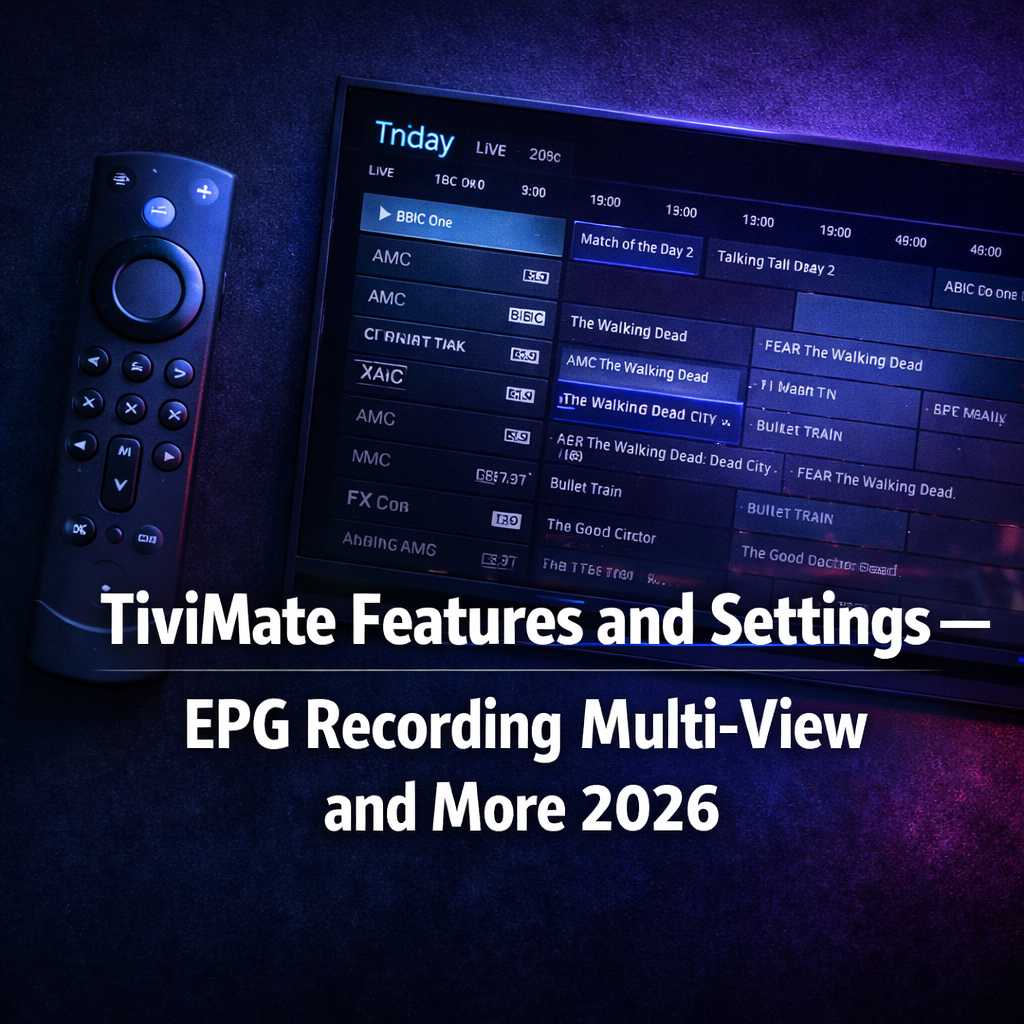
The TiviMate main screen is built around a grid-style EPG that shows your current channel playing in one corner while you browse the full channel guide. This layout mirrors a traditional cable TV interface and is what makes TiviMate feel instantly familiar from the first time you open it.
The left sidebar contains your main navigation including Live TV, Movies, Series, Catch-Up, and Settings. Use your remote directional buttons to move between sections. Long pressing the center button on most sections opens a context menu with advanced options for that specific area.
The top of the channel grid shows the current time slot. Scroll right to see upcoming programming and scroll left to see what already aired if your best IPTV service supports catch-up. This is the fastest way to browse your full IPTV subscription without needing to memorize channel numbers.
TiviMate Features and Settings: Setting Up Your Playlist
Adding your IPTV subscription to TiviMate is the first setting every new user needs to configure correctly. Open Settings, tap Playlists, then tap Add Playlist. TiviMate supports M3U URL, M3U File, and Xtream Codes API connection methods.
Xtream Codes is the most stable and recommended method for anyone who wants to buy IPTV and connect it to TiviMate. Enter your Server URL, Username, and Password exactly as provided by your provider with no extra spaces. TiviMate will load your full channel list and EPG data within 60 seconds.
If you are on TiviMate Premium you can add multiple playlists and switch between them seamlessly. This is essential for anyone testing a best free IPTV trial alongside their main subscription or running separate playlists for different content categories.
TiviMate Features and Settings: EPG Configuration
The Electronic Program Guide is one of TiviMate’s strongest features and getting it configured correctly makes a massive difference in your daily experience. Go to Settings, then EPG, and confirm your EPG source is linked correctly to your playlist.
Set your EPG update interval to every 4 hours so your guide stays current without consuming excessive server resources. Enable Update on App Start so TiviMate always loads with fresh EPG data every time you open it. Turn on Store Program Descriptions to see full show information when you highlight any channel in the guide.
Set Past Days to Keep EPG to 1 day unless you use catch-up TV regularly. Storing more than one day of past EPG data takes up significant device storage and slows down guide loading on older Firestick models. For catch-up users, set this to 7 days to access a full week of past programming from your premium IPTV service.
TiviMate Features and Settings: Channel Groups and Favorites
Managing your channel groups properly is what turns a raw cheap IPTV playlist with thousands of channels into a clean, organized guide you actually enjoy using. Go to Settings, Playlists, select your playlist, then tap Manage Groups.
Disable every group you do not use. If your IPTV subscription includes Arabic, Hindi, or other language packages you do not need, turn them off here. This reduces your channel list dramatically and makes navigation much faster on any device.
Favorites work differently from groups. Long press the center button on any channel while it is playing to add it to your favorites list. Your favorites appear at the top of your channel guide for instant access. This is the fastest way to access your most-watched channels without scrolling through thousands of entries every time.
TiviMate Features and Settings: Recording and DVR
TiviMate Premium includes a built-in DVR recording feature that eliminates the need for external recording hardware. To use it, go to Settings, then Recording, and set your default storage location to internal storage or an external USB drive if your device supports it.
To record a live channel, open it in TiviMate and long press the center button. Select Record from the context menu and TiviMate will save the stream directly to your chosen storage location. To schedule a future recording, open the EPG, find the show you want, highlight it, and press the center button to access the recording schedule option.
Recordings are saved as video files you can access from the Recordings section in the TiviMate left sidebar. This feature works with any IPTV subscription and is one of the most valuable Premium features for sports fans who cannot always watch live.
TiviMate Features and Settings: Multi-View and Picture in Picture
Multi-view is one of the most impressive TiviMate features and one that most users never discover without being shown where to find it. While watching a channel, long press the center button and select Multi-View from the context menu. TiviMate splits your screen into up to four simultaneous channel windows.
Each window is fully independent. You can switch audio focus between windows by clicking on the one you want to hear. This feature is built specifically for sports days when multiple matches run simultaneously and you do not want to miss any of them.
Picture-in-Picture keeps a small floating player in the corner of your screen while you browse other parts of the TiviMate interface. Enable it in Settings under Player options. It works seamlessly with any premium IPTV or cheap IPTV stream and keeps your current channel playing while you check the EPG or settings menu.
TiviMate Features and Settings: Playback and Video Optimization
The playback settings inside TiviMate have a significant impact on streaming performance, especially on older Firestick models or when using a large cheap IPTV playlist. Go to Settings, then Player, to access all video and audio options.
Set your buffer size to Large for the most stable streaming experience on any connection. This gives TiviMate more room to pre-load stream data before it starts playing, which reduces the frequency of mid-stream buffering events. Enable Hardware Acceleration to use your device processor more efficiently for 4K and HD content decoding.
If specific channels show video but no audio or play audio with no video, go to Settings, Player, and try switching the decoder from Software to Hardware or vice versa. This fixes the majority of format compatibility issues without needing to test IPTV on a different app or player.
TiviMate Features and Settings: Parental Controls and Security
TiviMate Premium includes a PIN-based parental control system that lets you lock specific channel groups or individual channels. Go to Settings, then Parental Controls, enable the feature, and set a four digit PIN.
Once enabled you can mark any channel group as restricted. Anyone trying to access a locked channel will be prompted for the PIN before the stream opens. This is essential for households with children who share the same streaming device as adults.
You can also lock the TiviMate Settings menu itself behind the PIN to prevent anyone from changing your carefully configured setup. This is a small but underrated feature for anyone who shares their Firestick or Android TV box with family members.
TiviMate Features and Settings: Backup and Sync
One of the most important TiviMate settings that most users ignore until something goes wrong is the backup system. Go to Settings, General, Backup and Restore, and save your full configuration to Google Drive right now before anything changes.
Enable Auto Backup and set the frequency to weekly. This runs silently in the background and ensures your playlists, favorites, groups, EPG settings, and all other configurations are always safe regardless of what happens to your device.
If you upgrade to a new Firestick or Android TV box, restoring from your Google Drive backup takes under two minutes and recreates your entire TiviMate setup exactly as it was. Check our dedicated guide on how to backup and restore TiviMate settings for the complete step by step process.
Final Thoughts on Mastering TiviMate Features and Settings
Mastering TiviMate features and settings turns a basic IPTV player into a complete cable replacement that outperforms anything traditional TV providers offer at any price. The EPG, recording, multi-view, group management, parental controls, and backup system work together to create an experience that no free or cheap IPTV player can match.
Every feature described in this guide requires TiviMate Premium. Check our breakdown of whether TiviMate Premium is worth it and pair it with a reliable IPTV subscription to get the full benefit of everything TiviMate offers. Contact us on WhatsApp to start a completely free premium IPTV trial today and experience the difference from the first minute.