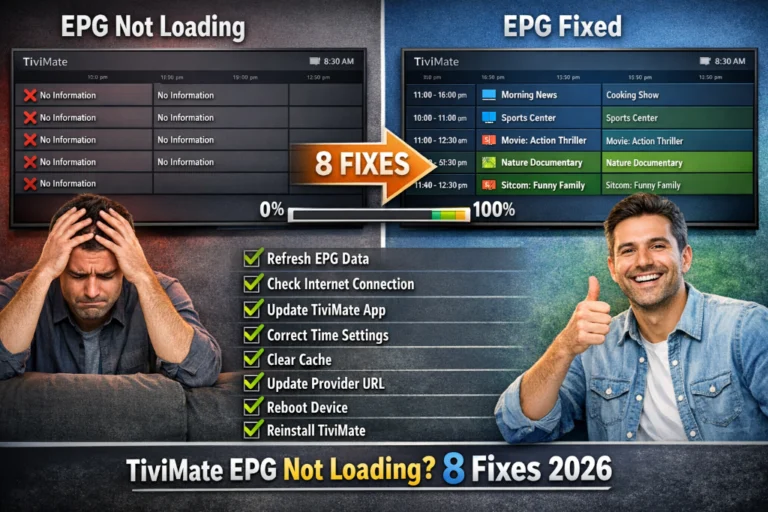
TiviMate EPG not loading turns your organized TV guide into a blank channel list showing “No Information” instead of program schedules. This frustrating issue affects thousands of users, but the good news is that most EPG problems resolve quickly with the right troubleshooting steps.
After helping hundreds of users fix their EPG issues, I’ve identified eight proven solutions that restore program guide functionality in 95% of cases. Whether the problem stems from incorrect URLs, provider issues, or app configuration, this guide covers every fix.
Table of Contents
Understanding TiviMate EPG and Why It Fails
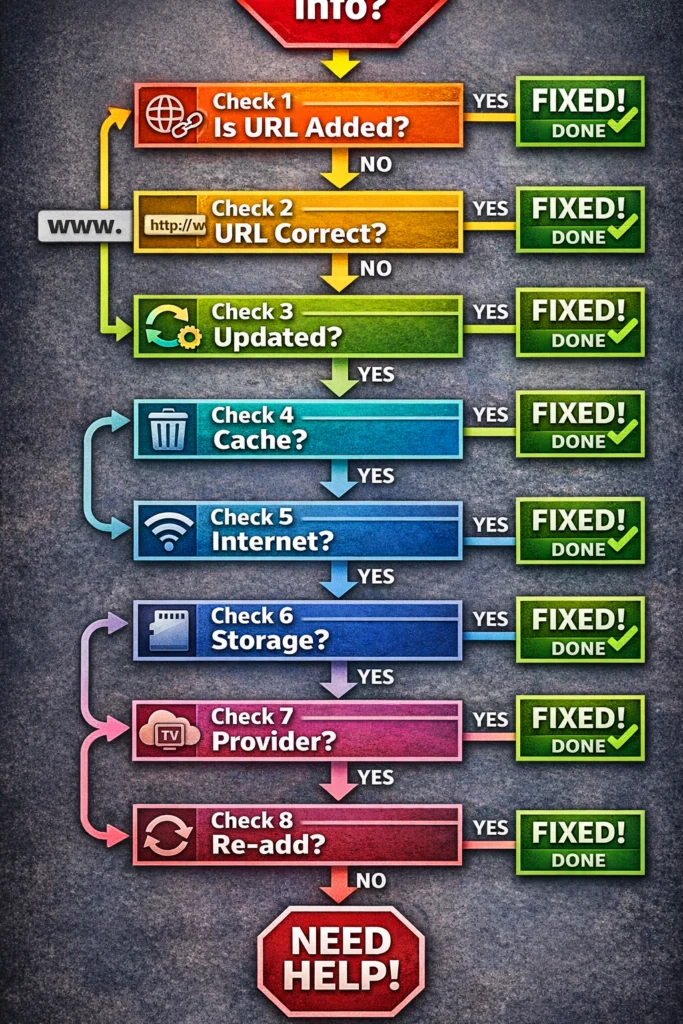
Before troubleshooting TiviMate EPG not loading, understand what EPG is and how TiviMate uses it.
What is EPG?
EPG (Electronic Program Guide) is the digital TV guide showing what’s currently playing, upcoming programs, and complete schedules for each channel. Without EPG data, TiviMate displays only channel names with no show titles, times, or descriptions.
Think of EPG as the programming information layer sitting on top of your channel streams. Channels work fine without EPG, but browsing and scheduling become nearly impossible.
How TiviMate Loads EPG
TiviMate retrieves EPG data from your IPTV provider in two ways:
Automatic EPG (Xtream Codes): When using Xtream Codes API, EPG downloads automatically with your channel list. Provider sends complete program guide data through their API without separate configuration.
Manual EPG (M3U Playlists): Standard M3U playlists require separate EPG URL. You must manually add the EPG source in TiviMate settings. Provider typically supplies this URL along with your M3U playlist link.
Common Reasons EPG Fails
- Incorrect or missing EPG URL in settings
- Provider’s EPG server is down or overloaded
- EPG data file is corrupted or improperly formatted
- TiviMate cache is corrupted preventing EPG display
- Internet connection interrupted EPG download
- Provider doesn’t include EPG for all channels
- EPG update frequency set incorrectly
- Device ran out of storage during EPG download
Understanding these causes helps you apply the correct fix rather than trying random solutions.
Solution 1: Verify EPG URL is Correct
The most common cause of TiviMate EPG not loading is incorrect or missing EPG URL. Start troubleshooting here since it fixes 50% of cases immediately.
Check if EPG URL Exists
- Open TiviMate Settings
- Go to Playlists
- Select your playlist
- Look for EPG Source section
- Check if EPG URL field is empty or populated
If EPG URL is empty: Your EPG won’t load because TiviMate doesn’t know where to retrieve program data. You must add the EPG source.
If EPG URL exists: Verify it’s correct with zero typos. Even one wrong character prevents EPG from loading.
Adding or Correcting EPG URL
- Contact your IPTV provider for EPG URL
- Copy exact URL from provider (don’t type manually)
- In TiviMate: Settings > Playlists > [Your Playlist] > Edit
- Scroll to EPG Source section
- Paste EPG URL precisely
- Tap OK to save
- Go back and select Update Playlist
- Wait 5-10 minutes for EPG to download
EPG URL Format Examples
Valid EPG URLs typically look like:
http://provider.com/xmltv.php?username=user&password=passhttps://provider.com/epg/guide.xml.gzhttp://provider.com:8080/xmltv.php?username=user&password=pass&type=m3u
Common EPG URL Mistakes
- Extra spaces before or after URL
- Missing http:// or https:// prefix
- Wrong port number in URL
- Typos in username or password parameters
- Using M3U playlist URL instead of EPG URL
After correcting EPG URL, manually update playlist and wait. Large EPG files take time to download — don’t expect instant results. For complete EPG setup guidance, check my how to add EPG to TiviMate guide.
Solution 2: Manually Update EPG
Sometimes TiviMate EPG not loading results from outdated program data. Force a manual update to refresh EPG information.
Force EPG Update
- Open TiviMate Settings
- Navigate to Playlists
- Select problematic playlist
- Tap Update Playlist
- Wait for progress indicator to complete
- Check if EPG appears after update
Enable Automatic EPG Updates
Prevent future EPG issues by configuring automatic updates:
- Settings > Playlists > [Your Playlist]
- Find Update EPG Automatically option
- Enable toggle switch
- Set update frequency:
- Daily (recommended for most users)
- Every 12 hours (for sports fans needing current schedules)
- Weekly (for casual viewers)
Understanding Update Times
EPG updates take varying time depending on:
- File size (7 days of data for 1000 channels = large file)
- Internet speed (minimum 10 Mbps recommended)
- Server load (provider’s EPG server responsiveness)
- Device processing power (older devices slower)
Typical EPG Download Times:
- Small EPG (3 days, 100 channels): 2-3 minutes
- Medium EPG (7 days, 500 channels): 5-10 minutes
- Large EPG (7 days, 1000+ channels): 10-20 minutes
During update, be patient. Don’t force-close TiviMate or restart device. Interrupting EPG download creates corrupted data requiring complete re-download.
If manual updates fail repeatedly, EPG URL is likely incorrect or provider’s EPG server has issues.
Solution 3: Clear TiviMate Cache
Corrupted cache files prevent TiviMate EPG not loading even when URLs are correct. Clearing cache forces fresh EPG download.
Clear Cache Without Losing Settings
- Exit TiviMate completely
- Go to Device Settings
- Navigate to Apps or Applications
- Find and select TiviMate
- Tap Storage
- Select Clear Cache (NOT Clear Data)
- Confirm cache clearing
- Restart your device completely
- Reopen TiviMate
- Manually update playlist
Important: Cache vs. Data
Clear Cache: Removes temporary files including corrupted EPG data. Preserves all settings, playlists, favorites, and recordings. Safe option trying first.
Clear Data: Deletes EVERYTHING including settings, playlists, and customizations. Only use as last resort. Requires complete TiviMate reconfiguration afterward.
Why Cache Corruption Happens
- EPG download interrupted mid-process
- Device storage filled during EPG download
- App crashed while processing EPG data
- Power loss during EPG update
- Conflicting app accessing TiviMate files
After Clearing Cache
EPG won’t appear immediately. You must:
- Update playlist manually (Settings > Playlists > Update)
- Wait full download time (5-20 minutes)
- Keep TiviMate open during download
- Ensure stable internet connection
Many users clear cache but don’t wait for complete EPG re-download. Patience is critical — let the process finish completely before assuming it failed.
Solution 4: Check Your IPTV Provider’s EPG Status
Sometimes TiviMate EPG not loading stems from provider-side issues completely outside your control. Identifying provider problems saves hours of unnecessary troubleshooting.
How to Check Provider EPG Status
Test in Alternative App Install IPTV Smarters Pro or GSE Smart IPTV. Add same playlist credentials. If EPG doesn’t load there either, provider EPG is down.
Contact Provider Support Send quick message: “EPG not loading in TiviMate. Is your EPG server operational?” Most providers respond within hours confirming status.
Check Provider Social Media Browse provider’s Facebook, Twitter, or Telegram channels. Providers announce EPG outages and maintenance. Other users reporting same issues confirms provider problems.
Community Forum Search Search Reddit or IPTV forums for your provider name plus “EPG down” or “EPG not working.” Recent posts indicate widespread issues.
Provider Status Page Reputable providers maintain status pages showing service health. Check provider website for system status links.
Common Provider EPG Issues
Server Overload During Peak Hours EPG servers struggle during evening hours when thousands request updates simultaneously. Try updating EPG during off-peak times (2-6 AM).
Maintenance Windows Providers perform EPG server maintenance requiring temporary downtime. Usually scheduled overnight with advance notice.
EPG Service Discontinuation Budget providers sometimes stop offering EPG to reduce costs. If provider confirms EPG discontinued, you’re out of luck with that service.
Incomplete EPG Coverage Some providers offer EPG for mainstream channels but not all. Sports packages and international channels often lack EPG data.
What to Do During Provider Outages
Wait patiently. Provider-side EPG issues require provider action. No troubleshooting on your end fixes their servers.
Document downtime. Note when EPG stopped working. Extended outages warrant service credits or subscription refunds.
Request updates. Ask provider for estimated repair time. Professional services communicate timelines clearly.
Consider switching. Frequent EPG problems indicate poor provider quality. Research alternatives in my best IPTV providers guide.
If provider confirms EPG servers are operational, the issue exists in your configuration or setup.
Solution 5: Verify Internet Connection Stability
Unreliable internet interrupts EPG downloads creating TiviMate EPG not loading issues. Stable connectivity is essential for successful EPG retrieval.
Test Internet Speed
- Run speed test on streaming device
- Minimum required: 10 Mbps download
- Check for packet loss and high latency
- Test during time you normally update EPG
Connection Stability Problems
WiFi Issues Wireless connections drop packets causing corrupted EPG downloads. Symptoms: EPG loads partially, shows some channels but not others, displays random gaps in schedule.
Solution: Switch to wired Ethernet connection for EPG updates. After EPG loads successfully via Ethernet, WiFi works fine for viewing.
ISP Throttling Some internet providers throttle IPTV traffic including EPG downloads. Downloads start but slow to crawl or timeout.
Solution: Use VPN during EPG updates. VPN encryption prevents ISP from detecting and throttling IPTV data. Check my best VPN for TiviMate recommendations.
Network Congestion Multiple devices streaming, downloading, or gaming simultaneously starve TiviMate of bandwidth needed for EPG download.
Solution: Pause other internet activities during EPG updates. Schedule automatic EPG updates overnight when network is idle.
Router Issues Overheating routers or outdated firmware cause connection instability affecting EPG downloads.
Solution: Restart router before EPG updates. Update router firmware to latest version. Consider upgrading old routers affecting all internet activities.
Improving Connection for EPG
Prioritize TiviMate Traffic Configure router QoS (Quality of Service) giving TiviMate priority over other devices.
Use 5GHz WiFi Band If using WiFi, connect to 5GHz band instead of 2.4GHz. Less congestion and interference improves download reliability.
Reduce Distance to Router Move streaming device closer to router during EPG updates. Signal strength directly impacts download success rates.
Disable VPN Temporarily If normally using VPN, try EPG update without it. Some VPN servers have congested routes to EPG servers.
After ensuring stable internet, attempt EPG update again. Connection stability matters more than raw speed for EPG downloads.
Solution 6: Check Device Storage Space
Insufficient storage prevents TiviMate EPG not loading because EPG data files need space to save. This often-overlooked issue causes mysterious EPG failures.
Check Available Storage
- Go to Device Settings
- Select Storage or Device Care
- View available internal storage
- Check free space percentage
Storage Requirements
- Small EPG: 50-100 MB free space needed
- Medium EPG: 200-300 MB required
- Large EPG: 500 MB – 1 GB necessary
If free space is under 500 MB, your device is too full for reliable EPG storage.
Free Up Storage Space
Delete Unused Apps Remove apps you never use. Each app plus its data consumes significant space.
Clear Other Apps’ Cache Cache accumulates across all apps. Clear cache for YouTube, Netflix, browser apps freeing hundreds of megabytes.
Move Apps to External Storage If device supports it, move apps to SD card or USB storage freeing internal space.
Delete Old Recordings TiviMate recordings consume gigabytes. Delete watched recordings or move to external storage.
Uninstall App Updates Some system apps allow uninstalling updates returning to factory version. Frees space without removing apps.
Configure External Storage for EPG
TiviMate Premium allows storing EPG on external drives:
- Connect USB drive or SD card
- Go to TiviMate Settings > General
- Find EPG Storage Location option
- Select external storage
- Update playlist to download EPG to new location
Storage Monitoring
After freeing space, leave at least 1-2 GB free for optimal performance. Full storage causes numerous app issues beyond EPG problems.
Low storage also slows EPG processing. Even if enough space exists, near-full storage makes TiviMate sluggish parsing EPG data.
Solution 7: Update TiviMate to Latest Version
Outdated TiviMate versions contain EPG bugs fixed in newer releases. Updating resolves TiviMate EPG not loading caused by software issues.
Check Current TiviMate Version
- Open TiviMate
- Go to Settings
- Select About
- Note version number displayed
How to Update TiviMate
Method 1 – Google Play Store (if available):
- Open Play Store on device
- Search “TiviMate”
- If update available, tap Update button
- Wait for installation to complete
Method 2 – Manual APK Update:
- Visit official TiviMate website on computer
- Download latest APK file
- Transfer to Android device via USB
- Install APK update (enable Unknown Sources if needed)
- Open updated TiviMate
Why Updates Fix EPG Issues
Bug Fixes Developers constantly fix EPG parsing bugs. Updates include corrections for EPG display problems, format compatibility, and download reliability.
New EPG Formats IPTV providers sometimes change EPG formats. TiviMate updates add support for new formats ensuring compatibility.
Performance Improvements Updates optimize EPG processing speed. Faster parsing means quicker EPG loading and fewer timeout errors.
API Changes When IPTV industry standards change, updates maintain compatibility with provider APIs ensuring EPG continues functioning.
After Updating
- Restart device completely
- Open updated TiviMate
- Clear cache (Settings > Apps > TiviMate > Clear Cache)
- Update playlist to refresh EPG
- Wait for complete download
Major updates sometimes reset certain settings. Verify EPG URL remained saved after update. Re-enter if necessary.
Updates also require device restart for complete integration. Don’t skip restart step — it ensures new code executes properly.
Solution 8: Delete and Re-Add Playlist
When all else fails, completely removing and re-adding your playlist resolves stubborn TiviMate EPG not loading issues. This nuclear option clears all cached configuration.
Backup Before Deleting
If using TiviMate Premium, backup settings first:
- Go to Settings > General
- Select Backup Settings
- Save backup to safe location
- This preserves favorites and customizations
Delete Playlist Completely
- Open TiviMate Settings
- Go to Playlists
- Long-press your playlist
- Select Delete
- Confirm deletion
- Exit TiviMate
Restart Device
- Power off device completely
- Wait 30 seconds
- Power back on
- Wait for full boot
Re-Add Playlist Fresh
- Open TiviMate
- Select Add Playlist
- Choose M3U Playlist or Xtream Codes
- Copy-paste credentials fresh from provider
- For M3U: Add EPG URL in separate field
- Tap Next
- Wait for channels to load (2-5 minutes)
- Wait for EPG to download (5-20 minutes)
Critical: Do Not Rush
After re-adding playlist:
- Keep TiviMate open and active
- Don’t switch to other apps
- Maintain stable internet connection
- Wait full 20 minutes minimum
- Don’t force close or restart during process
Many users re-add playlist but don’t wait for complete EPG download. They check after 2 minutes, see no EPG, and assume it failed. Large EPG files require patience.
If Still No EPG
After playlist re-addition:
- Verify EPG URL is absolutely correct
- Test playlist in IPTV Smarters Pro
- Contact provider confirming EPG availability
- Request alternative EPG URL from provider
Sometimes providers supply faulty EPG URLs. If re-addition with fresh credentials fails, provider must verify their EPG service is working.
Advanced Troubleshooting and Less Common Fixes
For persistent TiviMate EPG not loading after trying all main solutions, these advanced techniques address rare edge cases.
Check Device Date and Time
Incorrect system date/time causes EPG to fail:
- Go to Device Settings > Date & Time
- Enable Automatic Date & Time
- Verify timezone is correct for your location
- Restart device
- Update EPG
EPG schedules are time-sensitive. Wrong timezone displays programs at incorrect times or prevents EPG from parsing entirely.
Test Different EPG Sources
Some providers offer multiple EPG URLs:
- Contact provider requesting alternative EPG source
- Try different EPG format (XMLTV vs JSON)
- Test EPG from community sources like GitHub IPTV-org
Disable IPv6
Some EPG servers don’t support IPv6 properly:
- Access router settings
- Disable IPv6
- Use IPv4 only
- Restart devices
- Update EPG
Factory Reset TiviMate (Last Resort)
If nothing works:
- Backup settings via TiviMate Premium
- Uninstall TiviMate completely
- Restart device
- Reinstall fresh TiviMate
- Add playlist with verified credentials
Factory reset removes all corrupted files and settings creating clean slate. Only attempt after exhausting other solutions.
Preventing Future EPG Issues
Once you’ve fixed TiviMate EPG not loading, these practices prevent recurrence.
Enable Automatic Updates Configure daily automatic EPG updates running overnight. Settings > Playlists > Update EPG Automatically > Daily > Set time to 3-4 AM.
Maintain Adequate Storage Keep minimum 1-2 GB free space always. Delete recordings and unused apps regularly.
Use Stable Internet Connect via Ethernet when possible. Avoid WiFi for devices playing IPTV daily.
Keep TiviMate Updated Install updates when available. Updates include EPG improvements and bug fixes.
Save EPG to External Storage TiviMate Premium feature saves EPG to USB drive preventing storage issues. Settings > General > Save EPG to Storage.
Document Working Configuration Screenshot EPG settings when working properly. Screenshot EPG URL, update frequency, storage location. Speeds troubleshooting if issues return.
Choose Quality Providers Reliable IPTV services maintain stable EPG servers. Research providers before subscribing. Check my best IPTV service recommendations focusing on EPG quality.
Prevention beats troubleshooting. Five minutes of proactive configuration prevents hours of EPG frustration.
Final Thoughts on EPG Loading Issues
TiviMate EPG not loading frustrates users but usually resolves quickly with systematic troubleshooting. Start with EPG URL verification, manual updates, and cache clearing — these fix 80% of cases immediately.
Provider issues require patience and support contact. Don’t waste time on complex fixes when provider EPG servers are down. They must resolve server problems.
Storage, connectivity, and software updates address remaining cases. Approach troubleshooting methodically rather than randomly trying fixes.
Once working, enable automatic updates and maintain adequate storage preventing future EPG issues. A properly configured TiviMate with working EPG transforms IPTV into cable-quality experience.
For more TiviMate troubleshooting and optimization guides, explore my comprehensive resources including customizing TiviMate interface and complete IPTV player guide 2026.