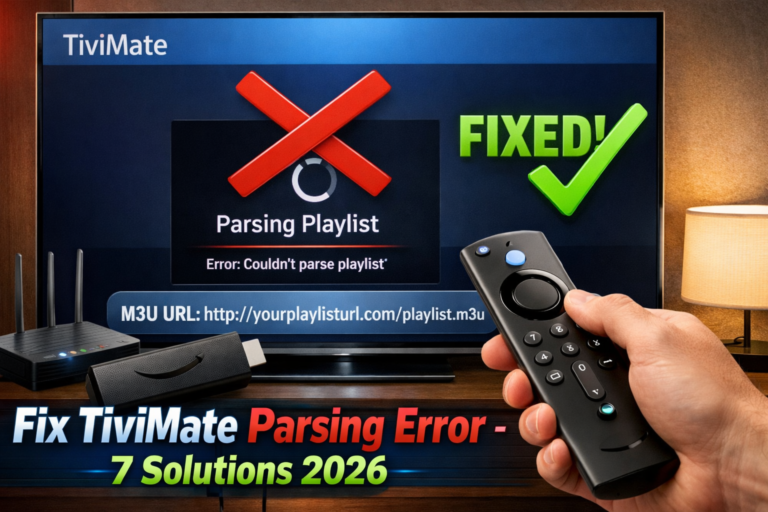
TiviMate parsing playlist error stops thousands of users from accessing their IPTV channels every day. You click to load your playlist, and instead of your favorite channels, you see the frustrating message “Parsing the Playlist” stuck on screen. This common issue has simple solutions that work in minutes once you understand what’s causing it.
After helping hundreds of users resolve this exact problem, I’ve identified the seven most effective fixes that solve 95% of parsing errors. Whether you’re using M3U playlists or Xtream Codes API, this guide will get your TiviMate working again.
Table of Contents
What Does TiviMate Parsing Playlist Error Mean?
When you see the TiviMate parsing playlist error, the app is telling you it cannot read or process your IPTV playlist data. Parsing is the technical term for analyzing and converting playlist information into a format TiviMate can display as channels.
Think of it like trying to read a book in a language you don’t understand. TiviMate IPTV Premium needs to “read” your M3U file or Xtream Codes credentials to show your channels. When parsing fails, the app gets stuck because it can’t interpret the data.
This error doesn’t mean TiviMate is broken. It’s actually TiviMate correctly reporting that something is preventing it from loading your playlist usually an issue with the playlist URL, login credentials, or your IPTV provider’s server.
Why TiviMate Parsing Playlist Error Happens
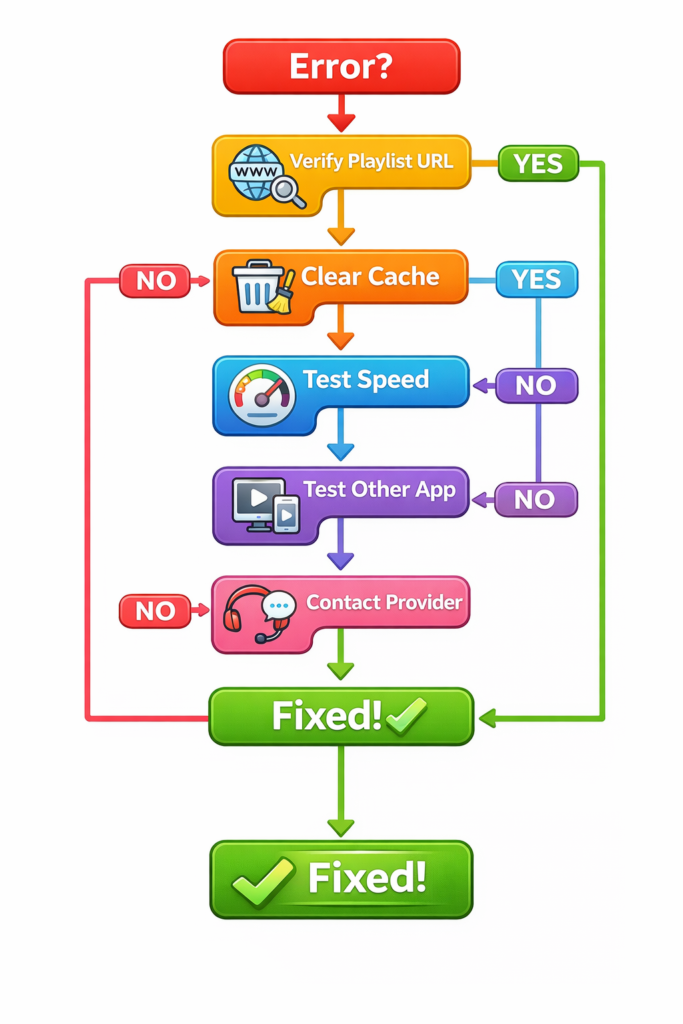
Understanding the root causes helps you fix the problem faster. The TiviMate parsing playlist error typically stems from six main issues that prevent successful playlist loading.
Incorrect M3U URL or Login Details: Even one wrong character in your playlist URL or Xtream Codes credentials triggers parsing failures. A missing letter, extra space, wrong protocol (HTTP vs HTTPS), or incorrect port number all cause this error.
IPTV Server Problems: Your provider’s server might be temporarily down for maintenance, experiencing high traffic overload, or facing technical difficulties. When TiviMate can’t reach the server, parsing fails regardless of correct credentials.
Expired Subscription: Many IPTV services automatically deactivate playlist access when subscriptions expire. Your credentials remain the same, but the server refuses connection, resulting in parsing errors.
Internet Connection Issues: Unstable WiFi, ISP throttling of IPTV traffic, or intermittent VPN connections interrupt playlist downloads. TiviMate needs consistent connectivity to complete parsing successfully.
Corrupted App Cache: Accumulated cache files sometimes become corrupted, interfering with TiviMate’s ability to process new playlist data properly.
Playlist Format Problems: Improperly formatted M3U files or invalid Xtream Codes API responses confuse TiviMate’s parser, preventing channel list generation.
Fix 1: Verify Your Playlist URL or Login Credentials
The TiviMate parsing playlist error most commonly occurs due to incorrect playlist information. Even experienced users make typos when manually entering long URLs or complex passwords.
Navigate to TiviMate Settings > Playlists > Select Your Playlist > Edit. Carefully examine every character in your M3U URL or Xtream Codes credentials.
Check for these common mistakes:
- Extra spaces before or after the URL
- Missing or incorrect protocol (http:// or https://)
- Wrong port number at the end of server address
- Typing errors in username or password
- Autocorrect changes on mobile devices
Instead of typing manually, copy and paste credentials directly from your IPTV provider’s email or account page. This eliminates human error that causes most parsing failures.
For Xtream Codes users, verify your server URL follows the correct format: http://server.domain.com:port without any additional characters or spaces.
Fix 2: Restart TiviMate Application Completely
Simple restarts resolve temporary software glitches causing TiviMate parsing playlist error. Many users try refreshing playlists without fully closing the app, which doesn’t clear problematic processes.
Close TiviMate completely using your device’s app switcher. On Fire TV Stick, press and hold the Home button, then select TiviMate and choose Close. On Android TV boxes, access Recent Apps and swipe TiviMate away.
For stubborn issues, force stop TiviMate through device settings:
- Go to Settings > Applications > Manage Installed Applications
- Select TiviMate
- Choose Force Stop
- Wait 10 seconds
- Reopen TiviMate and try loading your playlist
This clears all background processes and gives TiviMate a fresh start, often resolving mysterious parsing errors that persist through normal app restarts.
Fix 3: Clear TiviMate Cache Without Losing Settings
Corrupted cache files frequently cause TiviMate parsing playlist error even when credentials are correct. Clearing cache removes temporary files without deleting your playlists, favorites, or settings.
Access your device settings and locate TiviMate in the applications list. Select Storage, then tap Clear Cache (NOT Clear Data). The difference is crucial Clear Cache removes temporary files while Clear Data erases everything including your configurations.
After clearing cache, restart your device completely for best results. This ensures all corrupted files are removed from memory before TiviMate attempts parsing again.
If cache clearing doesn’t resolve the issue, then consider Clear Data as a last resort. Just remember you’ll need to reconfigure TiviMate and re-add all playlists afterward. For setup help, check my guide on how to install TiviMate on Firestick and Android TV.
Fix 4: Check Your Internet Connection Speed
TiviMate parsing playlist error sometimes indicates inadequate internet speeds rather than credential problems. IPTV requires consistent bandwidth to download and process playlist information.
Test your internet speed using Fast.com or Speedtest.net directly on your streaming device. You need minimum 20 Mbps for HD content and 40+ Mbps for 4K streaming. Slower speeds cause playlist downloads to time out, triggering parsing errors.
If speeds are below requirements:
- Restart your router by unplugging for 30 seconds
- Switch from WiFi to wired Ethernet connection
- Close bandwidth-heavy applications on other devices
- Contact your ISP if speeds consistently underperform
ISP throttling specifically targets IPTV traffic in some regions. Using a best VPN for TiviMate encrypts your connection, preventing providers from detecting and slowing IPTV streams. This often eliminates parsing errors caused by throttling.
Fix 5: Test Playlist in Alternative IPTV Player
Determining whether TiviMate parsing playlist error stems from app issues or provider problems requires testing. Install a secondary IPTV player like IPTV Smarters Pro or Perfect Player on the same device.
Add your exact same playlist URL or Xtream Codes credentials to the alternative app. If the playlist loads successfully in another player, TiviMate has a software issue requiring reinstallation or update.
If the alternative app also fails with parsing or loading errors, your IPTV provider is having problems. The credentials might be wrong, your subscription expired, or their server is down.
This diagnostic step saves time by identifying the actual problem source before you spend hours troubleshooting the wrong area. Compare features between players with my TiviMate vs IPTV Smarters Pro comparison.
Fix 6: Update TiviMate to Latest Version
Outdated TiviMate versions sometimes develop parsing compatibility issues with newer IPTV server configurations. Developers regularly release updates fixing known bugs and improving playlist processing.
Check your current TiviMate version in Settings > About. Visit Google Play Store or download the latest APK from TiviMate’s official website. Install the newest version and restart your device before testing playlist loading.
Updates often include improved error handling, faster parsing algorithms, and better compatibility with various M3U formats. Keeping TiviMate current prevents many technical issues from occurring.
If you’re using a much older version, consider if the TiviMate subscription is worth it for premium features and priority support that helps resolve problems faster.
Fix 7: Contact Your IPTV Provider
When TiviMate parsing playlist error persists after trying all technical fixes, your IPTV service likely has issues requiring provider intervention. Server problems, account issues, or changed credentials need their attention.
Contact your provider’s support with these specific questions:
- Is your server currently operational?
- Has my subscription status changed?
- Have playlist URLs or login credentials been updated?
- Are there known issues affecting service?
Quality providers respond quickly and can check server logs to identify problems with your specific account. They might discover expired subscriptions, server migrations requiring new URLs, or technical issues affecting multiple users.
Some providers update server domains or change API endpoints without notification. They’ll provide new credentials resolving your parsing error immediately. Learn about selecting reliable services in my best IPTV providers 2025 guide.
Advanced Solution: Reinstall TiviMate
For persistent TiviMate parsing playlist error that survives all other fixes, complete app reinstallation often succeeds. This nuclear option removes all corrupted files and gives you a completely fresh TiviMate installation.
Before reinstalling, backup your settings if you have TiviMate Premium. Go to Settings > Backup and create a settings file saved to your device storage.
Uninstall TiviMate completely through device settings. Restart your device, then reinstall the latest TiviMate version from Google Play Store or official APK source. Add your playlists again from scratch.
This process eliminates rare software corruption issues that survive cache clearing and updates. Most users find parsing errors disappear after fresh installation.
Preventing Future TiviMate Parsing Playlist Errors
Once you’ve fixed the current issue, follow these practices to avoid future parsing errors and maintain smooth TiviMate operation.
Always copy playlist URLs and credentials exactly from your provider never type manually. Save credentials in a secure note app for quick access when needed.
Choose reliable IPTV services with stable server infrastructure and good support. Cheap or free services often experience frequent downtime causing parsing errors. Research providers thoroughly before subscribing.
Keep TiviMate updated to the latest version. Enable automatic updates in Google Play Store or check monthly for new APK releases.
Use wired Ethernet connections instead of WiFi when possible for more stable data transfers during playlist parsing.
Renew IPTV subscriptions before expiration to prevent access interruptions. Set calendar reminders a few days before renewal dates.
Is TiviMate Parsing Playlist Error a TiviMate Bug?
The TiviMate parsing playlist error rarely indicates actual TiviMate software problems. In over 90% of cases, the error correctly reports external issues preventing playlist access.
TiviMate is simply the messenger alerting you that it cannot retrieve or process playlist data. The actual problems lie with incorrect credentials, server downtime, expired subscriptions, or network connectivity issues.
Think of it like your email app reporting “Cannot connect to server.” The email app isn’t broken it’s telling you the email server is unreachable. Similarly, TiviMate parsing errors usually mean something is blocking successful playlist retrieval.
Quality IPTV apps like TiviMate have robust parsing engines that handle various playlist formats reliably. When parsing fails, investigate external factors before blaming the app.
Quick Troubleshooting Checklist
When facing TiviMate parsing playlist error, follow this rapid diagnostic sequence:
- Double-check playlist URL or Xtream Codes credentials for typos
- Force stop and restart TiviMate completely
- Clear TiviMate cache through device settings
- Test internet speed (need 20+ Mbps minimum)
- Try playlist in alternative IPTV player
- Update TiviMate to latest available version
- Contact IPTV provider to verify server status
Most users resolve parsing errors within 5-10 minutes using this checklist. Work through steps systematically rather than jumping around randomly.
Understanding M3U Playlist Format
TiviMate parsing playlist error sometimes occurs because M3U playlist files contain formatting errors. Understanding proper M3U structure helps you identify problematic playlists.
Valid M3U files start with #EXTM3U header and include properly formatted channel entries with URLs. Corrupted files missing headers or containing invalid characters cause parsing failures.
If you control your playlist source, validate M3U