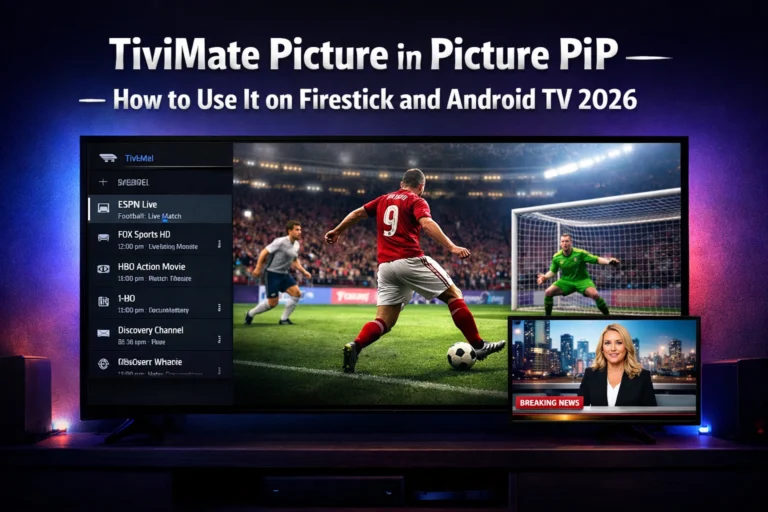
TiviMate Picture in Picture is one of the most powerful and most underused features in the entire app, and once you discover it, the way you watch IPTV changes completely. PiP lets you keep a live channel playing in a small floating window while you browse the EPG, check your VOD library, or navigate other parts of the TiviMate interface. Whether you follow multiple sports at the same time, want to keep the news running in the background while you browse, or simply hate missing live action while switching channels, this guide shows you exactly how to set up and use TiviMate PiP in 2026 on Firestick and Android TV.
Table of Contents
What Is TiviMate Picture in Picture and Why Does It Matter
TiviMate Picture in Picture is a Premium feature that creates a small floating video window that stays visible on screen while you interact with other parts of the app. The main channel continues playing in full audio in that small window while you freely navigate your IPTV subscription, browse the program guide, or search for something else to watch.
This is different from multi-view which splits the full screen into equal windows. PiP keeps one channel as the primary focus in a small corner window while the rest of your screen is free for navigation. It is the ideal feature for anyone who does not want to miss a second of live content while doing anything else inside TiviMate.
PiP is a TiviMate Premium exclusive. The free version of TiviMate does not include this feature. If you want to unlock PiP along with recording, multi-view, multiple playlists, and catch-up TV, upgrading to TiviMate Premium is the only way to get there.
What You Need Before Using TiviMate Picture in Picture

Before you activate TiviMate Picture in Picture, there are a few requirements to confirm. First, your device must be running Android 8.0 or higher. All current Firestick models, Fire TV Cube, and Android TV boxes sold in 2023 and beyond meet this requirement without any issues.
Second, you need an active TiviMate Premium subscription. PiP is not available in the free version of TiviMate. You purchase Premium through the TiviMate Companion app on an Android phone from the Google Play Store.
Third, and most importantly for PiP and multi-view to work with two simultaneous streams, your IPTV subscription must allow at least two concurrent connections. If your cheap IPTV plan only allows one connection, the second PiP window will fail to load. Check with your provider before testing this feature or contact us on WhatsApp to get a premium IPTV plan that supports multiple connections from day one.
How to Enable TiviMate Picture in Picture Step by Step
Open TiviMate and start playing any live channel from your IPTV subscription. Once the channel is playing and the video fills the screen, press the center button on your remote once to bring up the info bar at the bottom of the screen.
From the info bar, scroll down using your remote directional button to reveal the toolbar row. This toolbar contains several action icons including PiP, record, and multi-view. Navigate to the PiP icon and press the center button to activate it.
Your current channel will immediately shrink into a small floating window positioned in one corner of your screen. The main screen is now free for you to navigate anywhere inside TiviMate while the channel continues playing with full audio in the PiP window.
How to Control TiviMate Picture in Picture
Once PiP is active, you can navigate to the corner window at any time by pressing the directional button toward it. Pressing the center button on the PiP window brings up options to expand it back to full screen, close it, or switch its audio focus if you also have another channel playing.
To move the PiP window to a different corner of your screen, navigate to the window and use the directional buttons to reposition it. TiviMate gives you full freedom to place the floating window in any corner that does not obstruct what you are browsing on the main screen.
To close PiP completely, navigate to the floating window and press the center button, then select the close option from the menu that appears. Your main TiviMate interface will remain exactly where you left it with no interruption to your navigation.
TiviMate Picture in Picture vs Multi-View: What Is the Difference
Both TiviMate Picture in Picture and multi-view let you watch more than one channel at the same time but they serve different purposes. Understanding the difference helps you choose the right feature for each situation.
PiP keeps one small floating channel in the corner while the rest of your screen is used for normal TiviMate navigation. It is designed for users who want to keep an eye on a live channel without stopping what they are doing inside the app. Think of it as the equivalent of keeping one eye on the TV while you check the program guide.
Multi-view splits your screen into two, three, or four equal windows with each showing a different live channel simultaneously. It is designed for situations like a big sports day when multiple matches run at the same time and you want full visibility on all of them at once. Both features require TiviMate Premium and both require your IPTV subscription to support multiple concurrent connections, one per active window.
Best Uses for TiviMate Picture in Picture in 2026
Sports fans get the most value from TiviMate PiP. Keep your main match playing in full screen while you use PiP to monitor a second game in the corner. When the secondary match reaches a critical moment, switch it to full screen with one button press without losing the first stream.
News watchers use PiP to keep a live news channel running in the corner while they browse the VOD library or EPG for something to watch later. It eliminates the need to pause anything and removes the frustration of missing a breaking story while looking for your next show.
PiP is also useful when testing IPTV quality. If you want to compare stream quality between two channels or two different providers on your best free IPTV trial, running them side by side using PiP gives you an instant visual comparison without switching back and forth.
Common TiviMate Picture in Picture Problems and Fixes
If your PiP window shows a black screen with no video, the most common cause is that your IPTV subscription only allows one concurrent connection. The first stream takes the single available connection and the PiP stream cannot connect. Upgrade to a plan that supports two or more connections and the issue resolves immediately.
If the PiP icon does not appear in the TiviMate toolbar, confirm that your TiviMate Premium subscription is active and that you are running the latest version of the app. An outdated TiviMate version may not display all Premium feature icons in the toolbar. Check our guide on how to update TiviMate to the latest version to make sure you are fully current.
If PiP video plays but stutters or drops frames, go to Settings, Player, and enable Hardware Acceleration. This uses your device processor more efficiently for simultaneous stream decoding and resolves most performance issues with PiP on older Firestick models.
Final Thoughts on TiviMate Picture in Picture
TiviMate Picture in Picture is one of those features that feels like a luxury until you use it for the first time, and then it becomes something you cannot imagine streaming without. It is fast, smooth, and completely changes how you interact with a large IPTV subscription every day.
To use PiP you need TiviMate Premium and an IPTV plan that supports multiple concurrent connections. If you are ready to set up the complete package, check our full breakdown of all TiviMate features and settings or contact us on WhatsApp to get started with a completely free premium IPTV trial today that includes multi-connection support from the first minute.