Update TiviMate to the latest version is something every IPTV user needs to do regularly if they want the best streaming performance, the latest bug fixes, and access to new features as the developer releases them. Running an outdated version of TiviMate can cause buffering issues, EPG errors, playback problems, and in some cases your playlist may stop loading altogether. The current latest stable release as of 2026 is TiviMate version 5.1.6, and in this guide I will show you exactly how to update on every device Firestick, Android TV, Google TV, and manual APK update in plain steps anyone can follow.
Table of Contents
Why You Should Always Update TiviMate to the Latest Version
Keeping TiviMate updated is not just about getting new features. Every update the developer ships includes security patches that protect your device, performance improvements that reduce buffering and speed up channel loading, and fixes for bugs that may be quietly causing issues in the background you have not even noticed yet. Version 5.1.6 brings faster EPG loading times, fewer guide errors, enhanced codec support for more video formats, and stronger stability fixes that eliminate the random crashes some users experienced in earlier versions.
Fire Stick Tricks If your device is running anything older than this, you are missing real improvements to your daily streaming experience. Pair a fresh TiviMate update with a reliable IPTV subscription and you will notice the difference immediately.
How to Check Your Current TiviMate Version
Before updating, confirm which version you are running. Open TiviMate on your device, go to Settings, scroll down to About, and the current version number will be displayed there. If the number shown is lower than 5.1.6, follow the steps below to get current. You can also check our dedicated page on what is the latest version of TiviMate for the most up to date information at any time.
How to Update TiviMate on Android TV via Google Play Store
If you installed TiviMate through the Google Play Store on a native Android TV device, updating is the simplest process of all. Open the Google Play Store on your device, go to My Apps, find TiviMate in the list, and if an update is available you will see an Update button next to it. Tap Update and the installation runs automatically in about one minute. Once complete, reopen TiviMate and your settings, playlists, and favorites will all be intact exactly as you left them. Nothing gets wiped during a standard update through the Play Store.
How to Enable Auto Updates for TiviMate on Android TV
If you want TiviMate to update itself without you having to check manually, go to the Google Play Store settings, turn on auto-update for apps, and select TiviMate. IPTV THE FOX From that point on, whenever a new version is released your device will download and install it automatically in the background, usually overnight when the device is idle. This is the most hands-off option and the one I recommend for most users who just want everything to stay current without thinking about it.
How to Update TiviMate on Firestick Manually
Firestick users have a slightly different process because TiviMate is not available on the Amazon App Store and has to be sideloaded. This means updates also have to be done manually through the Downloader app. If you do not have Downloader installed already, check our full guide on how to install TiviMate on Firestick which covers the Downloader setup in detail.
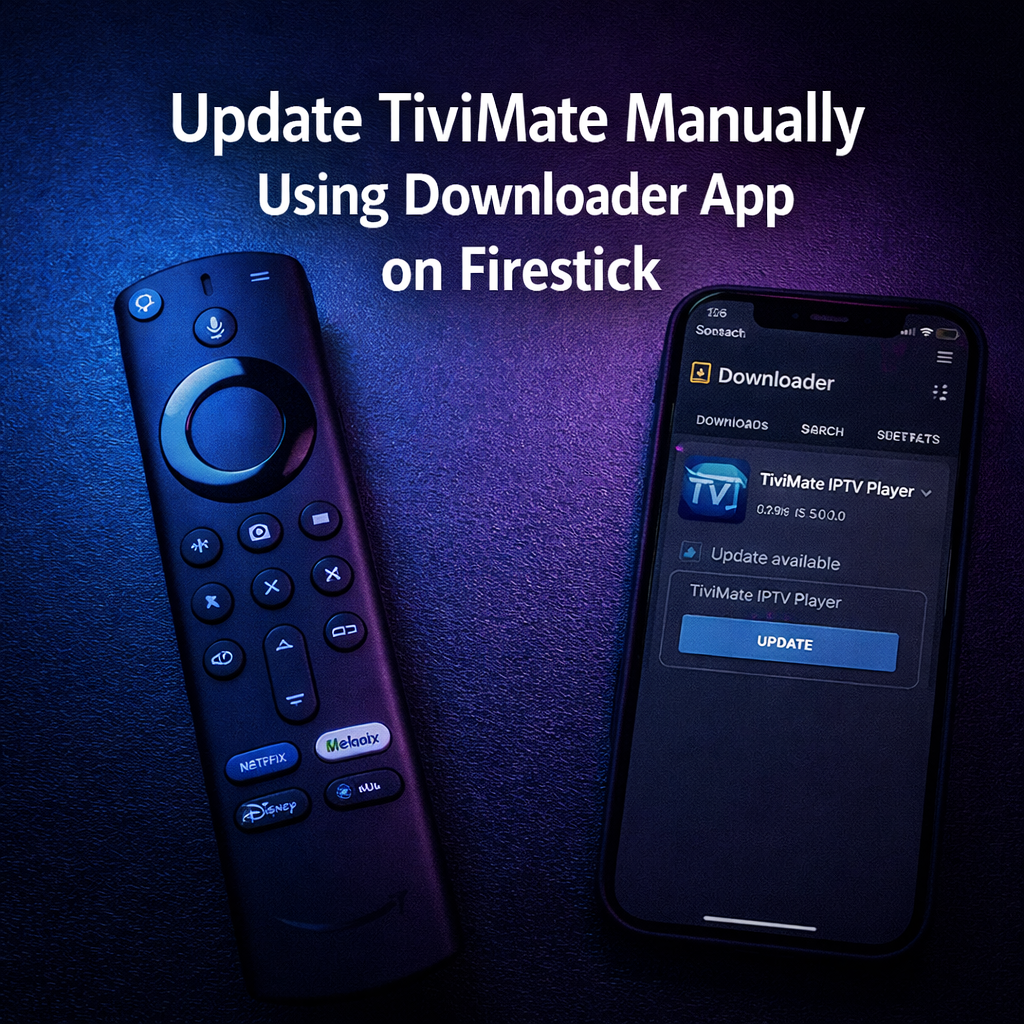
Once Downloader is open, go to the URL bar and type tivimate.com, scroll to the bottom of the page, and tap the Download APK button. The latest version file will begin downloading to your device. When the download is complete, Downloader will prompt you to install the APK. Tap Install. Because you already have TiviMate on your device, this will update the existing app rather than creating a duplicate. Your playlists and settings remain untouched. After installation, delete the APK file when prompted to keep your Firestick storage clean.
How to Update TiviMate on Firestick via Amazon App Store
Some Firestick models do pick up TiviMate updates through Amazon’s own system depending on how the app was originally installed. On Amazon devices, you can activate automatic updates through the Amazon App Store settings. IPTV THE FOX Go to the Amazon App Store, search for TiviMate, and if the Update button appears instead of Open, tap it to install the latest release. If no update button appears, use the manual Downloader method described above to guarantee you are on the newest version.
How to Update TiviMate on Google TV
Google TV devices like Chromecast with Google TV handle updates through the Google Play Store the same way standard Android TV does. Open the Play Store, navigate to My Apps, locate TiviMate, and tap Update if it is available. If you are not finding TiviMate in the Play Store on your Google TV device, check our step by step TiviMate Google TV installation guide which walks through the full setup and update process for that platform specifically.
Should You Back Up TiviMate Before Updating
The short answer is yes, always. Even though standard updates through the Play Store or APK install do not delete your data, there is always a small chance something goes wrong, especially if your device is low on storage or the installation gets interrupted. Before any update, spend thirty seconds doing a quick backup. Go to Settings, General, Backup and Restore, and save your config to Google Drive. Our full guide on how to backup and restore TiviMate settings walks you through every step. If you have TiviMate Premium, you can also set auto backup so this happens in the background without any effort on your part.
Common TiviMate Update Errors and How to Fix Them
If your update fails with an App Not Installed error, the most common cause is insufficient storage on your device. Go to Settings, Applications, and clear the cache on apps you rarely use to free up space, then try the update again. If TiviMate crashes immediately after updating, a full restart of your device usually resolves it. Power off completely, wait ten seconds, and power back on. If your EPG stops loading after an update, go to Settings inside TiviMate, navigate to Playlists, select your playlist, and tap Update Now to force a fresh EPG pull from your IPTV provider.
If you are using a VPN, disable it temporarily to check if that resolves any download or loading issues following the update. IPTV THE FOX Buffering after an update is rarely caused by TiviMate itself it is usually your internet connection or ISP throttling. Check our guide on the best VPN for TiviMate to protect your stream and prevent throttling from affecting your experience.
What is New in TiviMate Version 5.1.6
This is the version you want to be on in 2026. The update focused heavily on stability and performance rather than flashy new features. EPG handling is noticeably faster, guide data loads with fewer blank entries, the codec library was expanded to support additional video and audio formats, and several crash bugs from version 5.0 that affected specific device models were resolved. If you were experiencing random app freezes or channels that would play audio but no video, this update addresses both of those issues directly. The file size sits at 13.5MB so the download is quick on any reasonable internet connection.
Final Thoughts
Keeping TiviMate updated is one of the simplest things you can do to maintain a great streaming experience. Whether you are on Firestick, Android TV, or Google TV, the process takes under five minutes and the difference in performance is real. If you are not already on version 5.1.6, follow the steps in this guide for your specific device and get current today.
Once you are updated, make sure you have a solid IPTV subscription running behind it to get the full benefit of everything TiviMate offers. If you are still looking for a reliable service, check out our best IPTV providers guide or contact us on WhatsApp to start with a premium 24-hour trial for just $1 no commitment required.