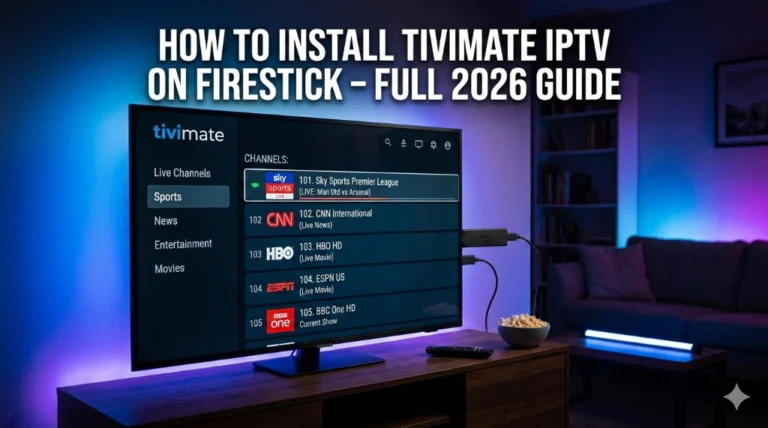
Install TiviMate IPTV on Firestick is one of the most searched topics in the IPTV world right now, and for a good reason. TiviMate is hands down the best IPTV player available for Fire TV and Android TV devices in 2026. The interface feels like a premium cable box, the EPG is smooth, and the performance on any Firestick model beats every competitor I have tested. Whether you just bought a new Firestick or you are switching from another IPTV app, this guide gives you the full process from start to finish in plain language.
Table of Contents
Why Install TiviMate IPTV on Firestick Instead of Other Players
Before we get into the steps, it is worth understanding why TiviMate is the right choice. If you have used apps like IPTV Smarters or GSE IPTV, you already know how clunky some players can feel. TiviMate is different. It was built specifically for TV screens and remote navigation, which means everything feels natural from the moment you open it. You get a full Electronic Program Guide, multi-view mode to watch several channels at once, catch-up TV, built-in DVR recording, parental controls, and support for multiple playlists all inside one clean interface.
The free version gives you a taste but if you want everything unlocked, TiviMate Premium is worth every cent. We have a full breakdown of whether TiviMate Premium is worth it if you want to read that first.
What You Need Before You Start
Getting TiviMate running on your Firestick requires a few things in place before you touch any settings. You need an Amazon Firestick, Fire TV Cube, or any Android TV device running Android 5.0 or higher. You need a stable internet connection with at least 10 Mbps for HD streaming and 25 Mbps for 4K. Most importantly, you need an active IPTV subscription that provides you with either an M3U URL or Xtream Codes credentials. TiviMate is purely a player it does not come with any channels built in. If you do not have a subscription yet, you can start with a $1 trial for 24 hours and test the quality before committing to a plan.
How to Install TiviMate IPTV on Firestick Step by Step
Step 1 – Enable Apps from Unknown Sources
TiviMate is not available on the Amazon App Store, so you need to allow your Firestick to install apps from outside Amazon. From your Firestick home screen go to Settings, then select My Fire TV. If you are on a 2026 updated interface, tap About first, then highlight your device name and click it seven times rapidly until you see the message confirming developer mode is on. Then go back one step, open Developer Options, and turn on Install Unknown Apps for the Downloader app.
Step 2 – Install the Downloader App
Go back to the Firestick home screen, click the Search icon, type Downloader, and install it from the results. Downloader is a free app available directly in the Amazon App Store and it is the tool that lets you sideload TiviMate onto your device.
Step 3 – Download the TiviMate APK
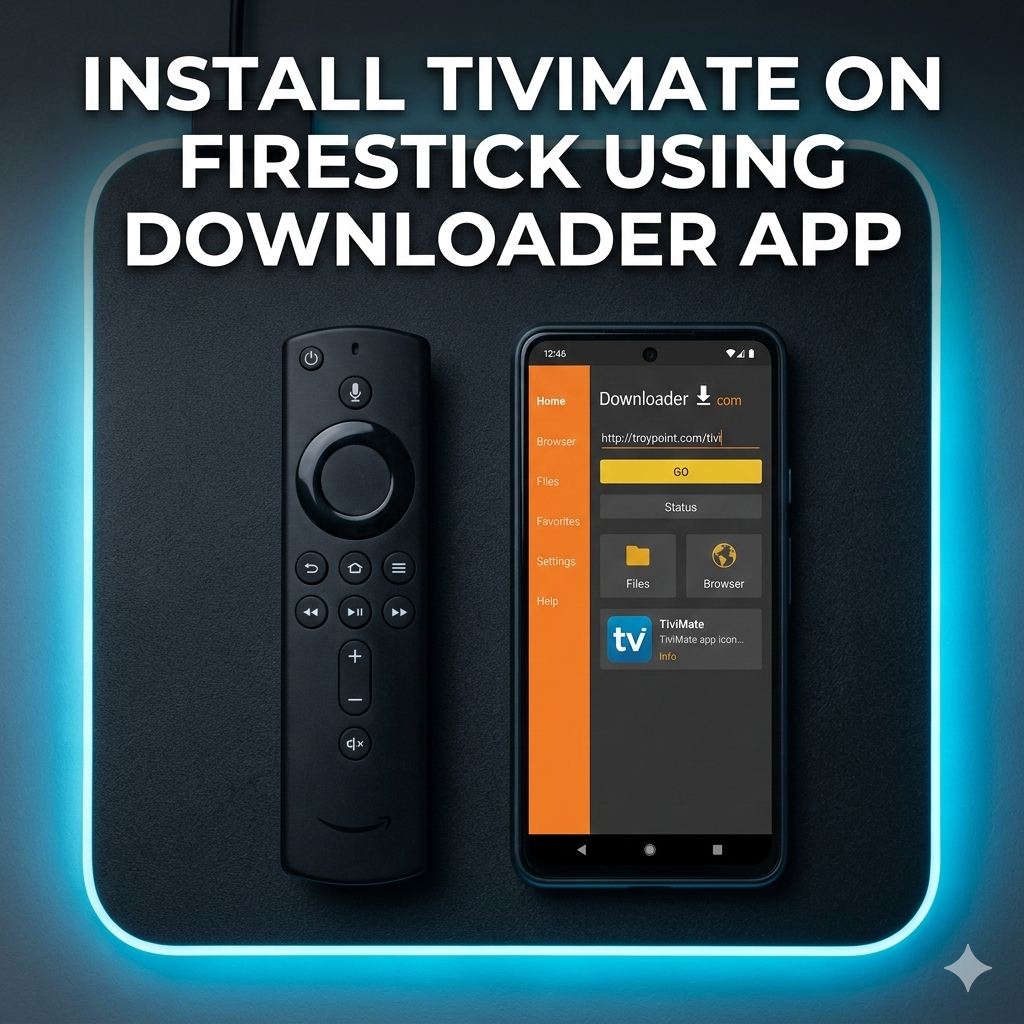
Open the Downloader app. In the URL bar, type the official TiviMate download link or use the code 272483 which points directly to the APK file. Tap Go and wait for the file to download. The process takes about one to two minutes depending on your connection speed.
Step 4 – Install TiviMate
Once the download finishes, Downloader will automatically prompt you to install the APK. Tap Install and wait for the process to complete. After installation, you can delete the APK file to free up storage space on your device. TiviMate will now appear in your apps list.
How to Install TiviMate on Android TV
If you are on a native Android TV device such as an NVIDIA Shield, a Sony TV, or a standard Android TV box, the process is simpler. Open the Google Play Store directly on your device, search for TiviMate IPTV Player, and tap Install. No sideloading required. If you are using a Google TV device, check our dedicated guide on how to install TiviMate on Google TV for the exact steps. For anyone on a Windows PC, we also have a full TiviMate Windows 11 installation guide that covers that process completely.
How to Add Your IPTV Playlist to TiviMate
Installing TiviMate is only half the job. Once it is open for the first time you will see a welcome screen with a button that says Add Playlist. Tap it and TiviMate gives you three options M3U URL, M3U File, or Xtream Codes API. For most users, Xtream Codes is the most stable option because it handles EPG updates automatically and gives you access to catch-up TV features without any extra setup.
Enter the Server URL, Username, and Password provided by your IPTV provider and tap Next. If you are using an M3U link, paste the full URL and confirm. TiviMate will begin loading your channels and EPG data. This takes between 30 and 60 seconds depending on the size of your playlist. Do not close the app during this process.
How to Upgrade to TiviMate Premium
The free version of TiviMate works but it limits you to a single playlist and cuts off features like recording, multi-view, catch-up TV, and full EPG customization. To unlock everything, you need TiviMate Premium. The upgrade is done through the TiviMate Companion app which you download on an Android phone from the Google Play Store. Create an account inside Companion, purchase a plan, and your Premium features will activate on your Firestick automatically once both devices are on the same account. Pricing sits at $4.99 per year or $19.99 for lifetime access. If you use IPTV regularly, the lifetime subscription pays for itself in months.
Common Installation Problems and How to Fix Them
If TiviMate shows “App Not Installed” after downloading the APK, your Firestick may not have enough storage space. Go to Settings, Applications, and clear the cache on a few apps you do not use. If your channels load but nothing plays, the most common cause is that your IPTV subscription credentials are incorrect. Double check the server URL, username, and password with no extra spaces. If you experience buffering after everything is set up, go to Settings inside TiviMate, tap Playback, and increase the buffer size to Large. You should also consider using a VPN with TiviMate to protect your connection and prevent ISP throttling, which is one of the leading causes of buffering on IPTV streams.
Final Thoughts
Installing TiviMate IPTV on Firestick takes under ten minutes when you follow the right steps, and once it is running with a solid IPTV subscription behind it, the experience is genuinely better than cable. The interface is clean, the performance is smooth, and the features in Premium make it feel like a professional broadcasting setup in your living room.
If you want to compare TiviMate to other options before fully committing, check out our TiviMate vs IPTV Smarters Pro comparison or our full best IPTV player guide for 2026. And if you still need an IPTV service to go with your new setup, contact us on WhatsApp we have premium plans starting at just $1 for a 24-hour trial so you can test everything risk free.