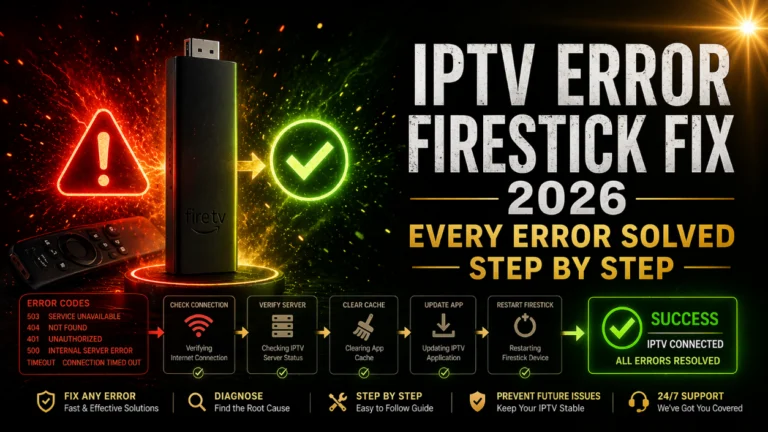
IPTV error Firestick fix 2026 is what you need when the stream you planned to watch is replaced by an error message that tells you almost nothing useful about what actually went wrong. Authentication failed. Connection error. No stream available. Playback error. Each message points to a different underlying cause and each cause requires a completely different fix.
Firestick is the most popular IPTV device in the world and it is also the device that produces the most error-related support questions. Not because Firestick is poorly suited to IPTV but because its limited RAM, restricted storage, and Amazon-managed operating system create specific failure modes that Android TV boxes and Smart TVs do not share. Understanding which error maps to which Firestick-specific cause is what turns a confusing error screen into a resolved problem in under five minutes.
This guide covers every common IPTV error on Firestick in 2026 with the exact fix for each one.
The most common IPTV errors on Firestick in 2026 are authentication failures from incorrect credentials, black screens from codec incompatibility with the current player app version, buffering from RAM exhaustion by background apps, and app crashes from insufficient storage space. Each error has a specific two-minute fix. Clear the player app cache, force close background apps, verify credentials exactly as provided, and ensure your Firestick has at least 500MB free storage before attempting any other troubleshooting.
Table of Contents
Why Firestick Produces Unique IPTV Errors
Before covering individual error fixes it helps to understand why Firestick produces IPTV errors that do not appear on other devices running the same subscription and the same player app.
RAM limitation is the primary Firestick-specific factor. The Firestick Lite and standard Firestick HD have 1GB of RAM. The Firestick 4K has 1.5GB. Even the Firestick 4K Max with 2GB operates with significantly less memory than a typical Android TV box. When Amazon’s Fire OS background processes, the Silk browser, Alexa services, and other Amazon-installed applications consume RAM alongside your IPTV player app, the available memory for IPTV operations shrinks below the threshold needed for smooth performance. The result is crashes, freezes, and playback errors that disappear when background apps are cleared and RAM is freed.
Storage constraint creates a second Firestick-specific error category. Most Firestick models have 8GB of internal storage. Amazon’s Fire OS and pre-installed applications occupy approximately 4GB of that storage before any user applications are installed. Adding an IPTV player app, its EPG cache, and its channel list database to the remaining 4GB can approach storage limits on older devices that have accumulated app data over extended use. Storage-related errors appear as app crashes during channel list loading, failed EPG updates, and player app installation failures.
Fire OS update interference is a third Firestick-specific issue. Amazon updates Fire OS automatically and these updates occasionally introduce compatibility issues with sideloaded IPTV apps that did not go through the Amazon app approval process. An update that installs overnight can change security permissions or background process management in ways that affect sideloaded IPTV app performance until the app itself is updated to accommodate the new Fire OS behaviour.
Error 1: Authentication Failed or Incorrect Password
Authentication errors are the most common IPTV error on Firestick and the one most easily resolved when you know exactly what to check.
The error appears when the player app sends your credentials to the provider server and the server rejects them. This happens for five specific reasons each requiring a different resolution.
Typographical errors in the server URL are the primary cause. The server URL must include the correct protocol prefix, the correct domain or IP address, and the correct port number at the end. A missing colon, a wrong digit in the port number, or a capitalised character where lowercase is required all produce authentication failure. On Firestick where you are entering credentials using a television remote and an on-screen keyboard, transcription errors are more common than on devices where you can type or paste from a phone.
The solution is deleting the existing account from your player app completely rather than editing individual fields. Navigate to your player app’s account management section, delete the existing account entry entirely, and re-enter all three credential fields from scratch using your provider’s original setup email as the reference. Check each field character by character before confirming.
An expired subscription is the second cause. Your provider’s server correctly rejects credentials for expired accounts. Log into your provider account through a web browser on your phone or computer and check the subscription status and expiry date before assuming the credentials themselves are wrong.
A changed server URL is the third cause. Providers occasionally migrate to new server infrastructure and the original URL in your saved credentials no longer points to an active server. Contact your provider’s support to confirm the current active server URL if your credentials tested correctly before a specific date and suddenly started failing.
Account suspension for connection limit violations is the fourth cause. If your subscription allows two simultaneous connections and three devices attempted to connect simultaneously, the provider may have suspended the account temporarily. Contact your provider’s support directly with your username to check account status.
An incorrect player app version that does not correctly handle your provider’s credential format is the fifth cause. Update your player app through the Downloader reinstall method or the Google Play Store if available and test the credentials again after the update completes.
Error 2: Black Screen with Audio or Silent Black Screen
A black screen that appears after selecting a channel is a different error from an authentication failure because the player app successfully connected to the channel stream but cannot display it correctly.
A black screen with audio playing indicates a video codec incompatibility. The stream is arriving correctly and the audio component is decoding successfully but the video codec the provider is using for that specific channel is not being decoded correctly by your current player app version. Switch the video decoder in your player app settings from hardware decode to software decode. Navigate to Settings within IPTV Smarters or TiviMate, find the video player settings, and change the decoder to software. If the black screen resolves with software decode the issue is hardware decode incompatibility with that specific channel’s codec. Leave software decode enabled for that channel or channel category.
A silent black screen where neither video nor audio plays indicates a stream connection failure rather than a codec issue. The player app connected to the channel entry in the playlist but the stream server is not responding. This can indicate a dead link on that specific channel, a server-side issue affecting that channel category, or a Firestick-specific network issue preventing the stream connection.
Test the same channel on a different device using the same credentials. If it plays on the second device the issue is Firestick-specific. Restart your Firestick completely using Settings, then My Fire TV, then Restart rather than putting it to sleep. A fresh boot clears the network stack and resolves many connection-related black screen issues that persist through simple app restarts.
If the channel produces a black screen on multiple devices simultaneously, the issue is the channel stream itself rather than your Firestick. Contact your provider’s support with the specific channel name and note when the black screen started. Dead channels are typically resolved within a few hours by active providers who maintain their channel library properly.
Error 3: Buffering and Freezing Specific to Firestick
Buffering on Firestick that does not appear on other devices using the same subscription is almost always caused by RAM exhaustion rather than network speed. The diagnostic confirmation is whether the buffering appears after the Firestick has been in use for an extended period but does not appear immediately after a fresh restart.
Force close every background app before starting your IPTV session. Hold the home button on your Firestick remote for three seconds. Select App Settings from the menu that appears. Select Running Apps. Force close every app in the list except your IPTV player app. The freed RAM reduces or eliminates buffering on memory-constrained Firestick models immediately.
On Firestick Lite and standard Firestick HD where the RAM limitation is most acute, performing this background app clearance before every IPTV session extends smooth streaming duration from approximately one hour to three or more hours before RAM pressure begins affecting stream performance again.
Increase your player app buffer size to compensate for the Firestick’s tendency toward RAM pressure under extended use. In TiviMate navigate to Settings then Player then Buffer Size and set it to 10,000 milliseconds. This larger buffer absorbs network variation and RAM pressure events before they produce visible stream interruptions.
Switch from Wi-Fi to a wired Ethernet connection using an Amazon Ethernet Adapter for Fire TV. Firestick Wi-Fi performance degrades as RAM pressure builds during extended sessions because the Wi-Fi stack is one of the memory-intensive background processes that competes with IPTV for available RAM. A wired connection reduces the Wi-Fi stack’s RAM demands and improves overall Firestick IPTV performance during extended viewing sessions.
Error 4: App Not Installed or Install Blocked
The app not installed error or installation blocked message appears when attempting to install an IPTV player app through the Downloader method on Firestick.
The cause is almost always that Apps from Unknown Sources has not been enabled or has been turned off by a Fire OS update. Navigate to Settings, then My Fire TV, then Developer Options. Confirm that Apps from Unknown Sources is toggled to On. If a recent Fire OS update reset this setting to Off without notification, re-enabling it and attempting the installation again resolves the error immediately.
A second cause is attempting to install an APK file that has become corrupted during the download. Delete the downloaded APK file from Downloader’s local files section and redownload the file fresh before attempting installation again. APK files occasionally corrupt during incomplete downloads on slow connections or when a download is interrupted by a network fluctuation.
A third cause specific to Firestick 4K Max and recent Fire OS versions is the new security policy that requires confirmation of unknown source installation on a per-app basis rather than as a global permission. When the installation confirmation dialogue appears select Install from the options presented rather than expecting the installation to proceed without that confirmation step. <div style=”text-align:center; margin:20px 0;”> <a href=”https://wa.me/13252898775″ target=”_blank” style=”background-color:#FFD700; color:black; padding:15px 30px; text-decoration:none; font-weight:bold; border-radius:5px; font-size:16px; display:inline-block;”> 💠 Get Premium IPTV Free Now </a> </div>
Error 5: IPTV App Keeps Crashing on Firestick
Repeated app crashes on Firestick point to either storage constraint, corrupted app data, or a version incompatibility between the installed app and the current Fire OS version.
Check available storage first. Navigate to Settings, then My Fire TV, then About, then Storage. If available storage is below 500MB the app does not have adequate working space for cache and temporary files. Clear the cache of other large apps through Settings, then Applications, then Manage Installed Applications to free storage space before testing the IPTV app again.
Clear the IPTV player app’s own cache and data. Navigate to Settings, then Applications, then Manage Installed Applications, find your IPTV player app, and select both Clear Cache and Clear Data. Clear Data resets the app to its initial installation state which resolves crashes caused by corrupted configuration files or accumulated data that has grown too large for the available storage.
Uninstall and reinstall the IPTV player app as the next step if clearing cache and data does not resolve the crashes. A clean installation eliminates any corrupted installation files that clearing cache and data does not address. After reinstalling enter your subscription credentials fresh rather than restoring from any backup.
If crashes persist after a clean reinstall, test an alternative player app with the same credentials. If TiviMate crashes but IPTV Smarters runs stably on the same Firestick with the same credentials, the issue is a compatibility problem between TiviMate’s current version and your specific Firestick hardware or Fire OS version rather than a subscription or connection issue.
Error 6: EPG Guide Not Loading on Firestick
EPG guide loading failures are a common Firestick-specific issue because EPG data files are large and the download and processing of EPG data competes with other Firestick memory and storage demands.
Ensure your Firestick has adequate free storage before attempting an EPG update. EPG data files for large channel libraries can reach several hundred megabytes. If less than 1GB of storage is available, the EPG download may fail partway through or corrupt the existing EPG data while attempting to update it.
Set your EPG refresh to occur at a scheduled overnight time when your Firestick is in standby rather than during active viewing sessions. In TiviMate navigate to Settings then EPG then Update Schedule and set the refresh time to 3am or another overnight hour. This ensures the large EPG download completes without competing for resources during active streaming.
If your EPG has been loading incorrectly for an extended period, delete the existing EPG data entirely within the app settings and perform a fresh manual EPG update with your Firestick connected via wired Ethernet for the most stable large-file download. A fresh EPG download resolves display errors that accumulate in partially corrupted EPG databases over extended use.
For subscribers who want to verify their IPTV subscription performance on Firestick before encountering any of these errors, the free 24h IPTV trial allows full testing on your specific Firestick model and identifies any device-specific compatibility issues before any payment is committed. Check the best IPTV player apps in 2026 for the specific player app recommended for your Firestick model and Fire OS version to minimise compatibility-related errors from the start.
Complete Firestick IPTV Error Fix Checklist
Work through this checklist in order for any IPTV error on Firestick before contacting provider support. Each step addresses a specific error category and the order maximises the probability of resolving the issue quickly.
Confirm Apps from Unknown Sources is enabled in Developer Options. Force close all background apps. Clear the player app cache. Check subscription status and expiry through provider account. Verify credentials character by character using original provider email. Check available Firestick storage is above 500MB. Restart Firestick completely through settings rather than sleep mode. Test the same credentials on a different device to isolate Firestick-specific issues. Uninstall and reinstall the player app with fresh credentials. Test an alternative player app with the same credentials.
Frequently Asked Questions
Why does my IPTV keep showing errors on Firestick in 2026?
The most common causes of IPTV errors on Firestick are RAM exhaustion from background apps, insufficient storage space for player app cache, expired subscription credentials, corrupted player app data from extended use, and Fire OS updates that reset developer permissions. Work through the complete error checklist in order to identify and resolve the specific cause without random troubleshooting.
How do I fix authentication errors on IPTV Firestick?
Delete the existing account from your player app entirely and re-enter all three credential fields from scratch using your provider’s original setup email. Check that the server URL includes the correct port number, that username and password are in the correct case, and that no invisible space characters were copied alongside the credentials. Verify your subscription is active through your provider account before concluding the credentials themselves are wrong.
Why does my IPTV show a black screen on Firestick?
A black screen with audio playing indicates video codec incompatibility. Switch the video decoder from hardware to software decode in your player app settings. A silent black screen indicates a stream connection failure on that specific channel. Test the channel on another device to determine whether the issue is Firestick-specific or channel-specific. Restart your Firestick completely and test again before contacting provider support.
How do I stop IPTV from crashing on Firestick?
Clear the player app cache and data through Firestick app management settings. Check available storage is above 500MB and clear other app caches if needed. Uninstall and reinstall the player app with fresh credentials. If crashes persist, test an alternative player app to determine whether the issue is app-specific or device-specific. Ensure your Firestick Fire OS is current as outdated firmware occasionally conflicts with player app updates.
Does Firestick need more RAM for IPTV in 2026?
The standard Firestick Lite and HD with 1GB RAM handle IPTV adequately when background apps are cleared before streaming sessions. For extended uninterrupted viewing, the Firestick 4K Max with 2GB RAM provides significantly more comfortable headroom and is the recommended Firestick model for daily primary IPTV use in 2026. The RAM difference is most noticeable during evening sessions exceeding two hours where RAM pressure accumulates on lower-RAM models.
Conclusion
Every IPTV error on Firestick in 2026 has a specific identifiable cause and a specific fix that takes under five minutes when applied correctly. Authentication failures, black screens, buffering, app crashes, and EPG loading failures each trace to distinct Firestick-specific factors that the error checklist in this guide systematically eliminates. Work through the checklist in order rather than randomly trying fixes and the error will be resolved before you reach the end of the list in most cases.
Activate the free trial on your Firestick today and use this guide as your reference if any error appears during setup or viewing.