IPTV freezing is the most common and most frustrating streaming problem that IPTV subscribers face in 2026. Your stream is running perfectly, the match is at a critical moment, and suddenly the picture locks on a single frame while the clock keeps ticking. The audio cuts out. The spinner appears. And by the time the stream recovers, you have missed the goal, the knockout, or the plot twist you were watching specifically to see.
IPTV freezing is not random and it is not inevitable. Every freeze has a specific cause and every cause has a specific fix. The problem is that most subscribers try the wrong fix for their specific cause, get no improvement, conclude the issue is unfixable, and either accept a frustrating experience or switch providers unnecessarily when their existing setup could be resolved with a targeted two-minute adjustment.
This guide covers every cause of IPTV freezing in 2026 in order of frequency, exactly how to identify which cause is affecting your setup, and the fastest verified fix for each one so your streams run clean from the moment you implement the right solution.
IPTV freezing in 2026 is most commonly caused by weak WiFi signal, insufficient internet speed, a small app buffer size, provider server overload during peak hours, or a DNS server that adds latency to stream requests. The fastest fix sequence is to increase the buffer size in your IPTV app settings, switch to a wired ethernet connection if possible, and change your DNS server to Google 8.8.8.8 or Cloudflare 1.1.1.1. These three changes together resolve the majority of IPTV freezing issues within five minutes of implementation.
Table of Contents
Understanding Why IPTV Freezes in 2026
IPTV freezing happens when your device runs out of video data to display and is forced to wait for more data to arrive from the provider server before playback can continue. The visible result is a frozen frame followed by a spinner, then a resume when enough buffered data has accumulated to continue playback. This cycle repeats at varying frequencies depending on how severe the underlying cause is.
The gap between how fast data needs to arrive for smooth playback and how fast it is actually arriving determines freeze frequency. An HD stream requires approximately 10 Mbps of continuous data delivery. If your effective data delivery rate drops below that threshold for even a fraction of a second, the app’s internal buffer absorbs the shortfall. When the buffer empties completely, playback freezes until it refills. Increasing the buffer size gives the app more time to absorb data rate fluctuations before they cause visible freezing.
Identifying whether your freeze is network-caused, server-caused, or device-caused is the key diagnostic step that most guides skip. Network-caused freezing appears as consistent regular pauses every 30 to 90 seconds that happen across all channels. Server-caused freezing affects specific channel groups simultaneously or worsens predictably during peak hours. Device-caused freezing correlates with app age, cache size, and device temperature rather than time of day or channel selection.
The fix you apply needs to match the cause you diagnose. Increasing buffer size fixes network fluctuation-caused freezing but does nothing for server overload-caused freezing. Switching DNS resolves server request latency freezing but has no effect on WiFi signal-caused freezing. Working through the diagnostic questions in each section below identifies your specific cause before you apply any fix.
Fix 1: Increase the Buffer Size in Your IPTV App
Buffer size adjustment is the single most effective IPTV freezing fix available in 2026 for the majority of subscribers experiencing regular stream pauses. It does not require any changes to your internet connection, your router, or your IPTV provider. It is a setting change inside your IPTV player app that takes under two minutes.
The buffer in an IPTV player app is a temporary storage reservoir of pre-downloaded stream data. The player fills this reservoir ahead of the current playback position so that brief interruptions in data delivery, caused by WiFi fluctuations, brief ISP speed variations, or momentary provider server response delays, do not immediately cause visible freezing. A small buffer empties quickly during any data rate drop. A larger buffer absorbs longer interruptions before playback is affected.
TiviMate’s buffer settings are found under Settings, then Playback, then Buffer Size. The default setting is typically 5 to 10 seconds. Increase this to 15 or 20 seconds for HD streams experiencing regular freezing. For 4K streams on a fast connection, increasing to 30 seconds provides a substantial cushion against the data rate variability that high-bitrate streams are more sensitive to than HD content.
In IPTV Smarters Pro the buffer settings are accessible through the Advanced Options section under Settings. The player buffer setting works identically to TiviMate’s implementation. Increase from the default to 15 to 20 seconds and test the same channel that was previously freezing to confirm the improvement.
The trade-off of increasing buffer size is a slightly longer initial loading time when you first switch to a channel, because the player fills the larger buffer before starting playback. For a 20-second buffer this means an additional 5 to 10 seconds of black screen before the stream begins. This is a worthwhile trade for streams that subsequently play without freezing compared to streams that start immediately but freeze every minute.
Fix 2: Switch From WiFi to Ethernet
WiFi connection instability is the most common cause of regular IPTV freezing in household streaming setups in 2026, and it is a cause that persists regardless of how fast your internet plan speed is. The critical distinction is between the speed of your internet plan and the effective bandwidth that your streaming device actually receives through your WiFi signal at any given moment.
A household with a 200 Mbps fibre broadband plan can still experience regular IPTV freezing if the streaming device is three rooms away from the router through two walls and a floor. The WiFi signal at that distance and through those obstacles may deliver only 15 to 25 Mbps of effective bandwidth with significant variation every few seconds as other devices on the network, neighbouring networks, and physical interference from household electronics compete for the same wireless spectrum.
An ethernet cable from your router to your streaming device delivers your full internet plan speed consistently without any of the variability, interference, or distance degradation that WiFi introduces. For Firestick users an ethernet adapter connects to the USB power port and provides a wired connection to your router for under $15. For Android TV boxes ethernet is typically built in through a dedicated port on the device that most users never use because WiFi is the default connection method after initial setup.
Testing whether WiFi is your freeze cause takes 60 seconds. If an ethernet cable is available, connect it and watch the same channel that was previously freezing for ten minutes. If the freezing stops entirely with ethernet and returns when you switch back to WiFi, the WiFi signal is definitively the cause and improving the WiFi path between your router and streaming device is the targeted fix.
WiFi improvement options for households where running an ethernet cable is not practical include repositioning your router to a more central location in the home, upgrading to a WiFi 6 router that handles multiple simultaneous device connections more efficiently than older WiFi 5 hardware, adding a WiFi mesh node or extender in the room where your streaming device lives, or switching your streaming device from the congested 2.4GHz band to the less congested 5GHz band in its network settings.
Fix 3: Change Your DNS Server
DNS server latency is a non-obvious but surprisingly common cause of IPTV freezing that appears as brief regular pauses rather than sustained buffering. Every time your IPTV app switches to a new channel, it performs a DNS lookup to resolve your provider’s server domain name into the IP address where the stream lives. If this lookup takes 200 to 500 milliseconds rather than the 5 to 20 milliseconds that a fast DNS server delivers, the additional delay compounds with every channel change and manifests as a brief freeze at the start of each new stream.
Your internet service provider assigns a default DNS server to your connection. In many markets these ISP-provided DNS servers are optimised for general web browsing rather than the rapid sequential lookups that IPTV channel switching generates. Switching to a public DNS server specifically designed for fast resolution reduces this per-channel-change latency and eliminates the DNS-caused freeze pattern.
The most widely recommended fast public DNS servers for IPTV in 2026 are Google’s servers at primary 8.8.8.8 and secondary 8.8.4.4, and Cloudflare’s servers at primary 1.1.1.1 and secondary 1.0.0.1. Both services maintain global DNS infrastructure with response times under 10 milliseconds from most household locations, compared to ISP DNS servers that sometimes respond in 100 to 300 milliseconds.
On Firestick access DNS settings through Settings, Network, select your WiFi connection, then choose Advanced. Switch from automatic DNS assignment to manual and enter your preferred DNS addresses. On Android TV box the equivalent path is Settings, Network and Internet, select your connection, and edit the IP settings from DHCP to static where DNS fields become editable. On Smart TV find DNS configuration within the network settings under IP settings where you switch from automatic to manual assignment.
| DNS Provider | Primary DNS | Secondary DNS | Average Response | Best For |
|---|---|---|---|---|
| Google DNS | 8.8.8.8 | 8.8.4.4 | Under 10ms | General IPTV use |
| Cloudflare DNS | 1.1.1.1 | 1.0.0.1 | Under 5ms | Fastest response |
| OpenDNS | 208.67.222.222 | 208.67.220.220 | Under 15ms | Family filtering |
| ISP Default | Assigned automatically | Assigned automatically | 100ms to 300ms | Avoid for IPTV |
Fix 4: Clear App Cache and Free Device Memory
Accumulated app cache and insufficient available device memory cause a specific type of IPTV freezing that appears gradually over time, getting worse each week until streams that previously played smoothly freeze every few minutes. This pattern of gradual degradation rather than sudden onset is the diagnostic signature of cache and memory-related freezing.
TiviMate accumulates EPG data, channel thumbnail images, stream metadata, and temporary playback files in its local cache continuously during normal operation. On devices with limited storage like Firestick, this accumulated cache eventually competes with the active stream buffer for available memory, causing the buffer to reduce its effective size and trigger freezing at lower data rate variations than it would handle cleanly with adequate free memory.
Clear the cache for your IPTV app through your device settings every two to four weeks to prevent this accumulation from reaching the threshold where it affects stream quality. On Firestick navigate to Settings, Applications, Manage Installed Applications, find TiviMate or your IPTV app, and select Clear Cache. This removes temporary files without affecting your saved playlists, credentials, or favourites.
Closing background apps before watching IPTV frees device RAM that background processes occupy unnecessarily during streaming sessions. On Firestick hold the Home button and force-close any apps showing in the recent apps list before opening TiviMate. On Android TV box use the task manager to clear background apps. This single habit prevents memory pressure from building during long viewing sessions like full football matches or multi-episode series binges.
Device temperature affects streaming performance more than most subscribers realise. Firestick and Android TV box processors reduce their clock speed when the device temperature exceeds a thermal threshold, which causes the kind of intermittent processing slowdown that manifests as brief freezes during stream decoding. Ensure your Firestick has adequate ventilation behind the television by using the HDMI extender cable that Amazon includes in the box rather than plugging directly into the back of the television where airflow is most restricted.
Fix 5: Test Your Internet Speed and Quality
Running a proper internet speed and quality test during a freeze episode provides definitive evidence about whether your internet connection is contributing to the freezing pattern or whether the cause lies elsewhere in your setup.
Download a speed test app on the same device experiencing IPTV freezing and run the test during the time of day when freezing occurs most frequently, typically peak evening hours. Note both the download speed and the jitter value. Download speed below 15 Mbps for HD content or below 30 Mbps for 4K content indicates insufficient bandwidth for the stream quality you are attempting to watch. High jitter above 20ms indicates that your connection speed fluctuates rapidly, which causes the buffer to empty and refill repeatedly in the pattern that produces regular freezing even when average speed is technically sufficient.
Jitter is the metric that most subscribers overlook when diagnosing IPTV freezing. A connection averaging 30 Mbps but varying between 5 Mbps and 60 Mbps every few seconds will freeze IPTV streams even though the average speed appears adequate. The brief dips to 5 Mbps exhaust the buffer faster than the peaks at 60 Mbps can refill it, producing freezing that correlates with the jitter cycle frequency.
Contact your internet service provider if your speed test shows consistently low speeds or high jitter during peak hours. ISP infrastructure congestion during peak evening hours is a real and addressable problem in many markets, and providers are obligated in most countries to deliver the speeds they advertise as a service standard. Documenting your speed test results at the times when IPTV freezing occurs provides the evidence base for a service complaint that can result in infrastructure improvements, line fault repairs, or plan upgrades at no additional cost.
If your speed test results are adequate but freezing persists, the cause is not your total internet speed and you should focus on the WiFi signal quality between your router and streaming device, which requires a different fix approach than an insufficient internet plan speed.
Fix 6: Update Your IPTV App and Check Provider Status
Outdated IPTV app versions and provider server issues are two distinct causes that produce similar freezing symptoms and require different approaches to resolve.
App version outdatedness causes freezing when a provider updates their server software in a way that the current app version handles inefficiently, creating connection overhead that manifests as periodic stream pauses. Checking for and installing available app updates takes under two minutes on any platform and resolves this category of freezing immediately after the update completes.
On Android TV box open the Google Play Store and navigate to your IPTV app’s page to check for available updates. On Firestick, TiviMate updates through the TiviMate Companion app which checks for new versions automatically when opened. IPTV Smarters updates are available through the Amazon App Store on Firestick. After updating, close the app completely and reopen it to ensure the new version initialises cleanly rather than carrying forward any cached state from the previous version.
Provider server status is the other variable to check when freezing affects all channels simultaneously and started suddenly rather than gradually. Providers occasionally experience server maintenance windows, infrastructure migrations, or unexpected technical issues that cause widespread freezing across all subscribers temporarily. These issues resolve when the provider addresses the underlying server problem rather than through any action on your end.
Contact your provider’s support channel with a brief description of when the freezing started and which channels are affected. If the issue is server-side, the provider’s support team typically confirms this and provides an estimated resolution time. If they indicate no known issues, the problem is on your side and the other fixes in this guide are the appropriate next steps.
For a comprehensive provider comparison that identifies which services maintain the most reliable server infrastructure and therefore produce the least freezing regardless of subscriber demand levels, this detailed ranking of the best IPTV providers in 2026 covers uptime data across 30 days of continuous monitoring.
Fix 7: Reduce Stream Quality or Change Stream Format
Reducing the stream quality setting in your IPTV app is a practical interim fix when other solutions have not yet been implemented or when you are watching on a connection that is borderline adequate for the quality you prefer.
Most quality IPTV providers in 2026 offer the same channel in multiple quality tiers. The same live broadcast available in 4K UHD at 35 Mbps is also available in HD at 10 Mbps and SD at 3 Mbps. In TiviMate, long-pressing Select on a channel while it is playing brings up the stream options menu where alternative quality streams appear as selectable options. Switching from 4K to HD immediately reduces the bandwidth demand by 70% and eliminates freezing caused by any connection that cannot sustain the 4K stream requirement.
Some channels offer alternative stream versions labeled as backup or alternative in the channel list. These alternative streams run on different server infrastructure from the primary stream and can resolve freezing caused by a specific server hosting the primary stream while the same channel on a different server runs cleanly. If your provider uses a naming convention like Channel Name HD and Channel Name HD Backup, try the backup version when the primary stream freezes consistently.
Reducing the output resolution in your device settings from 4K to 1080p for all IPTV use reduces the decoding load on your streaming device’s processor and can resolve freezing caused by thermal throttling on devices that run hot during extended high-resolution streaming sessions. This is particularly relevant for older Firestick models and entry-level Android TV boxes where 4K decoding pushes the hardware to its thermal limit during long matches or movie sessions.
For the complete technical explanation of how IPTV stream quality settings interact with different connection types and device hardware capabilities, this guide to fixing IPTV buffering issues covers every technical variable with specific setting recommendations for each combination of device and connection type.
Frequently Asked Questions
Why does my IPTV keep freezing in 2026?
IPTV keeps freezing in 2026 most commonly because of weak WiFi signal between your router and streaming device, a buffer size that is too small to absorb brief data rate fluctuations, slow DNS resolution adding latency to stream requests, or provider server overload during peak viewing hours. Start by increasing the buffer size in your IPTV app settings to 15 to 20 seconds, then switch to ethernet if available, then change your DNS to 1.1.1.1 or 8.8.8.8. This three-step sequence resolves the majority of regular IPTV freezing issues.
Why does IPTV freeze during live sports but not other content?
Live sports freezing specifically indicates that provider server load is the primary cause rather than your local network or device. Sports broadcasts spike server demand simultaneously when millions of subscribers watch the same live event, overloading servers that handle average demand adequately but struggle at peak concurrent viewership. A provider with properly scaled infrastructure handles this without quality degradation. Frequent sports-specific freezing is a signal that your provider needs upgrading.
Does increasing buffer size fix IPTV freezing?
Yes, increasing buffer size resolves IPTV freezing caused by brief data rate fluctuations from WiFi signal variability or momentary provider server response delays. Increase the buffer in your IPTV app settings from the default 5 to 10 seconds up to 15 to 20 seconds. The trade-off is a slightly longer channel load time as the larger buffer fills before playback starts, which is worthwhile for streams that subsequently play without freezing.
Why does my IPTV freeze at the same time every day?
Regular freezing at a specific time each day, typically evening peak hours between 7pm and 10pm, indicates either ISP network congestion that reduces your available bandwidth during high-demand periods or provider server overload during peak concurrent viewing times. Test your internet speed during and outside the freezing window to distinguish between the two causes. Speed reduction during the freeze window points to ISP congestion. Normal speed with freezing during peak hours points to provider server overload.
How do I stop IPTV freezing on Firestick in 2026?
On Firestick, the most effective IPTV freezing fix sequence is increasing TiviMate’s buffer size to 15 to 20 seconds in Settings, Playback, switching to a wired ethernet connection using an ethernet adapter, changing your Firestick’s DNS to 1.1.1.1 in Settings, Network, Advanced, clearing TiviMate’s cache through Settings, Applications, Manage Installed Applications monthly, and closing all background apps before watching. Implementing all five changes together produces the most stable Firestick IPTV experience available in 2026.
Freeze-Free IPTV in 2026 Is Seven Fixes Away
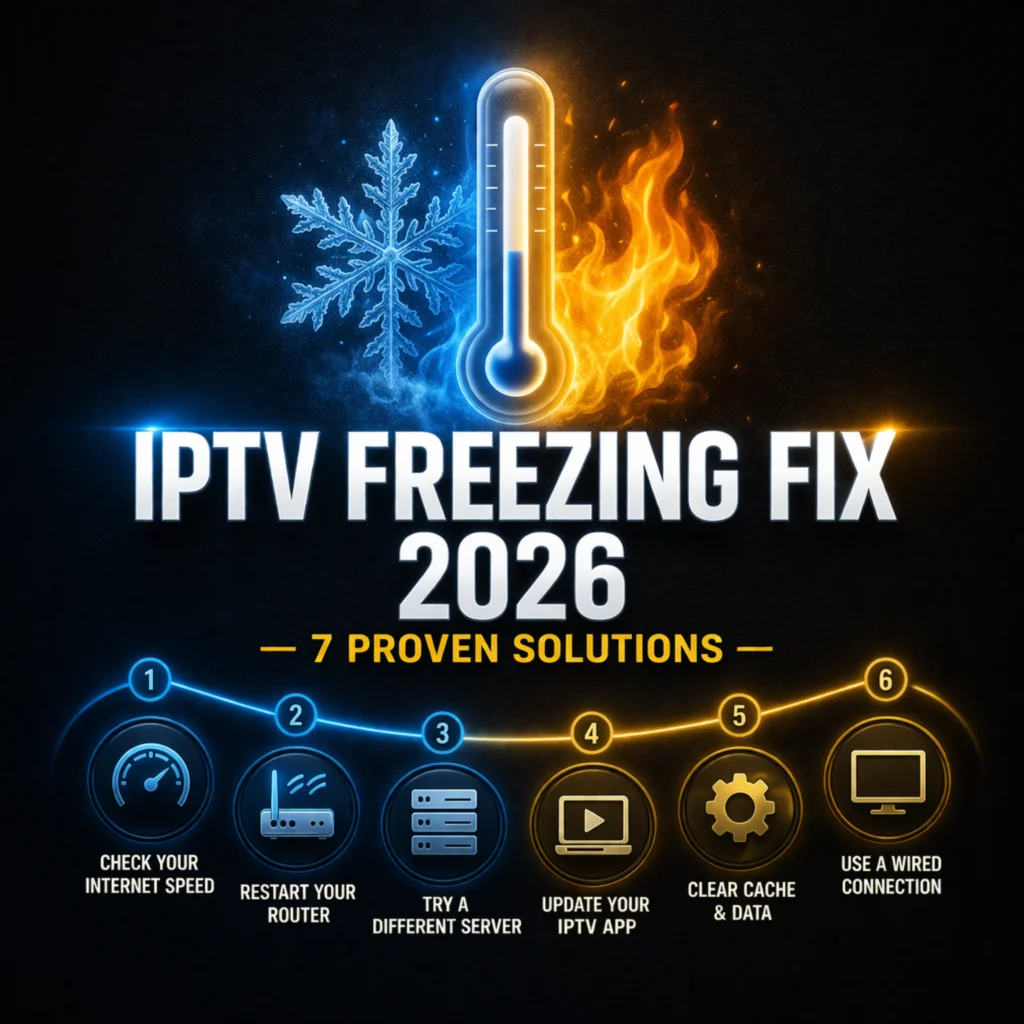
Every IPTV freeze has a cause and every cause has a fix. The seven solutions in this guide cover every freezing scenario that exists across every device, every app, and every provider combination currently in use in 2026. Work through them systematically from Fix 1 to Fix 7 and your streams will be running clean before you reach the end of the list.
The fastest path to permanently freeze-free IPTV is combining a quality provider whose servers are properly scaled for peak demand with the buffer, DNS, and connection optimisations in this guide. No single fix works without the right foundation, and the right foundation starts with a provider whose infrastructure does not freeze under load regardless of how well your local setup is optimised. Test a free 24-hour trial from the top-ranked provider today and experience the difference between a service built for peak performance and one that reveals its limitations exactly when you are most enjoying what you are watching.