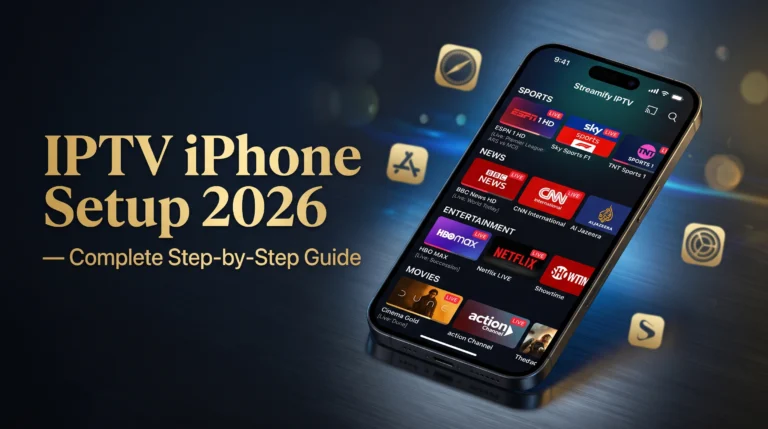
IPTV iPhone setup 2026 is one of the fastest and most straightforward IPTV installations available on any device because the Apple App Store’s strict app review process means every IPTV player available for iOS has been verified, tested for quality, and is installable with a single tap without any of the sideloading complexity that Firestick installations require.
Your iPhone in 2026 is a more capable IPTV streaming device than many dedicated streaming boxes from just three years ago. The processor performance, display quality, and network connectivity of current iPhone models delivers HD and 4K IPTV streams with exceptional picture quality on a screen that fits in your pocket and accompanies you everywhere. Combined with AirPlay casting to your Apple TV or AirPlay-compatible television, your iPhone becomes a portable IPTV remote that streams to any screen in any room or location where a display is available.
This guide covers the best IPTV apps for iPhone in 2026, the complete step-by-step setup process from App Store to first live channel, the optimal settings configuration for the best daily experience, and troubleshooting for every common iPhone IPTV issue so your setup works correctly from the first moment you use it.
Setting up IPTV on iPhone in 2026 takes under five minutes using IPTV Smarters Pro from the Apple App Store. Open the App Store, search for IPTV Smarters Pro, install it, tap Add User, enter your provider’s Xtream Codes server URL, username, and password, tap Add User again, and your complete channel library loads within 90 seconds. No jailbreaking required, no sideloading required, and the same credentials that work on your Firestick work identically on iPhone with zero reconfiguration.
Table of Contents
Best IPTV Apps for iPhone in 2026
The Apple App Store in 2026 offers several quality IPTV player apps that provide different experiences depending on your viewing priorities. Understanding the strengths and limitations of each app helps you choose the right one before installation rather than discovering a limitation after configuring your subscription credentials.
IPTV Smarters Pro is the most widely used and most recommended IPTV player app for iPhone in 2026. It supports Xtream Codes API connections, M3U URL playlists, and XMLTV external EPG sources within a clean interface that is specifically optimised for touchscreen navigation. The app provides a fully featured EPG programme guide, VOD library integration for movies and series with season and episode organisation, catch-up TV where the provider supports it, and picture-in-picture mode that continues playing your stream while you use other iPhone apps simultaneously. IPTV Smarters Pro costs a small one-time purchase price in the Apple App Store that reflects the higher App Store listing standards compared to free Android alternatives.
GSE Smart IPTV is the strongest alternative to IPTV Smarters Pro on iPhone in 2026 and is preferred by some experienced users for its advanced playlist management and external player integration capabilities. GSE supports multiple simultaneous playlists, custom EPG pairing for individual channels, and direct playback through VLC or Infuse for channels that benefit from an alternative video decoder. Its interface requires slightly more initial configuration than Smarters but delivers more granular control for users who want to customise their setup beyond the default configuration.
Flex IPTV is a newer arrival to the iPhone IPTV app landscape in 2026 that has built a strong reputation specifically for its Apple TV integration and AirPlay optimisation. For iPhone users who primarily use their device to cast to an Apple TV or AirPlay-compatible television rather than watching directly on the iPhone screen, Flex IPTV’s seamless AirPlay implementation delivers a casting experience that is noticeably smoother than Smarters’ equivalent functionality.
Infuse is the premium video player that many iPhone users already have installed for local media and is worth mentioning in the IPTV context because its M3U playlist support allows loading IPTV channel lists directly within Infuse’s exceptional video playback engine. For users who prioritise video playback quality above feature completeness, Infuse’s playback quality for IPTV streams rivals any dedicated IPTV app, though its EPG and channel navigation features are less developed than Smarters or GSE.
Step-by-Step IPTV iPhone Setup 2026
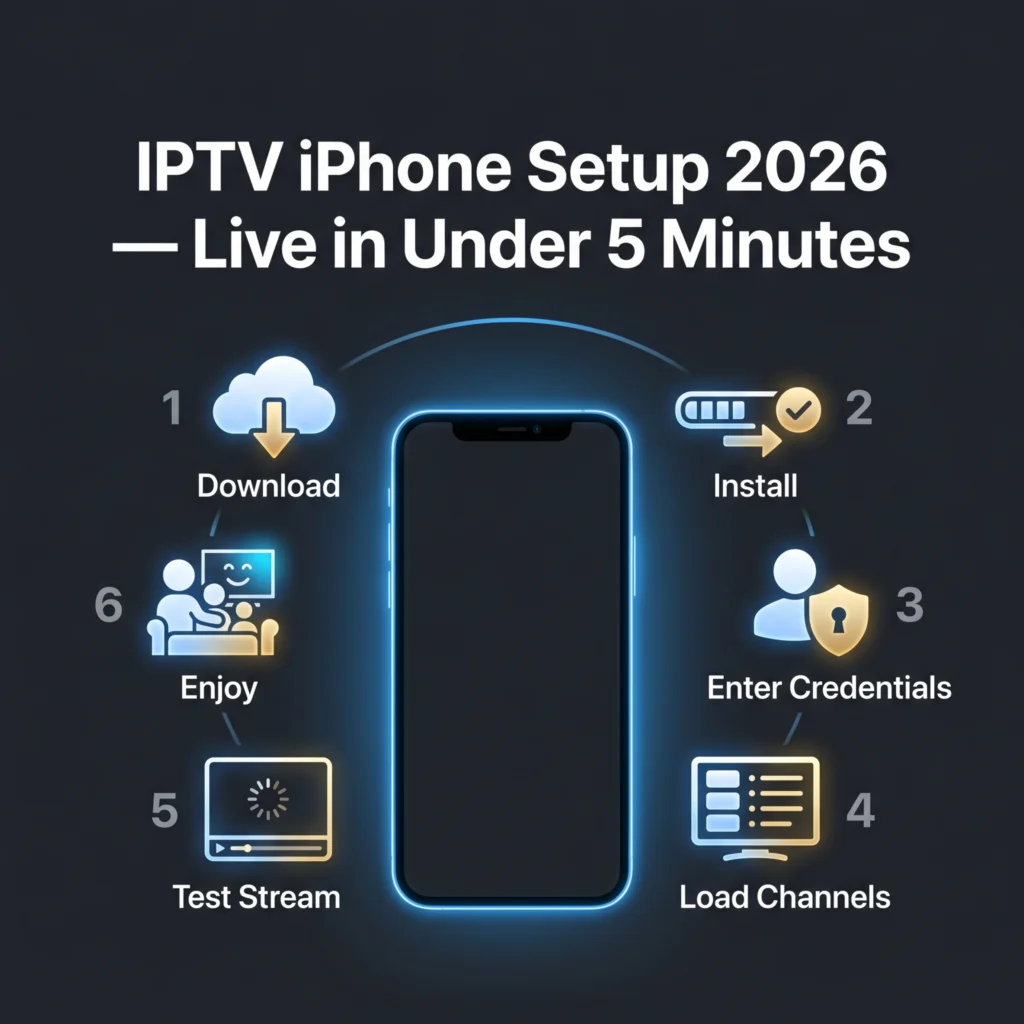
The complete IPTV setup process on iPhone in 2026 follows six steps from App Store to first live channel that take under five minutes from beginning to end for a user who has their provider credentials ready before starting.
Step one is downloading your IPTV player app from the Apple App Store. Open the App Store on your iPhone, tap the Search tab at the bottom of the screen, and type IPTV Smarters Pro in the search field. Select the app from the results, verify the developer name matches the official IPTV Smarters developer, and tap Get or the price button to begin installation. The app downloads and installs within 30 to 60 seconds depending on your connection speed.
Step two is opening the app after installation completes. Tap the IPTV Smarters Pro icon from your home screen or the App Library. The app opens to a welcome screen or a user management screen depending on the version. If you see a Terms of Service screen on first launch, scroll to the bottom and tap Accept to proceed to the main setup screen.
Step three is adding your subscription as a new user profile. Tap Add User on the main screen. A connection method selection appears showing three options: Login with Xtream Codes API, Login with M3U URL, and Login with Stalker Portal. Select Login with Xtream Codes API if your provider sent you a server URL, username, and password. Select Login with M3U URL if your provider sent you a direct M3U link.
Step four is entering your subscription credentials. For Xtream Codes, enter a profile name of your choice in the first field, your provider’s server URL in the Server URL field including the port number at the end, your username in the Username field, and your password in the Password field. Tap Add User after completing all fields. The app connects to your provider’s server and downloads your complete channel library within 60 to 90 seconds.
Step five is allowing the EPG programme guide to download. After your channels load, a notification may appear indicating EPG data is downloading. Wait three to five minutes for this process to complete before navigating to the guide, as checking the guide before the download completes shows blank programme data that self-resolves once the download finishes.
Step six is testing your setup by selecting a live sports channel or a channel you recognise. Navigate to the Live TV section, find your primary sports or entertainment category, select a channel you know is currently broadcasting, and confirm it loads within a few seconds and plays in clean HD quality. A successful stream on first selection confirms your setup is complete and working correctly.
| Step | Action | Time Required | Notes |
|---|---|---|---|
| 1 | Download IPTV Smarters Pro from App Store | 30 to 60 seconds | Verify official developer name before downloading |
| 2 | Open app and accept terms | 30 seconds | First launch only requires terms acceptance |
| 3 | Tap Add User and select Xtream Codes | 30 seconds | Choose M3U URL if no Xtream Codes provided |
| 4 | Enter server URL, username, and password | 60 to 90 seconds | Check for hidden spaces around each credential |
| 5 | Wait for channel library to load | 60 to 90 seconds | EPG download takes additional 3 to 5 minutes |
| 6 | Test a live channel from your preferred category | 60 seconds | Successful HD stream confirms complete setup |
Best IPTV Provider for iPhone in 2026
Your IPTV app is only half of the setup equation. The quality of your subscription provider determines stream reliability, channel depth, EPG accuracy, and VOD content quality regardless of which app you use on iPhone. The same credentials from different providers deliver dramatically different daily experiences through the same IPTV Smarters app on the same iPhone.
| Rank | Provider | iPhone Compatible | Channels | Price/Month | iOS Rating |
|---|---|---|---|---|---|
| 1 | TIVIMATEIPTVPLAYER.NET | Full compatibility | 16,000+ | $12 | Outstanding |
| 2 | smartersing.com | Full compatibility | 14,000+ | $12 | Excellent |
| 3 | StreamVault IPTV | Full compatibility | 12,000+ | $11 | Very Good |
| 4 | NovaCast IPTV | Full compatibility | 11,500+ | $10 | Good |
| 5 | ClearSignal IPTV | Full compatibility | 10,000+ | $9 | Good |
Every provider on this list delivers full Xtream Codes compatibility with IPTV Smarters Pro and GSE Smart IPTV on iPhone without any app-specific configuration adjustments required. The same credentials work identically across every iOS IPTV app that supports standard Xtream Codes authentication. Before subscribing to any provider, request a free 24-hour trial and test it specifically on your iPhone during your normal viewing hours to confirm stream quality on iOS before any payment.
Optimising IPTV Performance on iPhone in 2026
Getting the maximum IPTV performance from your iPhone requires a few specific configuration steps in both IPTV Smarters and your iPhone’s system settings that make a meaningful difference to daily stream quality and reliability.
Enabling background app refresh for IPTV Smarters in iPhone Settings under General, Background App Refresh allows the app to maintain its server connection and EPG data in the background between viewing sessions. This means when you reopen Smarters after using other apps, the channel list loads immediately from cached data rather than requiring a full re-download of the channel library. The battery impact is minimal and the improvement in app responsiveness is noticeable.
Disabling Low Power Mode before extended IPTV viewing sessions prevents iOS from throttling your iPhone’s CPU and network performance to conserve battery. Low Power Mode reduces background app activity and processor performance in ways that can cause IPTV streams to buffer on network conditions that would play cleanly with full processor performance available. Disable it through the Control Centre battery icon or through Settings, Battery before a match or film.
Connecting to your home WiFi network rather than using cellular data for primary IPTV viewing delivers more consistent stream quality because home broadband provides lower jitter and more stable bandwidth than cellular networks whose available bandwidth fluctuates based on network load and signal strength. When home WiFi is not available, 5G connections in areas with strong coverage deliver adequate HD IPTV performance, while 4G LTE is sufficient for HD streaming on compatible connections above 15 Mbps.
Enabling AirPlay for television viewing transforms your iPhone from a personal screen into a remote control and content source for your living room television. In IPTV Smarters, tap the AirPlay icon in the playback controls during any stream to send the video to your Apple TV or AirPlay-compatible television while continuing to control the app from your iPhone. The stream plays at the television’s native resolution with the iPhone screen available for channel browsing without interrupting the television playback.
Fixing Common IPTV iPhone Problems in 2026
iPhone-specific IPTV problems in 2026 follow predictable patterns with specific fixes that differ from Android or Firestick troubleshooting because iOS handles network permissions, background processing, and video decoding differently from other platforms.
Streams that buffer on iPhone but play correctly on other devices with the same subscription usually indicate a cellular or WiFi connection issue rather than a provider problem. Check whether your iPhone is connected to WiFi or cellular. Switch to WiFi if on cellular, or move closer to your router if WiFi signal is weak. Run a speed test specifically on your iPhone to confirm the device is receiving adequate bandwidth for the stream quality you are attempting to watch.
IPTV Smarters crashing on iPhone during playback is most commonly caused by insufficient available device memory rather than an app or provider issue. Close all background apps by swiping them away in the app switcher before opening Smarters. If crashes continue after clearing background apps, restart your iPhone to clear all cached memory and reopen Smarters for a clean session start.
Black screen with audio playing on iPhone indicates a video codec incompatibility between the stream’s encoding and iOS’s video decoder. In IPTV Smarters, go to Settings within the app and find the player settings section. Toggle between the available player options including the internal player and any external player integration to find a decoder pathway that handles the specific codec causing the black screen. Most iOS codec incompatibilities resolve by switching from the default internal player to an alternative decoder option within Smarters.
Channels that load on iPhone but fail to play when cast to Apple TV via AirPlay indicate that the Apple TV’s video decoder handles the stream differently from iPhone’s decoder. The Apple TV 4K handles virtually all IPTV stream codecs natively, but first-generation Apple TV models have more limited codec support. If AirPlay casting fails while direct iPhone playback works, the stream codec is compatible with iPhone but not with your specific Apple TV hardware generation.
For troubleshooting guidance that covers every IPTV error type across all devices and apps with specific fixes for each scenario, this comprehensive IPTV troubleshooting guide to fixing TiviMate and IPTV app problems in 2026 covers the complete solution set with device-specific recommendations.
Frequently Asked Questions
How do I set up IPTV on iPhone in 2026?
Download IPTV Smarters Pro from the Apple App Store, open it, tap Add User, select Login with Xtream Codes API, enter your provider’s server URL, username, and password, and tap Add User. Your complete channel library loads within 90 seconds. The entire process takes under five minutes from opening the App Store to watching your first live channel without any jailbreaking or sideloading required.
What is the best IPTV app for iPhone in 2026?
IPTV Smarters Pro is the best IPTV app for iPhone in 2026 for most users due to its comprehensive feature set including Xtream Codes support, M3U playlist support, integrated EPG guide, VOD library with series organisation, catch-up TV, and picture-in-picture mode. GSE Smart IPTV is the best alternative for users who want advanced playlist management. Flex IPTV is best specifically for Apple TV AirPlay integration.
Can I use IPTV on iPhone without jailbreaking in 2026?
Yes, IPTV on iPhone in 2026 requires no jailbreaking whatsoever. IPTV Smarters Pro, GSE Smart IPTV, Flex IPTV, and other IPTV player apps are all available directly from the Apple App Store on standard unmodified iPhones. There is no reason to jailbreak your iPhone for IPTV access in 2026 because the legitimate App Store apps deliver complete IPTV functionality without any device modification.
Can I cast IPTV from iPhone to my TV in 2026?
Yes, IPTV Smarters Pro and GSE Smart IPTV both support AirPlay casting from iPhone to Apple TV or AirPlay-compatible televisions. During playback, tap the AirPlay icon in the video controls and select your Apple TV or AirPlay TV from the list. The stream sends to your television at the television’s native resolution while your iPhone screen remains available for app navigation and channel selection.
Why is my IPTV buffering on iPhone in 2026?
IPTV buffering on iPhone is most commonly caused by weak WiFi signal between the router and the iPhone, cellular data speed below the minimum required for the stream quality, or Low Power Mode throttling your iPhone’s processor and network performance. Connect to WiFi, disable Low Power Mode, and move closer to your router. If buffering persists, increase the buffer size in IPTV Smarters settings under Player settings to give the app more data reservoir to absorb brief signal fluctuations before they cause visible freezing.
Stream IPTV on iPhone in 2026 Starting Right Now
IPTV iPhone setup 2026 is the fastest IPTV installation available on any device. Five minutes from now you could have 16,000 live channels loading on your iPhone through IPTV Smarters Pro with no jailbreaking, no sideloading, and no technical expertise required beyond following the six-step process in this guide.
Request a free 24-hour trial with no credit card required, download IPTV Smarters Pro from the App Store while waiting for your credentials, enter the credentials when they arrive, and your complete channel library is live on your iPhone screen before the kettle has finished boiling. The best IPTV experience on iOS starts with the right provider and the right app, both of which this guide has identified for you.