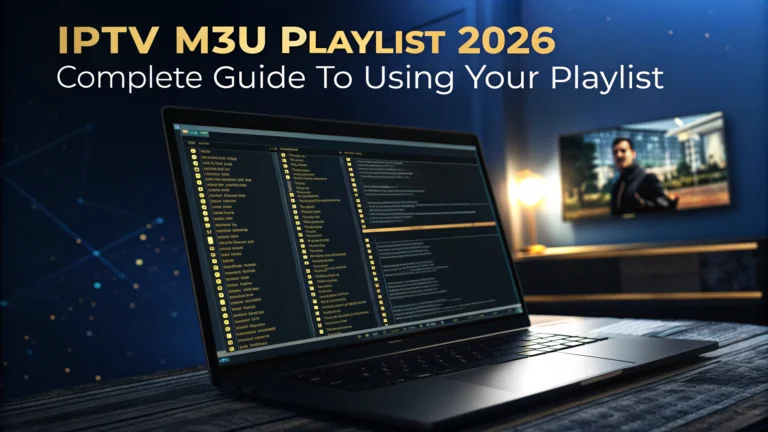
IPTV M3U playlist 2026 is the universal format that connects any IPTV subscription to any streaming device in the world. If you have ever wondered how your IPTV app knows which channels to display, how those channels are organised by category, or how the app finds the correct video stream when you press play on any channel, the M3U playlist is the answer to every one of those questions.
Understanding M3U playlists in 2026 makes you a more capable IPTV user who can troubleshoot connection issues, switch between apps without losing your subscription, and get your channels working on devices that require manual playlist configuration rather than the automatic setup that premium IPTV players handle invisibly behind the scenes.
This guide covers everything about IPTV M3U playlists in 2026 from what they are and how they work, to where to get yours, how to add it to every major IPTV app, and how to fix the most common M3U-related problems that subscribers encounter.
An IPTV M3U playlist in 2026 is a text file or URL that contains a list of every channel in your subscription with the stream address for each one. Your provider sends you either a direct M3U URL or Xtream Codes credentials that you can convert into an M3U URL using the formula: http://SERVERURL:PORT/get.php?username=USERNAME&password=PASSWORD&type=m3u_plus. Enter this URL in TiviMate, IPTV Smarters, VLC, or any compatible app to load your complete channel library on any device.
Table of Contents
What Is an IPTV M3U Playlist in 2026
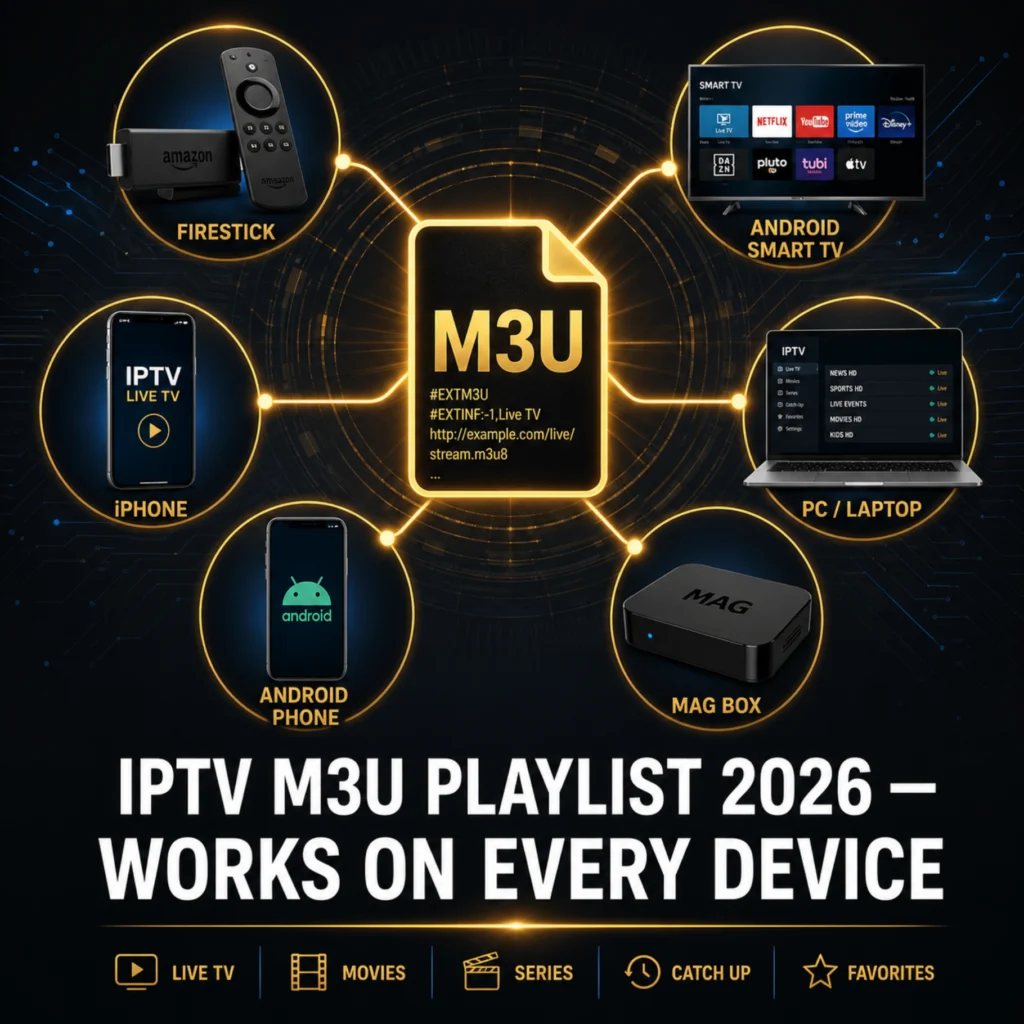
An IPTV M3U playlist is a structured text file that functions as a directory of every channel available in your IPTV subscription. The name M3U comes from MP3 URL, the original purpose of the format as a music playlist type, but in 2026 M3U has evolved into the universal standard format for distributing IPTV channel lists across every platform and every app that supports internet-based television streaming.
Inside an M3U playlist file, each channel is represented by two consecutive lines. The first line begins with the characters EXTINF and contains metadata about the channel including its display name, logo URL, category group, and EPG identifier. The second line contains the direct URL of the video stream for that channel, which your IPTV app uses to request and receive the live video feed when you select that channel.
When your IPTV app loads an M3U playlist, it reads through the file from top to bottom, extracts each channel’s metadata and stream URL, and uses this information to build the channel list interface that you browse and navigate during normal viewing. The app then stores this information locally so you do not need to re-download the playlist every time you switch channels. You only need to reload the playlist when your provider updates it with new channels, revised stream URLs, or changes to channel categories.
The M3U Plus format, also written as m3u_plus, is the extended version of the standard M3U format that includes additional metadata fields beyond the basic M3U specification. M3U Plus includes channel group categories, logo URLs, and EPG channel identifiers that standard M3U lacks. TiviMate, IPTV Smarters, and every other quality IPTV app in 2026 supports M3U Plus and uses the additional metadata to organise channels into categories, display channel logos, and match channels to their EPG programme guide data.
The practical difference between M3U and Xtream Codes for IPTV use in 2026 is that M3U is a static file download while Xtream Codes is a dynamic API connection. An M3U playlist is downloaded as a complete file at the moment you add it to your app and requires periodic refreshing to stay current when the provider makes changes. An Xtream Codes connection fetches channel data, EPG, VOD, and series information dynamically from the provider server in real time, which is why Xtream Codes unlocks features like VOD library integration and catch-up TV that M3U connections cannot provide.
How to Get Your IPTV M3U Playlist in 2026
Your IPTV M3U playlist URL comes from your provider in one of three ways in 2026, and knowing which method your provider uses determines whether you receive the URL directly or need to construct it from other credentials.
The first method is direct M3U URL delivery. Your provider sends you a complete ready-to-use M3U URL in your subscription confirmation email or WhatsApp message. This URL contains your authentication credentials embedded within it as URL parameters and typically follows a format including the words get.php or m3u in the address. Copy this URL exactly as provided and paste it into your IPTV app without any modification.
The second method is Xtream Codes credential delivery where you receive a server URL, username, and password separately rather than a complete M3U URL. These credentials are sufficient to configure an Xtream Codes connection in TiviMate or IPTV Smarters, but if you need an M3U URL specifically for a device or app that does not support Xtream Codes natively, you can construct one using the standard formula: http://SERVERURL:PORT/get.php?username=YOUR_USERNAME&password=YOUR_PASSWORD&type=m3u_plus
The third method is member portal delivery where your provider operates a subscriber dashboard or account panel on their website. Log in with your account details and look for a section labeled My Playlist, My Subscription, or Download M3U. The portal generates a fresh M3U URL on demand that reflects your current subscription status and any recent provider updates to the channel library.
If you have not yet subscribed to any IPTV service and want to get an M3U URL to test, request a free 24-hour IPTV trial here and receive working Xtream Codes credentials within minutes. You can use these credentials as either an Xtream Codes connection or convert them to an M3U URL using the formula above.
How to Add M3U Playlist to Every Major IPTV App in 2026
Adding an M3U playlist to your IPTV app is the connection step between your subscription credentials and your viewable channel library. The process varies slightly between apps but follows the same logical sequence across every platform in 2026.
In TiviMate on Firestick or Android TV box, go to Settings, then Playlists, then Add Playlist. On the connection type selection screen choose M3U URL rather than Xtream Codes. A URL input field appears where you enter or paste your complete M3U URL. Give the playlist a recognisable name in the name field, press Add, and TiviMate downloads and parses the playlist file. Your channels appear within 60 to 90 seconds organised by the group categories defined in the M3U metadata.
In IPTV Smarters Pro on any platform, open the app and select Add User from the login screen. Toggle the connection type from Login with Xtream Codes API to Login with M3U URL. Enter your profile name in the first field and paste your M3U URL into the playlist URL field. Press Add User and Smarters downloads the playlist and builds your channel list within 60 to 120 seconds depending on playlist size.
In VLC Media Player on Windows, Mac, or Linux, go to the Media menu, select Open Network Stream, and paste your M3U URL into the URL field. Press Play and VLC loads the playlist as a browseable channel list in the playlist panel on the left side of the application window. VLC does not provide an EPG guide or channel categories in its basic interface but plays any M3U stream correctly for testing purposes.
| App | Platform | M3U Menu Path | Load Time | EPG Support |
|---|---|---|---|---|
| TiviMate | Firestick, Android TV | Settings, Playlists, Add Playlist, M3U URL | 60 to 90 seconds | External XMLTV only |
| IPTV Smarters Pro | All platforms | Add User, M3U URL toggle | 60 to 120 seconds | External XMLTV |
| VLC Media Player | Windows, Mac, Linux | Media, Open Network Stream | 30 to 60 seconds | None |
| GSE Smart IPTV | iOS, Android, Mac | Add Playlist, Remote Playlist, M3U URL | 60 to 90 seconds | External XMLTV |
| SS IPTV | Samsung Smart TV | Menu, Playlist, Add M3U URL | 90 to 150 seconds | External XMLTV |
| Perfect Player | Android | Settings, General, Playlist URL | 60 to 90 seconds | External XMLTV |
M3U Playlist vs Xtream Codes: Which Is Better in 2026
The choice between using an M3U URL and Xtream Codes credentials to connect your IPTV subscription to your player app is one that directly affects which features are available and how the app performs with large channel libraries in 2026.
Xtream Codes is the superior connection method for any app that supports it and the one this guide recommends as the primary connection approach whenever your provider offers it. The Xtream Codes API provides TiviMate and IPTV Smarters with dynamic access to your provider’s server rather than a static file snapshot. This dynamic connection enables VOD library integration with full browseable movie and series sections, catch-up TV for replaying missed broadcasts, real-time EPG data that updates automatically without requiring manual playlist refreshes, and series content organised by season and episode in a navigable structure.
M3U URL connections provide live channel playback with category organisation and basic EPG support through an external XMLTV URL. They do not provide integrated VOD library access, catch-up TV functionality, or dynamic EPG updates without a separate XMLTV configuration step. For pure live television viewing on devices or apps that do not support Xtream Codes natively, M3U is a fully functional solution that covers the primary use case.
The practical recommendation for 2026 is to use Xtream Codes as your primary connection method in TiviMate and IPTV Smarters on every device that supports it, and to use M3U URL as your fallback option for devices and apps where Xtream Codes is not available. Both use the same subscription and the same provider server, so switching between connection methods on different devices costs nothing and requires only a different credential entry approach.
How to Fix M3U Playlist Problems in 2026
M3U playlist problems in 2026 follow predictable patterns that have specific fixes. Working through the diagnostic questions below identifies your specific problem before you spend time on solutions that do not apply to your situation.
Playlist loads but shows zero channels indicates that the M3U file returned by your URL is either empty or formatted incorrectly. Test your M3U URL by pasting it into a web browser on your phone or computer. If the browser downloads a file or displays text content beginning with the characters EXTM3U, the URL is valid and is returning playlist data. If the browser shows an error page or redirects to a login screen, the URL itself is incorrect or your subscription has expired.
Channels appear in the list but streams fail to play when selected indicates that the stream URLs within the M3U playlist file are either outdated or pointing to a server that is not currently responding. Delete your existing playlist and re-add it using a freshly generated M3U URL from your provider to ensure the stream addresses in the playlist are current rather than cached from a previous server configuration.
Channels load but EPG shows no programme data indicates that your M3U connection does not include integrated EPG, which is normal for M3U connections. M3U playlists do not carry EPG data within the playlist file itself. EPG for M3U connections requires a separate XMLTV URL that you enter in your app’s EPG settings. Contact your provider and ask whether they offer an XMLTV EPG URL for your subscription, then add it in your app’s EPG configuration section alongside your existing M3U playlist.
Channels are not organised into categories in your channel list indicates that the M3U playlist file either does not include group-title metadata for each channel or that your app is not reading the group metadata correctly. Confirm you are using the m3u_plus type parameter in your URL rather than the basic m3u type. The m3u_plus format includes group-title tags that apps use to organise channels into category folders. If your URL ends with type=m3u rather than type=m3u_plus, modify it to type=m3u_plus and reload the playlist.
For comprehensive guidance on resolving every type of IPTV connectivity issue including M3U-specific problems alongside Xtream Codes issues and app-level configuration failures, this complete troubleshooting guide to IPTV not working in 2026 covers every error type with verified fixes ranked by effectiveness.
Free M3U Playlists vs Premium M3U Subscriptions in 2026
Free M3U playlists are widely available on the internet in 2026 and require no subscription or payment to access. Understanding the practical difference between free public M3U playlists and the M3U URL from a paid IPTV subscription helps you make realistic decisions about which approach suits your needs.
Free public M3U playlists contain streams that their publishers have collected from various sources across the internet. These streams are typically unmonitored, frequently go offline without notice, often buffer under any significant load because they are not served from dedicated streaming infrastructure, and contain a mixture of working and non-working channels at any given moment. Many free M3U playlists are also legal grey areas because the streams they aggregate are often unlicensed reproductions of broadcast content.
The practical experience of using a free M3U playlist in 2026 is one of constant stream failures, frequent buffering, channels that work today but not tomorrow, and no support mechanism when things stop working because no paying relationship exists with any service operator.
A paid IPTV subscription’s M3U URL connects to dedicated server infrastructure maintained specifically to serve paying subscribers with reliable, high-quality streams. The streams are monitored continuously, replaced when they fail, and served from CDN infrastructure designed to handle peak concurrent viewership without quality degradation. Support is available when something goes wrong because a commercial relationship exists with accountability on both sides.
The price difference between a free M3U playlist and a premium IPTV subscription is $12 per month. The quality difference is the gap between an unreliable stream collection that requires constant manual intervention to keep working and a professionally operated television service that works every day without any management effort from the subscriber. For viewers who want a reliable daily television experience rather than a hobby project that requires ongoing maintenance, the premium subscription M3U URL is the only practical choice.
Frequently Asked Questions
What is an IPTV M3U playlist in 2026?
An IPTV M3U playlist in 2026 is a text file or URL containing a structured list of every channel in your subscription with the stream address and metadata for each one. When you add an M3U URL to TiviMate, IPTV Smarters, or any compatible app, the app downloads this list, organises the channels by category, and uses the stream addresses to deliver live video when you select any channel. It is the universal format that connects IPTV subscriptions to every streaming app on every device.
How do I get my IPTV M3U URL in 2026?
Your M3U URL comes from your IPTV provider in your subscription confirmation email, through your provider’s member portal, or directly from your WhatsApp conversation with the provider support team. If your provider sent Xtream Codes credentials instead of an M3U URL, construct one using: http://SERVERURL:PORT/get.php?username=USERNAME&password=PASSWORD&type=m3u_plus substituting your actual credentials for each placeholder.
Can I use an M3U playlist on any device in 2026?
Yes, M3U playlists work on every major streaming device in 2026. Firestick supports M3U through TiviMate and IPTV Smarters. Android TV boxes support M3U through TiviMate, IPTV Smarters, and Perfect Player. iPhone and iPad support M3U through IPTV Smarters and GSE Smart IPTV. Samsung Smart TV supports M3U through SS IPTV and IPTV Smarters. Windows PC supports M3U through VLC, IPTV Smarters, and Kodi. The M3U format’s universal compatibility is its primary advantage over proprietary connection methods.
Is M3U better than Xtream Codes for IPTV in 2026?
Xtream Codes is better than M3U for IPTV in 2026 on any app and device that supports both formats. Xtream Codes provides dynamic access to VOD libraries, integrated EPG that updates in real time, catch-up TV functionality, and series content with proper season and episode organisation that M3U connections cannot provide. Use Xtream Codes as your primary connection method and M3U as a fallback for devices or apps where Xtream Codes is not supported.
Why is my IPTV M3U playlist not working in 2026?
An IPTV M3U playlist not working in 2026 is most commonly caused by an expired subscription, an incorrect or outdated URL, a missing port number in the server address, or a provider server that has changed its address. Test the URL in a web browser to confirm it returns valid playlist data beginning with EXTM3U. If the browser shows an error, the URL is incorrect or expired. If the browser returns data but the app fails to load channels, the issue is within the app’s parsing of the returned data.
Master IPTV M3U Playlists in 2026 and Stream on Every Device
The IPTV M3U playlist in 2026 is the universal key that unlocks your subscription on every device you own regardless of platform, operating system, or app preference. Understanding how it works, where to get it, how to enter it correctly, and how to fix it when something goes wrong gives you the technical confidence to manage your IPTV subscription across your entire household without depending on provider support for routine configuration tasks.
The best M3U playlist experience in 2026 comes from combining a quality subscription that delivers a properly formatted M3U Plus URL with a capable player app on the right device for your viewing setup. Start with a free trial, test your M3U URL on your primary device, and confirm it loads cleanly before committing to any paid plan.